Why Websites Go Down: Causes, Error Codes, and Fixes
A website is usually a company’s first point of contact with its customers, so when it goes down the cost is immediate: lost sales, support tickets, and a dent in trust. The good news is that outages almost always trace back to a small set of causes, and most have a fast, repeatable fix. This guide covers the full range of reasons sites go down, how to tell them apart from the error you are seeing, and what to do first, with a dedicated WordPress section because that is where most readers land.
The fastest way to diagnose a down site
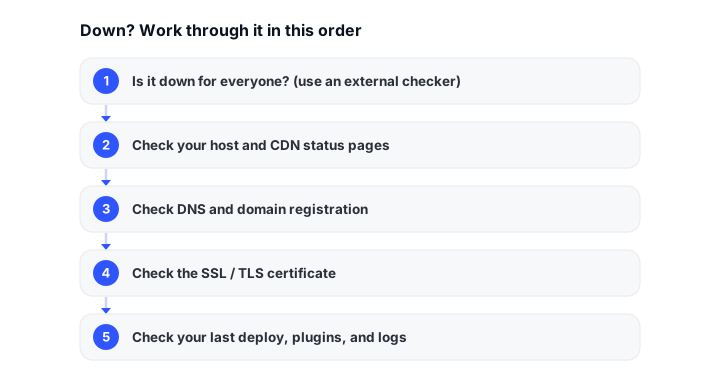
When a site is unreachable, the instinct is to start changing things. Resist it. The first job is to confirm what is actually broken, because the symptom (the error code in the browser, or the lack of one) points straight at the cause. Work through this triage sequence in order before you touch a single file.
- Check if it is down for everyone or just you. Use an external checker like isitdownrightnow.com or downforeveryoneorjustme.com. If the site loads for them, the problem is your network, DNS cache, or browser, not the server.
- Read the exact error. A
500, a502, a503, an SSL warning, and a “server not found” each mean something completely different. Note the precise wording and status code before you do anything else. - Check your host’s status page. Many outages are the provider’s, not yours. If their status page shows an incident, stop debugging and wait it out.
- Open the browser dev tools (Network tab) and reload. The status code on the main document request tells you whether you are getting a server error, a redirect loop, a timeout, or a DNS failure.
- Check the server logs and uptime monitor. Your error log (or your monitor’s incident timeline) usually names the moment things broke, which you can line up against your last deploy, update, or traffic spike.
Only once you know the cause should you apply a fix. The table below maps every common cause to the symptom you will see and the first thing to try.
Common causes, symptoms, and first fixes
| Cause | What you see (symptom / error code) | How to confirm | First fix |
|---|---|---|---|
| Server overload | 503 Service Unavailable, slow then unresponsive, intermittent timeouts |
Server load/CPU high in host dashboard; spikes in access logs | Scale resources or enable caching/CDN; identify the heavy request and throttle it |
| DNS / expired domain | “Server not found”, DNS_PROBE_FINISHED_NXDOMAIN, site resolves nowhere |
dig yourdomain.com returns no record; registrar shows domain expired or wrong nameservers |
Renew the domain; fix nameserver/A records; wait for DNS propagation |
| SSL/TLS certificate expiry | NET::ERR_CERT_DATE_INVALID, “Your connection is not private”, HTTPS blocked |
openssl s_client -connect yourdomain.com:443 shows expired date; browser cert details |
Renew/reissue the certificate (enable auto-renew, e.g. Let’s Encrypt/certbot) |
| CDN / edge outage | 502/504 from the CDN, region-specific failures, stale or blank pages |
Site loads from origin IP but not via the CDN; CDN provider status page shows an incident | Wait on the provider; temporarily bypass the CDN by pointing DNS at the origin |
| Plugin or theme conflict | White screen, 500, HTTP ERROR 500, broken layout after an update |
Error appears right after activating/updating a plugin or theme; PHP error log names the file | Deactivate the offending plugin/theme (see the WordPress section below) |
| Traffic spike / DDoS | Sudden 503/timeouts, huge bandwidth, many requests from few IPs or odd geographies |
Access logs show a flood of requests; CDN/WAF analytics flag attack traffic | Enable a WAF/CDN rate limiting and bot protection (Cloudflare, etc.); block offending IPs |
| Shared-host CPU/resource limits | “Resource limit reached”, 508, throttled or suspended account |
Host control panel shows you hit CPU/memory/entry-process limits | Optimize/cache the site, or upgrade the plan / move to VPS or managed hosting |
| Bad deploy | 500, missing assets, blank page immediately after a release |
The error timeline matches your last deploy; staging works, production does not | Roll back to the previous release; redeploy after fixing in staging |
Notice how often the symptom alone narrows the cause: a cert error is never a plugin problem, and a DNS_PROBE error is never a server-side 500. Matching the error code to this table is the single fastest way to skip wasted troubleshooting.
A platform-agnostic triage sequence
Whatever your stack (WordPress, a static site, a Node or Rails app, a Jamstack build), the order of operations is the same:
- Confirm scope. Down for everyone, or just you? Whole site, or one page/endpoint?
- Classify the error. Server error (
5xx), client/redirect issue, DNS, or TLS. The error code does this for you. - Check the obvious externals. Domain expiry, certificate expiry, host status, CDN status. These four account for a surprising share of “mystery” outages and take seconds to rule out.
- Correlate with change. What changed last: a deploy, an update, a config edit, a traffic surge? Most outages have a trigger, and the timestamp usually betrays it.
- Roll back before you debug forward. If a recent change broke production, reverting to a known-good state restores service first; then you reproduce and fix safely in staging.
- Read the logs. The server/application error log almost always names the failing file or query. Guessing is slower than reading.
This sequence turns “the site is down” from a panic into a checklist. The WordPress steps below are simply this sequence applied to one platform.
How to fix a downed WordPress website
WordPress sites fail most often because of plugins, themes, a corrupt .htaccess, or memory limits. Work through these in order, and take a backup before you change anything.
- Check your host first. Look at your hosting provider’s status page or notifications before assuming the fault is yours.
- Back up. Take (or confirm you have) a recent backup before making changes, so you can always return to a known state.
- Deactivate all plugins. Plugins are the most common culprit. Connect via FTP/SFTP, go to
wp-content, and rename thepluginsfolder (for example toplugins-off). That deactivates everything. If the site returns, rename it back and re-enable plugins one at a time until the site breaks again: that is your culprit. - Switch to a default theme. Rename your active theme’s folder in
wp-content/themesso WordPress falls back to a current default like Twenty Twenty-Five (the current default theme as of 2026). If the site recovers, the theme is the problem. - Reset the
.htaccessfile. A corrupt.htaccesscan cause500errors. Rename it via FTP. If the site works, go to Settings > Permalinks in wp-admin and click Save Changes to regenerate a clean one. - Increase the PHP memory limit. If you see memory-exhausted errors, edit
wp-config.phpand add this above the “stop editing” line:
define( 'WP_MEMORY_LIMIT', '256M' );
- Enable debug logging. To see the real error instead of a white screen, turn on debugging in
wp-config.php:
define( 'WP_DEBUG', true );
define( 'WP_DEBUG_LOG', true );
define( 'WP_DEBUG_DISPLAY', false );
Errors are written to wp-content/debug.log, which usually names the exact plugin or file at fault. Turn this back off once you are done.
- Talk to your host. If the logs point at PHP versions, database connections, or resource limits, the fix is server-side. Your host can confirm and often resolve it quickly.
- Restore from backup. If nothing else works, restoring a recent backup is the reliable last resort, especially after a bad update.
Keeping WordPress core, plugins, and themes updated, testing changes in a staging environment, and maintaining reliable backups prevents most of these failures before they happen.
Catch outages before your visitors do
Every fix above starts with knowing the site is down. The cheapest insurance is an external monitor that checks your site on a short interval and alerts you the moment it fails, ideally with checks from multiple regions so you catch CDN and edge problems too. Rather than repeat the full comparison here, see our roundup of the best website monitoring tools, and if you currently use UptimeRobot, our list of UptimeRobot alternatives covers what each competing tool does better.
It is also worth knowing what an outage actually costs you, because that number is what justifies spending on better hosting, monitoring, and redundancy. We break down the math in the real cost of website downtime. When something does break, a status page keeps users informed and cuts your support load.
FAQ
What is meant by ‘website downtime’?
Website downtime is any period when a site is unavailable or inaccessible to users. It can stem from server issues, expired domains or certificates, coding errors, attacks, or host outages. During downtime, visitors cannot reach the site’s content, products, or services.
What does a 500 Internal Server Error mean?
A 500 is a generic server-side error: the server hit a problem it could not handle and gave no specifics. On WordPress it usually means a plugin or theme conflict, a corrupt .htaccess, exhausted PHP memory, or a bad deploy. Enable debug logging (or read the server error log) to see the real cause behind the generic message.
What is the difference between a 502 and a 503 error?
A 502 Bad Gateway means one server got an invalid response from another upstream server, common when a CDN or reverse proxy cannot reach your origin. A 503 Service Unavailable means the server is up but temporarily unable to handle the request, typically due to overload or maintenance. A 502 points you toward the gateway/CDN/origin link; a 503 points you toward capacity.
Why does my site show “Your connection is not private” or a certificate error?
That is an SSL/TLS problem, almost always an expired or misconfigured certificate (NET::ERR_CERT_DATE_INVALID). Confirm the expiry with your browser’s certificate viewer or openssl s_client -connect yourdomain.com:443, then renew or reissue the certificate. Enabling automatic renewal (for example with Let’s Encrypt and certbot) prevents it from recurring.
Why can’t anyone resolve my domain (DNS_PROBE_FINISHED_NXDOMAIN)?
That error means the domain is not resolving to an IP at all. The usual causes are an expired domain registration, wrong or removed nameserver/A records, or DNS that has not finished propagating after a change. Run dig yourdomain.com, check your registrar for expiry, and verify the nameservers point where they should.
How do I tell if it’s my host’s fault or mine?
First confirm the site is down for everyone (not just your network) with an external checker. Then look at your host’s status page: an active incident means it is server-side and out of your hands. If the host is healthy but your site still errors, correlate the failure with your last deploy or update and read the error logs.
How can I monitor my website’s uptime?
Use an external monitoring service that checks your site on a short interval and alerts you by email, SMS, or chat the moment it goes down. See our comparison of the best website monitoring tools for the current options and what each does well.
How do plugins affect my WordPress site’s availability?
Plugins can conflict with each other or with WordPress core, causing white screens or 500 errors. Outdated or poorly coded plugins also introduce security holes. Deactivating plugins (rename the plugins folder via FTP) and re-enabling them one by one isolates the culprit fast.
What steps should I take immediately after realizing my website is down?
Do not start changing files. Confirm whether it is down for everyone or just you, read the exact error code, check your host’s and CDN’s status pages, and then correlate the outage with your most recent change. Only then apply the matching fix from the causes table above.
What’s the difference between client-side and server-side issues?
Client-side issues come from the user’s end: their internet connection, device, browser, or cached DNS. Server-side issues live on the hosting server: crashes, overload, expired certificates, misconfiguration, or a bad deploy. The external “down for everyone or just me” check is what separates the two.
How can I prevent future downtime?
Keep WordPress core, plugins, and themes updated; test changes in staging before going live; keep automatic backups; renew domains and certificates automatically; put a CDN/WAF in front for traffic spikes and attacks; and run uptime monitoring so you hear about problems before your visitors do.
How long does it take to resolve website downtime?
It depends on the cause. An expired certificate or a rollback can be fixed in minutes; a DNS change may need to propagate for up to a few hours; a host-side incident lasts as long as the provider’s fix; and an attack or a subtle plugin conflict can take longer to trace. Matching the error code to the cause early is what shortens the whole process.
Build your Bootstrap theme
Design a custom Bootstrap 5 theme visually with a live preview, then export clean Sass or CSS.
Open the Builder