Canva Email Templates 2026: What Works, When to Switch
Canva email templates are a good fit for simple, image-led newsletters, announcements, and invitations. Canva Email is free, has hundreds of email templates, and exports real HTML you can send through Gmail or an email platform like Mailchimp. It is not a full email builder, though: it has no merge tags, no working unsubscribe link, and no rendering previews for specific email clients. This guide shows how to use a Canva template in an email, where the workflow breaks, and when a dedicated builder such as Postcards is the better tool. Every Canva feature and price below was checked on Canva’s own pages and help center in November 2026.
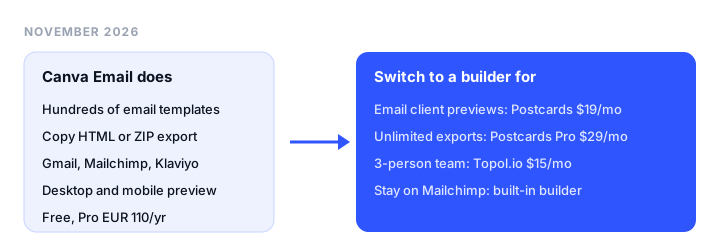
TL;DR
- Best for simple, image-led newsletters: Canva Email. Free, hundreds of templates, HTML export, and direct publishing to Gmail, Mailchimp, Klaviyo, and a few other platforms.
- Best upgrade when HTML email matters: Postcards. Free plan with 10 projects and 5 exports a month, Pro at $29 a month with unlimited exports and 50 email client previews.
- Cheapest for a small team: Topol.io. $15 a month for 3 members with unlimited HTML exports, no free plan.
- Staying on Mailchimp anyway: its built-in builder is free for under 250 contacts.
What Canva offers for email in 2026
Canva has a dedicated Email design type, called Canva Email. You start it by clicking “Email” on the Canva homepage or searching “Email” under Create. It is different from the older habit of designing a flyer in Canva and pasting it into an email as one big picture.
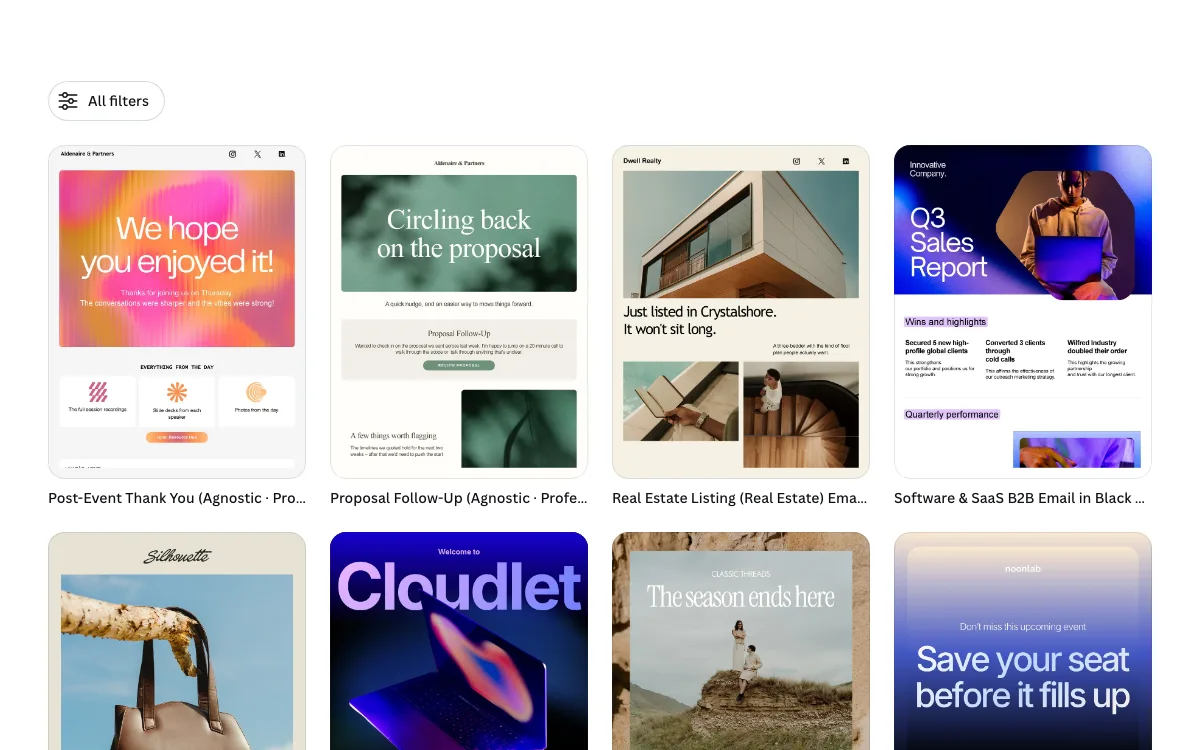
Here is what Canva lists for Canva Email on its product page and help center:
- Templates. Hundreds of email templates, including industry-specific ones, plus email headers, footers, icon blocks, and buttons.
- Email building blocks. Text, images, buttons with URLs, columns that stack on mobile, and tables. You can add a link to any item.
- Email-safe fonts. Canva restricts email designs to a curated list of email-safe fonts and warns you when a design uses one that isn’t supported.
- Preview and test. A desktop and mobile preview inside the editor, plus test emails, which can only go to your Canva login address.
- Collaboration. Comments, real-time co-editing, and approvals.
- AI. Magic Write for email copy and Canva AI suggestions in comments.
What Canva can export for email
For the Email design type, Canva’s help center documents these export routes:
| Route | What you get | Best for |
|---|---|---|
| Copy HTML | The email’s HTML code on your clipboard | ESPs with a code or custom HTML editor |
| Download, “HTML and images” | A ZIP with an HTML file and the image assets | ESPs that need an HTML upload plus image files |
| Export to Gmail | Your design opened as a Gmail draft | One-off or small group sends |
| Direct publishing | The design sent to a connected platform | Mailchimp, Outlook, Klaviyo, Flodesk, Constant Contact |
Canva’s Email page lists six direct destinations (Gmail, Mailchimp, Outlook, Klaviyo, Flodesk, Constant Contact). Its FAQ on the same page adds a seventh, Braze. For any other ESP, such as HubSpot or Brevo, you copy the HTML or upload the ZIP.
Canva’s plan comparison also lists PDF, JPG, and PNG downloads for designs in general. Those are image or document files, not HTML email.
Does Canva send emails?
No. Canva’s help center says it plainly: Canva doesn’t send emails directly. You design in Canva, then send from Gmail or Outlook for personal messages, or from an email service provider (ESP) like Mailchimp, HubSpot, or Brevo for newsletters and campaigns. Canva also notes that Gmail isn’t built for bulk or commercial campaigns.
Free vs Canva Pro for email
Canva says Canva Email is free to use, but some features and elements need a Pro account or Canva credits. The Brand Kit, for example, is marked Pro on the Email page (the Free plan includes 1 Brand Kit with 3 colors only).
From our network, Canva’s pricing page showed Pro at EUR 110 a year for one person and Business at EUR 170 a year per person, with a free trial for both. Canva shows prices by region, so check the page for your local price.
How to use a Canva template in an email, step by step
This is the common case: a newsletter or announcement sent through an ESP such as Mailchimp. The steps follow Canva’s own help articles.
- Start an Email design. Open Canva, click “Email” on the homepage, then pick a template from the Email templates (or start blank).
- Build with email blocks, not flat graphics. Use Canva’s text boxes, buttons, columns, headers, and footers. Text inside grouped graphics or banners exports as an image.
- Stick to email-safe fonts. Canva’s default is Arial. Canva recommends 14 to 16 pixels for body text and 20 to 30 pixels for headings.
- Add links. Add a URL to every button and to any image or text that should be clickable.
- Preview on desktop and mobile. Use the Preview button, then send a test email to your Canva login address. Canva suggests checking on at least one desktop and one mobile device.
- Export. Choose Share, then Copy HTML, or Share, Download, and “HTML and images” for a ZIP. If you send with a connected platform, publish straight to it instead.
- Import into your ESP. Paste the HTML into the ESP’s code or custom HTML editor, or use its Import HTML option. Upload the image folder if your ESP asks for it.
- Add what Canva can’t. Insert a working unsubscribe link and any merge tags (such as the subscriber’s first name) inside your ESP.
- Send a final test from the ESP. Check fonts, images, links, and layout before you schedule.
One tip from Canva’s help center: if you open the HTML file while it is still inside the ZIP, the images won’t load. Extract the ZIP first.
Where Canva email templates break
Most problems fall into two groups. The first is Canva Email’s own documented limits. The second is what happens when an email is made of images, either because you pasted a PNG design into your ESP or because parts of a Canva Email design flattened into images on export.
Canva Email limits, from Canva’s help center
- No working unsubscribe link. Canva doesn’t support unsubscribe links. Any “Unsubscribe” in a Canva footer is placeholder text, and Canva says you must add a real one in your ESP to comply with laws such as CAN-SPAM and GDPR.
- No merge tags. Canva doesn’t yet support ESP-specific merge tags, so personalization is added in the ESP after import.
- Hard to edit after import. Once uploaded as HTML, most ESPs won’t allow drag-and-drop editing. Changes go back through Canva, or through raw HTML if your ESP allows it.
- No email client previews. Canva’s preview shows desktop and mobile, and test emails go only to your own Canva login address. Canva’s help center notes that designs can display differently in Gmail and Outlook, but it doesn’t list previews for specific email clients, so you check those by hand.
- Gmail layout changes. Gmail strips media queries and some Outlook-specific optimizations, so a Canva layout may not stack correctly on small screens when viewed in Gmail. Canva says it can’t control how Gmail displays emails.
- Fonts and effects fall back. Non-email-safe fonts may be swapped for fallback fonts, gradient text usually falls back to a solid color, and only solid, dotted, and dashed borders are supported.
- Rich content becomes images. Embeds, sheets, and charts become static images. Videos become GIFs with no sound and possibly a larger file size. Polls and quizzes appear as static content.
- Layout constraints. Layout items support only a single row, so multiple rows need tables.
When the email is made of images
Canva’s FAQ explains one common cause: banners, grouped graphics, and text saved as part of an image export as one long flat image. The same happens if you design a regular Canva graphic and paste the PNG or JPG into your email. That creates general email problems that aren’t specific to Canva:
- Image blocking. Some email clients and corporate settings don’t load images by default. An all-image email can show up blank apart from alt text.
- Spam filtering. An email that is one large image with little or no text is a pattern spam filters treat with suspicion. Our guide to why emails go to spam covers the other common causes.
- Accessibility. Screen readers can’t read text that is inside an image. Only alt text gets through, and it rarely carries a whole newsletter.
- Dark mode. Some email clients recolor live text and backgrounds in dark mode but leave images as they are, so a light image block can look out of place.
- File size. Large images and GIFs load slowly on mobile data.
- Links. A single flat image links to one destination, so separate buttons and text links are lost.
The fix inside Canva is to build with live text boxes, buttons, and columns so that more of the email exports as HTML. For a deeper look at email-safe layouts, see our guide to responsive email templates for Gmail.
When to switch to a dedicated email builder
Canva is fine when email is an occasional job next to your social posts and decks. A dedicated email builder makes more sense when:
- you send email every week and need to see how it renders in Outlook, Gmail, and Apple Mail before it goes out,
- you want to edit the email later without starting over,
- you need countdown timers, AMP, or other email-specific modules,
- your team exports many emails a month to an ESP that Canva doesn’t publish to directly,
- you want images hosted for you, without managing an image folder.
Canva vs email builders at a glance
Prices are regular monthly prices in USD, checked on each vendor’s pricing page on November 18, 2026.
| Tool | Best for | Free plan | Paid from (monthly) | Client previews | Key limit |
|---|---|---|---|---|---|
| Canva Email | Simple, image-led emails | Yes | EUR 110/yr (Pro, per person) | No (desktop and mobile preview only) | No merge tags or working unsubscribe link |
| Postcards | Real HTML email, unlimited exports | Yes, 10 projects, 5 exports/mo | $19/mo (Plus) | 20/mo Plus, 50/mo Pro | 18 ESP integrations; no AI credits on Free |
| Topol.io | Lowest team price | No, 14-day trial | $10/mo (PRO) | Not listed | No free plan |
| Mailchimp builder | Mailchimp users | Yes, under 250 contacts | Priced by contacts | Not compared | Designs stay inside Mailchimp |
Postcards: the upgrade path for real HTML email
Postcards is a drag-and-drop email builder from Designmodo. It covers the gaps Canva’s own help center lists: email client previews on paid plans, hosted images on every plan, HTML email import, countdown timers, AMP for Email, and one-click export to 18 ESPs, including Mailchimp, HubSpot, Klaviyo, SendGrid, and Brevo. Designmodo also publishes a side-by-side Postcards vs Canva comparison.
Pricing. The free Start plan has 10 template projects, 5 exports a month, unlimited teammates, and image hosting, but 0 AI credits. Plus is $19 a month (20 exports a month, 5 a day, 20 client previews, 1 editor). Pro is $29 a month with unlimited exports, 50 client previews a month, and 3 editors. Extra editors are $8 a month each. Billed yearly, Plus is $16 a month and Pro is $24.
Limitations. Its list of 18 ESP integrations is shorter than some builders offer. The free plan has no AI credits and no client previews, and Plus caps exports at 20 a month, so frequent senders need Pro.
Good for: teams that send HTML email regularly and want previews and unlimited exports for under $30 a month.
Topol.io
A simple drag-and-drop editor with unlimited templates and HTML exports, 400+ templates, and integrations with 26 email platforms. PRO is $10 a month for one person, and Team is $15 a month for 3 members, with extra members from $10 a month. There’s a 14-day free trial instead of a free plan. For a 3-person team, Topol’s $15 is cheaper than Postcards Pro at $29, though Topol’s pricing page doesn’t list built-in email client previews.
Mailchimp’s built-in builder
If you already send with Mailchimp, its own drag-and-drop editor avoids the export step entirely. Mailchimp is free for under 250 contacts, and paid plans are priced by contact count. The tradeoff is that designs live inside Mailchimp, which makes switching ESPs harder.
Which should you choose?
- You send a few simple newsletters, invitations, or announcements, and your brand already lives in Canva: stay with Canva Email. Use live text and buttons, add the unsubscribe link in your ESP, and test in Gmail and Outlook yourself.
- You send HTML email every week and need to see it in real email clients: Postcards Plus or Pro.
- You are a team of three on a tight budget and don’t need built-in previews: Topol.io Team at $15 a month.
- You will stay on Mailchimp and want one tool: Mailchimp’s built-in builder.
For a side-by-side of every major option, see our comparison of the best email template builders.
If you’d rather write the HTML yourself, our guide to Bootstrap email templates covers a code-first route, and adding a countdown timer to an email shows one feature Canva doesn’t offer.
FAQ
Does Canva have email templates?
Yes. Canva has a dedicated Email design type with hundreds of email templates, including industry-specific layouts, plus email headers, footers, icon blocks, and buttons. Canva says Canva Email is free to use, though some features and elements need Pro or Canva credits.
Can you export a Canva email as HTML?
Yes. In the Email design type you can choose Copy HTML or download a ZIP with the HTML file and its images. You can also open the design as a Gmail draft or publish it directly to platforms such as Mailchimp, Outlook, Klaviyo, Flodesk, and Constant Contact.
Can Canva send emails?
No. Canva’s help center says Canva doesn’t send emails directly. You send a Canva-designed email through Gmail or Outlook for personal messages, or through an ESP such as Mailchimp, HubSpot, or Brevo for campaigns.
Why does my Canva email export as one image?
Canva’s help center says banners, grouped graphics, and text saved as part of an image export as a single flat image. Build with text boxes, frames, and layout blocks instead, so more of the email exports as live HTML.
Is Canva good for email marketing?
For simple, image-led newsletters, yes. For regular campaigns it has gaps that Canva itself documents: no merge tags, no working unsubscribe link, test emails only to your own address, and no previews for specific email clients. A dedicated builder like Postcards or Topol.io fills those gaps.
Build your Bootstrap theme
Design a custom Bootstrap 5 theme visually with a live preview, then export clean Sass or CSS.
Open the Builder