How to Add a Countdown Timer to Your Black Friday Email
Black Friday 2026 falls on Friday, 27 November, with Cyber Monday on the 30th, and your subscribers’ inboxes will be fuller that week than at any other point in the year. In that pile, “ends soon” is the most skimmable phrase there is. A countdown timer replaces it with a number that visibly shrinks, which is why it has become a fixture of sale emails.
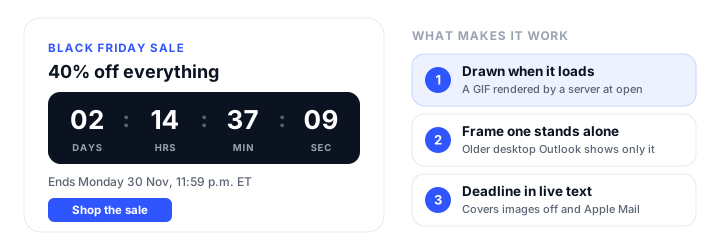
The catch is that email cannot run the code a timer needs. Gmail, Outlook, and Apple Mail strip JavaScript, so the ticking clock in a sale email is not a clock at all. It is an image, drawn by a server at the moment the email asks for it. That one fact explains why timers work where they work, why they fail where they fail, and why the most important part of a countdown email is a line of plain text. This guide covers how email timers actually render, where each major inbox breaks them, how to build one without a separate timer service using the countdown timer built into Postcards, and a send plan for Black Friday week.
How an email countdown timer actually works
On a web page, a countdown is a few lines of JavaScript that read the current time and redraw every second. Email clients remove scripts, and CSS animation cannot fill the gap: an animation can count down, but it cannot know what time it is, so a CSS timer would start from the same value for every reader no matter when they open the email.
So a live email timer works the other way round. The email contains an ordinary <img> tag pointing at a timer server. When the reader opens the email and the client requests that image, the server works out how long is left until your deadline, renders an animated GIF of the clock ticking down from that value, and sends it back. The GIF usually covers a minute or so of frames, one per second, so the reader watches it count while they read. Open the email again tomorrow and the client requests the image again, and the server draws a new GIF with less time on it.
In the HTML, the timer is just an image in a table cell:
<table role="presentation" width="100%" cellpadding="0" cellspacing="0" border="0">
  <tr>
    <td align="center" style="padding: 24px 16px 8px;">
      <a href="https://example.com/black-friday">
        <img src="https://timers.example.com/your-timer.gif" width="480" height="120"
             alt="Black Friday sale ends Monday 30 November at 11:59 p.m. ET"
             style="display: block; width: 100%; max-width: 480px; height: auto; border: 0;">
      </a>
    </td>
  </tr>
  <tr>
    <td align="center" style="padding: 0 16px 24px; font-family: Arial, Helvetica, sans-serif; font-size: 16px; line-height: 24px; color: #1f2937;">
      Sale ends <strong>Monday 30 November at 11:59 p.m. ET</strong>.
    </td>
  </tr>
</table>
Three details in that snippet do most of the work. The image is wrapped in a link, because people tap the timer. The alt text states the deadline in words, because some readers will never see the image. And the deadline is repeated as live HTML text directly below it, which is the part most templates leave out and the part that matters most, for reasons the next section makes clear. If you need the surrounding table skeleton, our guide to HTML email templates with Bootstrap has a minimal starter.
Where timers break: Outlook, Apple Mail, and images off
Because the timer is a remote animated GIF, every inbox quirk that affects remote images or GIF animation affects the countdown. These are the ones worth planning around.
| Where it is opened | What the reader sees | What to do about it |
|---|---|---|
| Gmail, Outlook.com, and the Outlook mobile apps | The GIF plays and counts down | Nothing extra |
| Outlook for Microsoft 365, 2021, and 2024 on Windows | Plays by default; only the first frame if animations are switched off in Windows | Make frame one read well on its own |
| Outlook 2019 on Windows | Plays once, then stops behind a play button | Same: frame one must stand alone |
| Outlook 2007 to 2016 on Windows | The first frame only, as a still image | Same |
| Apple Mail with Mail Privacy Protection | The time left when Apple fetched the image, which can be well before the open | Repeat the deadline in text; save timers for sends close to the deadline |
| Any client with images blocked | The alt text, or nothing | Put the deadline in the alt text and in live text |
The Outlook first-frame problem is gentler for timers than for most GIFs. The first frame of a countdown is the time remaining at the moment the email was opened, so a desktop Outlook reader sees an accurate number that simply does not move (Microsoft’s note on animated GIFs covers the current versions, and Email on Acid’s GIF guide the older ones). What goes wrong is design, not data: if frame one is blank, or the digits fade in over the first few frames, that is what Outlook freezes on. Check that your timer’s first frame is a complete clock before the big send.
Apple Mail is the harder case. With Mail Privacy Protection on, Apple downloads remote content in the background when a message arrives, whether or not the person ever opens it, as its Mail Privacy Protection page explains. For a countdown, that means the GIF can be rendered when Apple fetched it rather than when your reader looks at it, so an email sent on Monday and read on Thursday can show Monday’s number. There is no markup fix for this; it is the privacy feature working as designed. The practical answers are to use timers most in the sends closest to the deadline, where the gap between delivery and opening is small, and to never let the timer be the only place the deadline appears.
The rule that makes every inbox work: state the deadline in text
Every failure in that table has the same fix. When the timer is frozen, stale, blocked, or read aloud by a screen reader, a sentence like “Sale ends Monday 30 November at 11:59 p.m. ET” still tells the truth. Treat the timer as the attention-getter and the text as the source of truth.
Two details make that sentence work harder:
- Name the time zone. A GIF timer counts to one absolute moment, so a reader in California and a reader in New York see the same number of hours left. If your sale ends at midnight Eastern, say Eastern, or West Coast readers will assume they have three more hours than they do.
- Put it next to the button. Placing the timer and the deadline line directly above the call to action ties the urgency to the thing you want people to do, instead of leaving it floating under the hero image.
Building one without a separate timer service: Postcards
The traditional way to add a timer is a standalone countdown service: you create the timer in one tool, copy an image URL, and paste it into your email code in another. It works, but it means a second account, a second place to get the date wrong, and a timer styled by someone else’s presets.
Postcards, Designmodo’s drag-and-drop email builder, puts the countdown inside the editor instead. Its email countdown timer is a module like a heading or a button: you drag it into the layout, pick the date and time it counts down to, and style it with the same controls as every other block.
What the module gives you:
- Three looks: a flip clock, a pill, and a plain text style.
- Brand styling: your colors, typeface, size, weight, spacing, and alignment, using the same brand presets as the rest of the email.
- Labels in any language: the day, hour, minute, and second labels are editable text, so the Spanish or German version of a campaign gets its own labels.
- Placement anywhere a module can go: under the hero, beside the offer, or directly above the call to action.
- No code: the deadline is set in the editor while you write the email, with no embed code to paste in.
Postcards then exports to the platform you send from. Its integrations include Mailchimp, Klaviyo, HubSpot, Brevo, SendGrid, Constant Contact, and Kit, among others.
Countdown timers are included on the Plus and Pro plans, not on the free Start plan:
| Plan | Billed yearly | Billed monthly | Countdown timers |
|---|---|---|---|
| Start | Free | Free | No |
| Plus | $16/mo | $19/mo | Yes |
| Pro | $24/mo | $29/mo | Yes |
Prices verified in September 2026 on the Postcards pricing page. Plus includes unlimited template projects, 20 exports a month, and 20 email client preview runs a month; Pro raises exports to unlimited and preview runs to 50, and includes three teammates instead of one.
Whichever tool generates it, the client behavior above still applies: a live timer in a standard HTML email reaches the inbox as an image, so keep the deadline in text beside it.
Where Bootstrap fits: the landing page timer
Bootstrap is the wrong tool for the timer inside the email, since its JavaScript never runs there, but it is the right tool for the page the timer links to. The landing page can run a real JavaScript countdown, and it should count to exactly the same moment as the email so the two never disagree.
<div class="d-flex justify-content-center gap-4 text-center" id="bf-countdown"
     data-deadline="2026-11-30T23:59:00-05:00" aria-hidden="true">
  <div><div class="display-5 fw-bold" data-unit="d">00</div><small class="text-body-secondary">days</small></div>
  <div><div class="display-5 fw-bold" data-unit="h">00</div><small class="text-body-secondary">hours</small></div>
  <div><div class="display-5 fw-bold" data-unit="m">00</div><small class="text-body-secondary">minutes</small></div>
  <div><div class="display-5 fw-bold" data-unit="s">00</div><small class="text-body-secondary">seconds</small></div>
</div>
<p class="text-center mt-3" id="bf-deadline">Sale ends Monday 30 November at 11:59 p.m. ET.</p>

<script>
  const clock = document.getElementById('bf-countdown');
  const end = new Date(clock.dataset.deadline).getTime();
  const show = (unit, value) => {
    clock.querySelector(`[data-unit="${unit}"]`).textContent = String(value).padStart(2, '0');
  };
  const tick = () => {
    const left = Math.max(0, end - Date.now());
    show('d', Math.floor(left / 86400000));
    show('h', Math.floor(left / 3600000) % 24);
    show('m', Math.floor(left / 60000) % 60);
    show('s', Math.floor(left / 1000) % 60);
    if (left === 0) {
      clearInterval(timer);
      document.getElementById('bf-deadline').textContent = 'The Black Friday sale has ended.';
    }
  };
  const timer = setInterval(tick, 1000);
  tick();
</script>
A few choices in that snippet are deliberate. The deadline carries an explicit UTC offset (-05:00 is Eastern Standard Time, which is in effect in late November), so every visitor’s browser counts to the same moment as the email. The ticking digits are hidden from screen readers with aria-hidden="true", because announcing a number that changes every second is noise; the sentence below the clock carries the deadline for assistive technology. And when the clock reaches zero, the page says the sale has ended rather than starting over, which leads to the part of countdowns that can get a business in trouble.
Keep the timer honest
A countdown works because readers believe it. The US Federal Trade Commission’s 2022 staff report on manipulative design, Bringing Dark Patterns to Light, lists the “baseless countdown timer” among its false-urgency tactics: a fake clock that pressures people to buy now, then simply disappears or resets when it runs out. Beyond the regulatory risk, a timer that resets teaches your list to ignore the next one.
So:
- Count down to a real deadline. If nothing changes at zero, do not show a clock.
- Let the offer actually end. After the deadline, the landing page should say the sale is over, and the email timer should show zero or an ended state rather than restarting. Check what your tool shows after expiry by sending yourself a test with a deadline a few minutes out.
- If you extend, say so. Extending a sale is normal. Doing it by quietly resetting the clock is exactly the pattern the FTC describes. Send a clearly labeled “extended until Tuesday” email with its own new deadline instead.
A Black Friday 2026 send plan
Here is how the week lines up this year, and where a timer earns its place. The plan assumes a sale that runs from Black Friday through the end of Cyber Monday; shift the dates to match your own offer.
| Send | Date | The timer counts to | Why a timer helps |
|---|---|---|---|
| Early access or preview | Monday 23 November | The sale start, Friday 27 November | Subscribers see exactly when the doors open |
| Black Friday launch | Friday 27 November, morning | The end of the sale | Frames the whole sale window in one number |
| Weekend reminder | Saturday 28 November | The end of the sale | Catches readers who skipped Friday’s email |
| Cyber Monday | Monday 30 November, morning | 11:59 p.m. that night | The deadline is hours away, so an early fetch by Apple Mail barely shifts the number |
| Last call | Monday 30 November, evening | 11:59 p.m. that night | Little time left and a short gap between delivery and opening, so the timer is at its most accurate |
Two scheduling notes. Thanksgiving is Thursday 26 November, and nonprofits running a Giving Tuesday appeal should note that it falls on Tuesday 1 December, straight after Cyber Monday, which makes it a natural countdown of its own. And because Apple Mail can render the timer when the email arrives rather than when it is opened, the preview email sent days ahead is the one most likely to show a stale number, so lean hardest on the text deadline there. For the rest of the seasonal calendar, our monthly guides such as September newsletter ideas cover the other hooks of the year.
Accessibility: a timer is an image that moves
Countdown GIFs raise two accessibility points worth a minute of attention.
The first is text. Screen readers announce an image’s alt text, not the numbers drawn inside it, so the alt text should state the deadline (“Black Friday sale ends Monday 30 November at 11:59 p.m. ET”) rather than “countdown timer”. The live text line beside the timer covers the same ground for everyone else.
The second is motion. WCAG 2.2’s Pause, Stop, Hide criterion expects a way to pause moving content that starts automatically, runs for more than five seconds, and sits alongside other content. An email cannot offer a pause button, and a timer GIF usually ticks for about a minute. If your organization holds its email to WCAG, keep the timer visually calm, avoid flashing separators, and make sure nothing important depends on watching it move.
Test it before the big send
A timer has more ways to go quietly wrong than a static image, so test it the week before, not the morning of.
- Set a test deadline 10 minutes out and send to your own Gmail, desktop Outlook, and iPhone Mail accounts.
- Check frame one in desktop Outlook. It should be a complete clock showing the right time left, not a blank or half-drawn frame.
- Reopen after a few minutes. In Gmail the number should have dropped. On an iPhone with Mail Privacy Protection it may not have, which is expected; confirm the text deadline is there to carry it.
- Turn images off and confirm the alt text and the live deadline line still make sense on their own.
- Check dark mode. Email clients recolor text and backgrounds in dark mode but not the pixels inside an image, so a timer drawn on a white background can land as a bright box in a dark email. Give the timer a background that sits comfortably on both, or place it on a solid-colored block of its own.
- Let it expire. Wait past the test deadline and reopen, so you know what readers see once the sale is over.
If you do not have every client on hand, Postcards’ email client preview (20 runs a month on Plus, 50 on Pro) or a dedicated testing tool fills the gaps, and our guide to responsive email templates for Gmail lists the Gmail quirks worth checking at the same time.
Wrapping up
A countdown timer is the clearest way to show a deadline in a crowded Black Friday inbox, as long as you remember what it really is: an image drawn when the email loads. Point it at a real deadline, repeat that deadline in text beside it, and save it for the sends closest to the cutoff, where it is most accurate. If you would rather not run a separate timer service, Postcards’ countdown timer builds it into the email itself. For the rest of the workflow, from Bootstrap prototype to inbox-ready HTML, start with our hub on email marketing with Bootstrap.
FAQ
Do email countdown timers work in Outlook?
Mostly. Outlook for Microsoft 365, 2021, and 2024 on Windows play animated GIFs by default, so the timer ticks unless animations are switched off in Windows. Outlook 2019 plays it once, and Outlook 2007 to 2016 show only the first frame. Because a timer’s first frame is the time left when the email was opened, those readers still see an accurate number; it just does not move.
Do countdown timers work in Apple Mail?
The GIF plays, but with Mail Privacy Protection turned on, Apple downloads images in the background when the email arrives, so the timer can show the time left at delivery rather than at opening. Keep the deadline in live text next to the timer, and use timers most in sends close to the deadline.
Can I make an email countdown timer with only HTML and CSS?
Not an accurate one. Email clients remove JavaScript, and CSS can animate numbers but cannot read the current time, so a CSS-only timer would start from the same value whenever the email is opened. A live countdown has to be an image that a server generates when the email loads.
When is Black Friday 2026?
Friday 27 November 2026. Thanksgiving is Thursday 26 November, Cyber Monday is Monday 30 November, and Giving Tuesday is Tuesday 1 December.
Which Postcards plans include countdown timers?
The Plus plan ($16 a month billed yearly, or $19 billed monthly) and the Pro plan ($24 a month billed yearly, or $29 billed monthly). The free Start plan does not include countdown timers. Prices verified in September 2026.
What should a countdown timer show after the deadline?
An ended state, such as zeros or a “sale ended” message, never a clock that starts over. The FTC’s 2022 dark patterns report names countdowns that reset or vanish when they run out as a false-urgency tactic. Send yourself a test with a short deadline to see what your tool shows after expiry.
Build your Bootstrap theme
Design a custom Bootstrap 5 theme visually with a live preview, then export clean Sass or CSS.
Open the Builder