Why Are My Emails Going to Spam? 11 Causes and Fixes
Emails go to spam for a small number of reasons, and most of them have nothing to do with the words in the message. Mailbox providers such as Gmail, Yahoo, and Outlook.com decide where a message lands mostly from three things: whether it can prove it came from your domain (SPF, DKIM, and DMARC), what your sending reputation looks like (complaints, bounces, blocklists), and how your recipients treat your mail. The content matters too, but usually last. This guide helps you find which of those is the problem and fix it, starting with the checks that take five minutes.
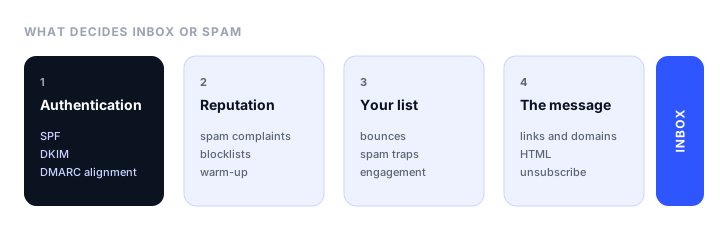
First, narrow it down
Before you change anything, work out the pattern, because each one points to a different cause:
| What you see | Most likely cause |
|---|---|
| Every email from your domain goes to spam, everywhere | Authentication: SPF, DKIM, or DMARC missing or broken |
| Only newsletters and campaigns go to spam, not one-to-one mail | Bulk sender rules, complaint rate, or list quality |
| Only Gmail, or only Outlook.com, puts you in spam | Reputation with that provider, or one of its specific rules |
| Mail to Outlook.com bounces instead | Outlook.com’s high-volume rules, which reject failing mail |
| It started suddenly after a campaign | Complaints or a blocklisting from that send |
| A new domain, or a new mail server, goes to spam | No reputation yet: it needs warming up |
| Only one person gets you in spam | That person’s filters, or they marked you as spam before |
Two quick looks help. In Gmail, open the message in the spam folder: there is often a banner explaining why it was filtered, such as “this message is similar to messages that were identified as spam”. And in any mail client, view the original message or its headers and find the Authentication-Results line, which shows whether SPF, DKIM, and DMARC passed. An email header analyzer reads that block for you.
1. SPF, DKIM, or DMARC is missing or broken
This is the most common cause, and the first thing to check. The three records prove a message really comes from your domain:
- SPF lists the servers allowed to send mail for your domain.
- DKIM adds a cryptographic signature that the receiver checks against a public key in your DNS.
- DMARC tells receivers what to do when a message fails, and requires that SPF or DKIM passes for the same domain as the From address (this is called alignment).
Gmail and Yahoo have required all three from bulk senders since February 2024, and Outlook.com since May 2025. Even below those thresholds, unauthenticated mail is treated with suspicion.
How to check. Run your domain through a DMARC checker, SPF checker, and DKIM checker. A minimal DMARC record that starts collecting reports without affecting delivery looks like this:
_dmarc.example.com TXT "v=DMARC1; p=none; rua=mailto:dmarc@example.com"
Common mistakes:
- Two SPF records. A domain can have only one SPF record. If you add a new email service, merge its
include:into the existing record instead of adding a second one. - Too many SPF lookups. SPF allows 10 DNS lookups. Every
include:counts, and a record that goes over the limit fails for every message. - DKIM never turned on in your email service. Many services send with their own DKIM signature until you add the DNS records they give you for your domain. Until then, DKIM passes for their domain, not yours, and DMARC fails.
- A service you forgot. Your CRM, help desk, invoicing tool, and website forms all send as your domain. Each needs to be in SPF or sign with DKIM for your domain.
Once DMARC is in place, its daily reports show every service sending as your domain and whether each one passes. Our guide to DMARC monitoring covers reading those reports and moving safely from p=none to enforcement.
2. You are a bulk sender and don’t meet the rules
Gmail, Yahoo, Outlook.com, and Apple all publish rules for senders, and the bulk sender rules are where most marketing email goes wrong:
| Provider | Applies to | Bulk threshold | Key rules |
|---|---|---|---|
| Mail to personal Gmail addresses | 5,000 messages a day | SPF, DKIM, and DMARC; one-click unsubscribe; spam complaint rate below 0.3%, aiming for under 0.1% | |
| Yahoo | Mail to Yahoo, AOL, and Yahoo’s other mailboxes | Not published | SPF, DKIM, and DMARC; one-click unsubscribe; complaint rate below 0.3% |
| Outlook.com | Outlook.com and Microsoft’s other consumer mailboxes, not Microsoft 365 business tenants | 5,000 messages a day | SPF and DKIM must both pass, plus DMARC; failing mail is rejected with error 550 5.7.515 |
| Apple | iCloud Mail, me.com, and mac.com | ARC headers on forwarded mail |
A few details catch people out:
- Google counts the threshold per domain, and once you have crossed it you are treated as a bulk sender from then on. Outlook.com’s rule also keeps applying to any domain that has ever crossed it.
- Outlook.com asks for more than DMARC. DMARC passes when either SPF or DKIM aligns; Outlook.com wants both to pass. And it rejects failing mail during delivery rather than filing it as spam, so you see a bounce, not a spam folder.
- One-click unsubscribe means the
List-UnsubscribeandList-Unsubscribe-Postheaders, not just a link in the footer. Most email services add them for you; check that yours does, and that unsubscribes are honored quickly. - The 0.3% complaint rate is a ceiling, not a target. Google describes the effect as graduated: placement already suffers above 0.1%.
3. Too many people mark you as spam
Every “Report spam” click is a direct signal to the provider, and at a 0.3% complaint rate, three people in a thousand are enough to cause problems at Gmail. Complaints usually come from:
- People who don’t remember signing up, often because the first email came weeks later.
- A different kind of email from the one people signed up for.
- Sending too often.
- An unsubscribe link that is hard to find, so “Report spam” is easier.
How to fix it. Send a welcome email straight after signup, make the sender name and subject recognizable, keep the frequency people agreed to, and put the unsubscribe link where it is easy to see. Google Postmaster Tools shows your spam rate at Gmail once you send enough volume; for Outlook.com, Microsoft’s SNDS shows data for your sending IPs.
4. Your list has bad addresses
Sending to addresses that don’t exist, have been abandoned, or are spam traps tells providers you don’t manage your list. High bounce rates hurt your reputation quickly, and spam traps (addresses that never signed up for anything) can get you onto a blocklist.
Common sources of bad addresses: bought or rented lists, which you should never use; old lists you haven’t emailed in a year or more; typos at signup, such as gmial.com; and fake signups from bots.
How to fix it. Remove hard bounces after the first bounce, verify addresses before importing an old list, and check new signups as they come in. An email verifier checks whether an address can receive mail; Unspam’s checks up to 10 addresses a day free, with no sign-up, and our comparison of email verification tools covers the paid options. Our guide to stopping spam signups with an email verification API covers checking addresses in your signup form, and a double opt-in confirmation email keeps fake signups off the list entirely.
5. People don’t open or engage
Providers watch what recipients do: opening, replying, moving a message out of spam, or deleting it unread. If most of your list ignores your mail, providers learn that your mail isn’t wanted, and start filtering it for everyone.
How to fix it. Segment by engagement and send most often to people who opened or clicked recently. Send a re-engagement email to people who haven’t opened in a few months, and stop emailing those who still don’t respond. A smaller list that opens your mail places better than a large one that doesn’t.
6. Your domain or IP is on a blocklist
Blocklists such as Spamhaus are used by many mail servers to reject or filter mail. You can land on one after hitting spam traps, a burst of complaints, or a compromised account sending spam from your server.
How to check. Run a blacklist checker on your domain and on your sending IP address. If you send through an email service on a shared IP, the IP belongs to them; tell their support if it is listed.
How to fix it. Find and fix the cause first, such as a bad list or a compromised account, then request removal through the blocklist’s own site. Requesting removal without fixing the cause usually gets you listed again.
7. Your domain or IP is new
A new domain, a new sending subdomain, or a new dedicated IP has no reputation, and providers treat unknown senders carefully. Sending a large campaign from one on day one is a reliable way to land in spam.
How to fix it. Warm up gradually: start with small daily volumes to your most engaged recipients and increase them over a few weeks as long as complaints and bounces stay low. Many email services manage IP warm-up for you on dedicated IPs; on a shared IP, you inherit the pool’s reputation instead. Our guide to email deliverability agencies covers getting help with warm-ups and recovery.
8. Something in the message looks like spam
Content is rarely the only cause, but it can tip a borderline message into spam:
- Links to domains with a poor reputation, including some public link shorteners. Link to your own domain where you can.
- Link text that doesn’t match the destination, such as text showing one address and a link going to another.
- A message that is one big image with little or no text.
- Misleading subject lines, such as a fake “Re:” or “Your order” on a marketing email.
- Attachments, especially unexpected ones from a new sender.
So-called spam words matter much less than they did. “Free” in a subject line won’t send a well-authenticated message from a good sender to spam, but a page of all-caps urgency can add to other problems. A spam word checker is useful as a last pass, not a first one.
9. The HTML is broken or too heavy
Badly formed HTML, leftover code from a copy and paste, and very heavy messages can all count against you, and they also break how the email looks. Gmail clips messages larger than about 102 KB, hiding the rest behind a “View entire message” link, which often includes your unsubscribe link.
How to fix it. Use a tested template, keep the HTML lean, and include a plain-text version, which most email services generate for you. Our guides to email HTML templates with Bootstrap and responsive email templates for Gmail cover building emails that render correctly.
10. Your own mail server is missing the basics
If you send from your own server rather than an email service, receivers also check:
- Reverse DNS: the sending IP should resolve to a hostname that resolves back to the same IP.
- TLS: the connection to the receiving server should be encrypted.
- Correct message formatting, following RFC 5322, including a valid
Message-IDandDate.
Your hosting provider sets reverse DNS for the IP. If you can’t set it, sending through an email service is usually simpler and better for deliverability.
11. Only one recipient gets you in spam
If everyone else receives your mail fine, the problem is usually with that recipient: their own filter rules, a past “Report spam” click, or a company mail filter. Ask them to move your message out of spam and add you to their contacts, which teaches their filter for next time. For a business recipient on Microsoft 365, their IT team may need to allow your domain.
How to test before you send
Fixing problems after a campaign has gone to spam costs you that campaign. Two kinds of test catch them first:
- A spam test scores a single message before you send it, against authentication, blocklists, content, and HTML. Unspam’s email spam checker does this free with no sign-up: you send your email to a unique test address and get the score about 30 seconds after it arrives.
- An inbox placement test sends your email to a seed list of real mailboxes at Gmail, Outlook, Yahoo, and other providers, and reports where each copy landed: Inbox, Promotions, Spam, or missing. It is the only way to see what providers actually do with your mail rather than what a score predicts. Unspam’s inbox placement test runs one.
Unspam’s Free plan includes a monthly allowance of both, plus email previews across real clients and devices, with no credit card.
Quick checklist
- SPF, DKIM, and DMARC all pass, and DKIM signs with your own domain.
- One SPF record, under 10 lookups, covering every service that sends as you.
- One-click unsubscribe headers on marketing mail.
- Spam complaint rate under 0.1% in Google Postmaster Tools.
- Hard bounces removed; old lists verified before sending.
- Domain and sending IP not on a blocklist.
- New domains and IPs warmed up gradually.
- Links point to your own domain; text and images balanced; HTML under 102 KB.
- Each campaign tested for spam score and inbox placement before it goes out.
FAQ
Why are my emails going to spam?
Most emails go to spam because the sending domain isn’t properly authenticated with SPF, DKIM, and DMARC, because too many recipients mark the mail as spam, or because the list contains bad addresses that bounce. Less often, the cause is a blocklisting, a new domain with no reputation, or content such as poor-reputation links. Check authentication first, since it is the most common cause and the quickest to fix.
Why are my emails going to spam in Gmail?
Gmail filters mail that fails SPF, DKIM, or DMARC, mail from senders with a high spam complaint rate, and bulk mail without one-click unsubscribe. Gmail requires a complaint rate below 0.3% and recommends staying under 0.1%. Google Postmaster Tools shows your spam rate and authentication results at Gmail.
Why are my emails going to spam in Outlook?
Outlook.com requires senders of over 5,000 messages a day to pass SPF, DKIM, and DMARC, and it asks for both SPF and DKIM to pass, not just one. Failing mail is rejected with error 550 5.7.515 rather than filed as spam. For Microsoft 365 business recipients, the organization’s own filtering rules also apply.
Why are my emails suddenly going to spam?
A sudden change usually follows a specific event: a campaign that drew many spam complaints or bounces, a new email service sending without DKIM for your domain, an SPF record change that broke authentication, or a blocklisting. Check your DMARC reports and a blocklist checker, and look at the last campaign you sent before the change.
How do I stop my emails from going to spam?
Set up SPF, DKIM, and DMARC for your domain, send only to people who asked for your email, remove bounced addresses, make unsubscribing easy with one-click unsubscribe, and test each campaign for spam score and inbox placement before you send it. Keep your spam complaint rate below 0.1%.
Do spam words send emails to spam?
Rarely on their own. Modern filters weigh authentication, sender reputation, and recipient behavior much more than individual words, so a well-authenticated email from a trusted sender can say “free” without a problem. Misleading subject lines and links to poor-reputation domains matter more than any single word.
How can I test if my email will go to spam?
Use a spam test to score a message against authentication, blocklists, and content before you send it, and an inbox placement test to send it to real mailboxes at Gmail, Outlook, Yahoo, and other providers and see where it lands. Unspam’s free plan includes a monthly allowance of both.
Build your Bootstrap theme
Design a custom Bootstrap 5 theme visually with a live preview, then export clean Sass or CSS.
Open the Builder