GitHub Pages Custom Domain: Step-by-Step Setup (2026)
Putting a GitHub Pages site on your own domain takes three steps: add DNS records at your domain provider, enter the domain in your repository’s Pages settings, and turn on HTTPS. The records are four A records for the root domain (example.com) and a CNAME for www pointing to username.github.io. This guide walks through each step with the exact values, shows how to check that DNS is right, and covers the errors people most often hit, from “DNS check unsuccessful” to an Enforce HTTPS box that stays greyed out.
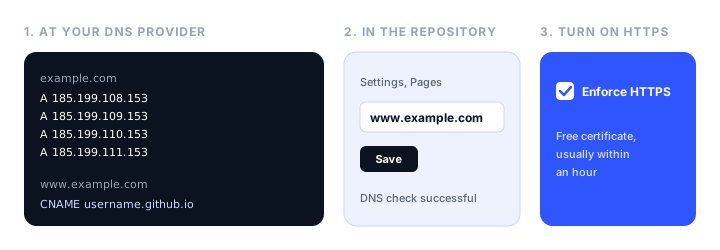
The values below are from GitHub’s documentation in November 2026.
Before you start
You need:
- A GitHub Pages site that already works on its default address, such as
username.github.ioorusername.github.io/repository. - A domain you own, and access to its DNS settings. DNS is usually managed where you bought the domain (Namecheap, GoDaddy, Porkbun, Squarespace Domains), or at Cloudflare if you moved it there.
- Admin access to the repository, since only admins can change the Pages settings.
Then decide which address visitors should see. Most sites use the www version (www.example.com) as the main address, with the root domain redirecting to it, or the other way round. GitHub Pages handles the redirect between the two for you, as long as you set up DNS for both.
Step 1: Verify the domain on your account (recommended)
Do this first. Verifying the domain means only repositories you own can publish to it, which protects you from a domain takeover: if you later delete the repository or turn off Pages while your DNS still points at GitHub, someone else could otherwise claim your domain for their own Pages site.
- Click your profile picture, then Settings. This is your profile settings, not the repository’s.
- In the sidebar, under “Code, planning, and automation”, click Pages.
- Click Add a domain, enter your domain (
example.com), and click Add domain. - GitHub shows a TXT record to create. Its name has this format:
_github-pages-challenge-USERNAME.example.com
- Add that TXT record at your DNS provider with the value GitHub gives you, wait for it to appear, and click Verify.
Keep the TXT record in place afterwards; removing it un-verifies the domain. For an organization’s site, verify the domain in the organization’s settings instead.
Step 2: Add the DNS records
For the root domain (example.com)
Create four A records for the root of the domain. Most providers write the root as @; some leave the host field empty.
| Type | Host | Value |
|---|---|---|
| A | @ | 185.199.108.153 |
| A | @ | 185.199.109.153 |
| A | @ | 185.199.110.153 |
| A | @ | 185.199.111.153 |
For IPv6, you can also add four AAAA records. They are optional, and GitHub recommends keeping the A records too:
| Type | Host | Value |
|---|---|---|
| AAAA | @ | 2606:50c0:8000::153 |
| AAAA | @ | 2606:50c0:8001::153 |
| AAAA | @ | 2606:50c0:8002::153 |
| AAAA | @ | 2606:50c0:8003::153 |
If your DNS provider supports ALIAS or ANAME records, you can use one of those instead, pointing the root to username.github.io.
Before adding these, delete any default records your provider created for the root, such as a parking page A record. Extra A, AAAA, ALIAS, or ANAME records on @ can stop GitHub from issuing your HTTPS certificate.
For www (or another subdomain)
Create one CNAME record:
| Type | Host | Value |
|---|---|---|
| CNAME | www | username.github.io |
Replace username with your GitHub username, or the organization name for an organization’s site. Two common mistakes:
- Don’t add the repository name. The CNAME points to
username.github.io, even if the site lives atusername.github.io/my-project. - Don’t point it to the
*.pages.github.ioaddress that the Pages settings show for some sites.
The same works for any other subdomain, such as docs.example.com: a CNAME from docs to username.github.io.
Don’t use a wildcard record
Avoid a wildcard DNS record such as *.example.com pointing to GitHub. GitHub strongly recommends against it, because it lets anyone with a Pages site claim any of your subdomains, even when your domain is verified.
Step 3: Add the domain in the repository
- Open the repository and click Settings.
- In the sidebar, under “Code, planning, and automation”, click Pages.
- Under Custom domain, enter the address you want visitors to see, for example
www.example.com, and click Save.
GitHub then runs a DNS check, which shows “DNS check successful” once the records resolve. DNS changes can take up to 24 hours to spread, though they usually take minutes.
Which address you enter matters: if you enter www.example.com and also set up the root domain’s A records, example.com redirects to www.example.com. Enter example.com and the redirect goes the other way.
The CNAME file
If your site is published from a branch (the “Deploy from a branch” source), saving the custom domain adds a commit with a file called CNAME to the root of that branch. It contains just the domain:
www.example.com
Keep it. If you build the site with a static site generator that wipes the output folder, or you force-push over the branch, the file disappears and your custom domain is removed with it. Put CNAME in your source so the build copies it, for example in Jekyll’s root or a public/ or static/ folder in other generators.
If your site is published with a custom GitHub Actions workflow, no CNAME file is created, and any existing one is ignored. The domain is stored in the Pages settings instead.
Step 4: Turn on HTTPS
GitHub Pages issues a free certificate for your custom domain automatically once DNS is correct. When it is ready, go back to Settings, Pages and tick Enforce HTTPS, which redirects every http:// request to https://.
It can take up to an hour after setting the domain for HTTPS to become available. If the box is still greyed out after that, see the troubleshooting section below.
Once HTTPS is on, check the site for mixed content: images, stylesheets, or scripts still loaded with http:// URLs. Browsers block or warn about them. Search your source for http:// and change those links to https://. GitHub renews the certificate for you, but a DNS change can stop it, so SSL certificate monitoring is worth adding.
Step 5: Check the DNS records
You can confirm the records from a terminal with dig (on macOS and Linux):
# Root domain: should list the four GitHub IP addresses
dig example.com +noall +answer -t A

# IPv6, if you added AAAA records
dig example.com +noall +answer -t AAAA

# www: should show a CNAME to username.github.io
dig www.example.com +nostats +nocomments +nocmd
On Windows, use Resolve-DnsName example.com in PowerShell, or an online DNS lookup tool.
Setting it up on popular DNS providers
The records are the same everywhere; only the field names change.
- Cloudflare: Add the A records with name
@and the CNAME with namewww. Set them to DNS only (the grey cloud) while GitHub issues the certificate, because Cloudflare’s proxy hides your records from GitHub’s check. - Namecheap: Under Advanced DNS, add “A Record” entries with host
@and a “CNAME Record” with hostwww. Delete the default parking records first. - GoDaddy: Under DNS, Manage DNS, edit the existing
@A record and add the others, then edit thewwwCNAME, which often points to@by default. - Porkbun and Squarespace Domains: Add the records in the domain’s DNS settings, leaving the host empty (or
@) for the root andwwwfor the CNAME.
Troubleshooting
“DNS check unsuccessful”. The records haven’t spread yet, or one is wrong. Check them with dig, look for leftover default records, and give it time. Up to 24 hours is normal for a change.
Enforce HTTPS is greyed out. GitHub hasn’t issued the certificate yet. Wait up to an hour. If it is still unavailable, remove the custom domain in the Pages settings, enter it again, and save, which restarts certificate provisioning. Also check for extra records on @, a CNAME on www that points to your root domain instead of username.github.io, a Cloudflare proxy in front of the records, and, if you use CAA records, that one of them allows letsencrypt.org. The full domain name must also be under 64 characters.
The custom domain keeps disappearing. The CNAME file is being removed by your build or a force push. Add it to your source so every build includes it, or deploy with a GitHub Actions workflow, where the file isn’t needed.
Two domains, or an apex plus a subdomain. A Pages site supports one custom domain, plus the automatic redirect between the root domain and www. To send a second domain to the same site, use your DNS provider’s forwarding (redirect) service.
The old address still loads after a change. Clear your browser’s cache; browsers remember redirects.
404 on the custom domain, but the site works on github.io. Check that the custom domain in the settings exactly matches the address you visit, and that the CNAME file, if you use one, contains only that one domain.
GitHub Pages limits to know
GitHub Pages is free for public repositories and works well for documentation, portfolios, and project sites. Its limits are worth knowing before you put a business site on it:
- Pages from a private repository need a paid GitHub plan.
- Published sites are limited to 1 GB, with a soft limit of 100 GB of bandwidth a month.
- GitHub says Pages shouldn’t be used as free hosting for an online business, an ecommerce site, or a SaaS product.
- There are no forms, server-side redirects, or custom headers.
If any of those rule it out, our guide to GitHub Pages alternatives compares other hosts. For a site that is just HTML, CSS, and JavaScript, Static.app is the simplest swap: upload a ZIP or folder, connect your domain on a paid plan from $5 a month billed yearly, and SSL is set up for you, with no repository or build pipeline involved. Our guide to static website hosting covers the wider field, and where to host an HTML website walks through the options for a single page.
FAQ
How do I add a custom domain to GitHub Pages?
Add four A records for your root domain pointing to 185.199.108.153, 185.199.109.153, 185.199.110.153, and 185.199.111.153, and a CNAME record for www pointing to username.github.io. Then open the repository’s Settings, Pages, enter the domain under Custom domain, click Save, and tick Enforce HTTPS once the certificate is ready.
Is a custom domain free on GitHub Pages?
Yes. GitHub Pages doesn’t charge for custom domains or for the HTTPS certificate. You only pay for the domain itself, at your registrar. Publishing from a private repository needs a paid GitHub plan.
What are the GitHub Pages IP addresses?
The A records for GitHub Pages are 185.199.108.153, 185.199.109.153, 185.199.110.153, and 185.199.111.153. The optional AAAA records for IPv6 are 2606:50c0:8000::153, 2606:50c0:8001::153, 2606:50c0:8002::153, and 2606:50c0:8003::153.
How long does it take for a GitHub Pages custom domain to work?
DNS changes can take up to 24 hours to spread, though they often work within minutes. After the domain is set, it can take up to an hour for the HTTPS certificate to be issued and the Enforce HTTPS option to become available.
Why is Enforce HTTPS unavailable on GitHub Pages?
GitHub hasn’t issued the certificate yet, usually because DNS is still spreading or a record is wrong. Wait up to an hour, check for extra records on your root domain or a proxy such as Cloudflare’s in front of them, then remove and re-add the custom domain in Settings, Pages to restart the process.
Do I need a CNAME file for GitHub Pages?
Only if you publish from a branch. Saving a custom domain in the settings creates the CNAME file for you, and you should keep it in your source so builds don’t delete it. Sites published with a custom GitHub Actions workflow don’t need a CNAME file, and GitHub ignores one if it exists.
Can I use both example.com and www.example.com with GitHub Pages?
Yes. Set up A records for the root domain and a CNAME for www, then enter one of them as the custom domain. GitHub Pages redirects the other to it automatically.
Build your Bootstrap theme
Design a custom Bootstrap 5 theme visually with a live preview, then export clean Sass or CSS.
Open the Builder