How to Submit Your Website to ChatGPT Business Hub
ChatGPT doesn’t have a form where you paste a URL and submit your website. What it has, since November 10, 2026, is Business Hub: a dashboard where you claim your business in ChatGPT, add your website and business details, verify that you run it, and see how often ChatGPT mentions your site and sends clicks to it. This guide walks through each step of claiming a business and adding your website, the verification options, what to do when a claim gets stuck, and the robots.txt setting that decides whether ChatGPT search can show your pages at all. Every step is based on OpenAI’s own help documentation, checked in November 2026.
TL;DR
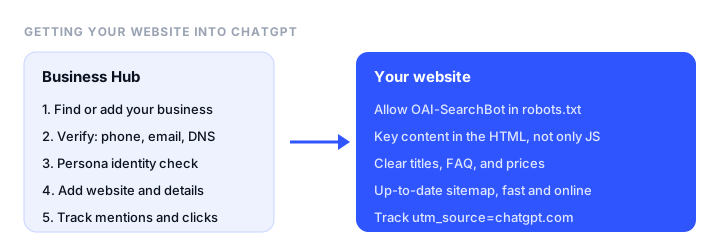
- There’s no URL submission tool. ChatGPT finds websites by crawling them and, since November 2026, through business profiles that owners claim in Business Hub.
- To add your website: sign in to ChatGPT, open Business Hub from the sidebar, find or add your business, and verify it with a business phone, business email, your website’s domain, or your Shopify store.
- Then verify your identity with Persona. Until that’s approved, you can’t publish changes, add your website and other details, or see insights.
- Let OAI-SearchBot crawl your site. If robots.txt blocks it, your pages won’t appear in ChatGPT search answers, whatever your profile says.
- Claiming doesn’t buy placement. OpenAI says claiming a business doesn’t guarantee more visibility, and ads don’t influence ChatGPT’s own answers.
What ChatGPT Business Hub is
OpenAI launched Businesses in ChatGPT in beta on November 10, 2026. Business Hub is the dashboard for it, and it does three things:
- Profile. You claim your business’s profile, the page people see when they click a business in a ChatGPT answer, and keep its website, description, category, logo, and policies current.
- Insights. You see aggregate mentions, website clicks, and the topics of the answers that cite your website, for the past 28 days.
- Business Agent. Eligible ecommerce and online service businesses in the US can also publish an agent that answers customers’ questions about their products and policies.
You don’t need an OpenAI Ads account or a ChatGPT Enterprise agreement to claim a business. Existing Enterprise customers and advertisers can also claim through their OpenAI representative.
Before you start
Have these ready, because verification asks for them:
- A live website on your own domain, with HTTPS. A website lets you verify through your domain, and it’s what ChatGPT’s mentions and clicks are measured against for an online business.
- A way to prove the business is yours: the business phone number, an email address at the business, access to your domain’s DNS settings, or the Shopify store’s admin login.
- Documents for the identity check: a government-issued ID, business registration information, and proof that you’re authorized to represent the business.
- Matching business details. The business name, address, and any registration or tax number should match your official records, your website, and your other listings. Mismatches are a common reason identity checks fail.
- The right ChatGPT account. The account that claims the business becomes its admin and is the one that can invite teammates and agencies later, so use an account the business controls, not a personal one that might leave with an employee.
If you don’t have a website yet, see the last section of this guide.
How to submit your website to ChatGPT Business Hub
Step 1: Open Business Hub
Sign in to ChatGPT and open Business Hub from the sidebar. If you received a claim invitation by email, open the personal link in it and sign in with the email address that received it.
Step 2: Find or add your business
Search for your business by name, select the listing that matches it, and confirm the ChatGPT account you’ll use to manage it.
- No listing? If you run an eligible online business, you may see an option to add it.
- A local store or restaurant? For now, you can only claim an existing US listing.
- A Contact support button instead of a claim button? The listing is locked. Select Contact support to ask for access.
Step 3: Verify that the business is yours
Choose one of the verification methods ChatGPT shows for your business:
| Method | What you do | Best when |
|---|---|---|
| Business phone | Choose a text message or an automated call, select Get code, and enter the code | The listed phone number reaches you |
| Business email | Select Get code and enter the code sent to the business’s email address | You have an inbox at the business’s domain |
| Website domain | Add the TXT record ChatGPT shows to your domain’s DNS, then select Verify domain | You or your developer can edit DNS |
| Shopify store | Select Connect Shopify, review the permissions, and sign in to the store | The business sells on Shopify |
For domain verification, copy the record’s type, name or host, and value exactly as ChatGPT shows them. The record goes wherever your domain’s DNS is managed, which may be your registrar, Cloudflare, or your host, rather than wherever the website files live. DNS changes can take a while to appear, so if Verify domain fails right away, wait and try again. If someone else manages your domain, send them the record to add.
Step 4: Wait for the claim to be approved
OpenAI reviews each claim and emails you its decision or a request for more information. Review times vary. While a claim is pending, you can cancel it with Cancel claim.
Step 5: Verify your identity with Persona
An approved claim gives you access to the business in Business Hub, but you can’t publish changes, connect a product feed, view insights, or create a Business Agent until you also pass an identity check with Persona:
- Open the Business tab and select your profile.
- In the overview, find Complete verification with Persona and select Verify.
- Follow Persona’s instructions and submit the documents it asks for.
OpenAI reviews the Persona submission and emails you the result. When it’s approved, your profile gets a verified badge, a blue check. Claiming the business alone doesn’t add the badge.
If you create a brand-new profile through Persona, approval publishes it automatically, with no separate publish step, so fill in your details carefully before you submit.
Step 6: Add your website and business details
With the claim and Persona check approved, open your profile in Business and fill in:
- Your website address
- A business description
- Your product or service category
- Your logo and a cover photo
- Your delivery policy and return policy, if you sell products
- Any other optional details
OpenAI reviews every change before it’s published, and updates can take time to appear in your listing and in ChatGPT’s answers. Everything you add has to follow OpenAI’s Businesses in ChatGPT policy, and ChatGPT may still use other sources, such as your website, when it answers questions about your business.
A few tips for the description:
- Say what you do in plain words in the first sentence, the same way you’d describe it on your homepage.
- Keep it consistent with your website, your Google Business Profile, and your other listings.
- Skip slogans and superlatives. “Online store selling refurbished laptops with a 12-month warranty” tells ChatGPT more than “The best tech deals anywhere.”
Step 7: Connect a product feed (optional)
If you sell products, you can share prices and availability through a product feed: upload a CSV that follows OpenAI’s product feed specification, link to a hosted feed file, or connect your Shopify catalog. Connecting a feed doesn’t publish an agent or guarantee that ChatGPT recommends your products.
Step 8: Set up a Business Agent (optional, US only)
Eligible ecommerce and online service businesses in the US can create a Business Agent that answers customers’ questions using the information you provide. Review what the agent will use, test it with a question customers often ask, such as “Can I return an item I bought on sale?”, fix anything it gets wrong, and select Publish. Customers can only chat with a published agent.
The agent explains products and policies and links to your website. It can’t take orders, make bookings, or look up a customer’s order, so those still happen on your site.
Make sure ChatGPT can read your website
A claimed profile tells ChatGPT about your business. Whether ChatGPT search can show and link to your actual pages depends on its crawler, OAI-SearchBot. OpenAI runs separate crawlers for separate jobs:
| User agent | What it does | If you block it |
|---|---|---|
| OAI-SearchBot | Finds pages to show in ChatGPT search answers | Your pages won’t appear in ChatGPT search answers, though they may still show as navigational links |
| GPTBot | Collects content that may be used to train OpenAI’s models | Your content shouldn’t be used for training. Search visibility isn’t affected |
| ChatGPT-User | Visits a page when a user asks ChatGPT to | Robots.txt rules may not apply, because a person started the visit |
To appear in ChatGPT search while opting out of model training, allow OAI-SearchBot and block GPTBot in your robots.txt:
User-agent: OAI-SearchBot
Allow: /

User-agent: GPTBot
Disallow: /

Sitemap: https://www.example.com/sitemap.xml
OpenAI says robots.txt changes take about 24 hours to take effect. Also check that your host’s firewall or bot protection isn’t blocking OAI-SearchBot; OpenAI publishes its IP ranges at openai.com/searchbot.json for allowlisting.
Then make the pages easy to read:
- Put the important content in the HTML. Your business name, what you sell, prices, and contact details should be in the page itself, not only loaded later by JavaScript.
- Give every page a clear title and heading, and answer common questions in plain text, for example on an FAQ or pricing page.
- Keep an up-to-date sitemap and link to it from robots.txt.
- Keep the site fast and online. A crawler that hits errors or timeouts skips pages. Our website monitoring tools guide covers how to catch downtime.
Track your results
After Persona approval, open your business in Business Hub and select Insights. It shows the past 28 days:
- Mentions. For an online business, a mention counts when ChatGPT references your website. Your brand name alone doesn’t count. For a local business, a mention counts when ChatGPT shows a result for that location.
- Website clicks. How often people clicked through to your website.
- Discovery topics. Common themes in the answers that mentioned or cited your business. They’re grouped categories, not the questions people typed, and businesses never see individual prompts or chats.
A blank metric doesn’t mean zero activity. It can mean there isn’t enough activity to report yet or the data is still being collected.
For the visits themselves, check your web analytics. Links from ChatGPT usually arrive with utm_source=chatgpt.com, so you can filter for them. Our web analytics tools guide compares the options.
If your claim gets stuck
- The listing is locked: select Contact support on the listing.
- Someone else already claimed it: open the profile, select the more options menu (•••), choose Dispute ownership, and verify with Persona that you’re authorized to represent the business. Claiming or disputing doesn’t change the profile’s visibility in ChatGPT.
- Persona failed or expired: follow the instructions in the email, and select Try again if it’s available, with details that match your official business records.
- Approved, but Business Hub still says incomplete: contact OpenAI Support with the step you were on, any error message, and a screenshot with sensitive information removed.
- Several brands or locations: each brand is managed separately, and claiming the main brand doesn’t claim its locations. Multi-location brands should ask their OpenAI contact about the supported claim path.
- You want to delete the profile: only unpublished drafts can be deleted, from the three-dot menu on the profile’s Overview page. A published profile can’t be deleted, unpublished, or hidden.
Don’t have a website yet?
For an online business, your website is what Business Hub verifies and measures, so build that first. A simple site with a homepage, a page about what you sell, prices, an FAQ, and contact details is enough to start.
- To build one without code, see our best website builders for small business.
- To publish an HTML site you already have, see where to host an HTML website and how to host a website for free. Static.app, Netlify, and Cloudflare Pages all host static sites with free HTTPS.
- To give a Bootstrap site your own colors and fonts, use the bootstrap.build builder.
FAQ
Can I submit my website URL to ChatGPT?
Not directly. ChatGPT has no URL submission form. You can claim your business in ChatGPT’s Business Hub and add your website to its profile, and you can make sure OpenAI’s OAI-SearchBot is allowed in your robots.txt so ChatGPT search can find and show your pages.
Is ChatGPT Business Hub free?
Claiming your business doesn’t require an OpenAI Ads account, a paid ad campaign, or a ChatGPT Enterprise agreement. Advertising is separate and optional, and OpenAI says ads don’t influence ChatGPT’s independent answers.
How do I verify my business in ChatGPT?
First verify the claim with one of the methods Business Hub offers for your business: a code sent to the business phone or email, a TXT record added to your website domain’s DNS, or a connection to your Shopify store. After OpenAI approves the claim, complete identity verification with Persona to publish changes and see insights.
How long does ChatGPT Business Hub verification take?
OpenAI doesn’t publish a fixed time. It reviews each claim and each Persona submission, then emails you a decision or a request for more information. DNS records for domain verification can also take a while to appear before ChatGPT can check them.
Will claiming my business make ChatGPT recommend it more?
No guarantee. Claiming lets you manage the information ChatGPT has about your business, and OpenAI says it doesn’t increase visibility or give you control over ChatGPT’s independent recommendations. Accurate details, a crawlable website, and useful content give ChatGPT more to work with.
Do I need a website to use ChatGPT Business Hub?
A website isn’t the only way to verify a claim, since a business phone, email, or Shopify store can also work. But for an online business, ChatGPT counts mentions and clicks against your website, and Business Agents require one, so a website on your own domain is worth having before you start.
Build your Bootstrap theme
Design a custom Bootstrap 5 theme visually with a live preview, then export clean Sass or CSS.
Open the Builder