Cold Emails or Outlook Sends Going to Spam? 2026 Checklist
If your cold emails or Outlook sends land in spam, check four things in order before you buy a warmup tool: authentication, blocklists, the sending IP’s reputation with Microsoft, and the message itself. Warmup only helps once those are clean. For most small teams, Unspam is the best tool to start with, because one free test gives a spam score with the reasons and inbox placement together. This guide matches each failure to a tool; prices and Microsoft’s rules were checked in November 2026.
TL;DR
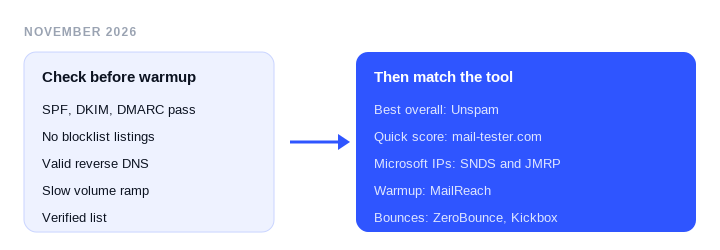
- Best overall for cold email: Unspam. One test gives a spam score with reasons plus inbox placement, 21 free tests renew every month, and paid use is pay as you go from a $5 monthly minimum.
- Diagnose first: SPF, DKIM and DMARC passing and aligned, no blocklist listings, valid reverse DNS, sane daily volume. Warmup does not fix any of these.
- Outlook.com junk: register your sending IPs in Microsoft’s free SNDS and join JMRP to see Microsoft’s own verdict and complaints.
- Largest seed list: GlockApps, including Microsoft’s business filter, from $59 a month billed yearly.
- Quick, free check: mail-tester.com for a one-off score, MxToolbox for a blocklist lookup.
- Warmup: MailReach, but only after the checks above pass.
- Bounces: verify the list with ZeroBounce or Kickbox before the first send.
Diagnose before you buy warmup
Warmup sends and opens messages between a network of mailboxes so your address builds engagement history. It cannot repair a missing DKIM record, a listed IP or a list full of dead addresses, so a sender with those problems pays for warmup and stays in spam. Work through these four checks first.
1. Authentication
Send a message to a mailbox you control and open the full headers. You want spf=pass, dkim=pass and dmarc=pass, and the domain in the From address should match (align with) the domain DKIM signs for. Cold email tools that send through your Google Workspace or Microsoft 365 account usually sign with your domain once you add the DKIM record; tools that send from their own servers may sign with theirs, which breaks alignment.
Our guide to why emails go to spam walks through each record, and DMARC monitoring covers moving from p=none to enforcement.
2. Blocklists
Check both the sending domain and the sending IP. If you send through Google Workspace or Microsoft 365, the IP belongs to them and is rarely the problem, so the domain matters more. If you run your own server or a dedicated IP, check the IP too. A listing on a major blocklist matters far more than one on an obscure list.
3. Volume and sending pattern
A new domain that jumps from zero to hundreds of cold emails a day looks like a spammer to every filter, however clean its records are. Ramp gradually, keep the daily volume per mailbox modest, and spread sends across the day. This is the one problem warmup and a slow ramp both address.
4. Content and the list
Cold email draws more complaints than opted-in mail. Keep the first message short and plain, avoid link shorteners and heavy tracking, and do not attach files to a first touch. Bounces hurt too: an unverified scraped list with many invalid addresses tells providers you do not know your recipients.
Why Outlook and Microsoft 365 junk your mail
Microsoft is often where cold email fails first, and it runs two separate filtering systems:
- Outlook.com (consumer addresses such as outlook.com, hotmail.com and live.com) is filtered by Microsoft’s consumer service, which publishes its own sender policies and tools.
- Microsoft 365 (business mailboxes on a company’s own domain) is filtered by Microsoft Defender for Office 365 and Exchange Online Protection, and each company’s admins can tune it.
Cold email to businesses mostly lands in the second group.
Outlook.com: what Microsoft checks
Microsoft’s Outlook.com postmaster policies state that “Email servers must have valid reverse DNS records,” and its troubleshooting page adds that it may not accept mail from senders that fail a reverse DNS lookup. Connections from dynamic IP space may also be refused. If you run your own mail server, make sure the sending IP’s PTR record resolves to a hostname that resolves back to the same IP.
Since May 5, 2025, domains that send more than 5,000 messages a day to Outlook.com addresses must pass SPF and DKIM and publish DMARC of at least p=none, aligned with SPF or DKIM. Microsoft first routes failing mail to Junk, and says failing mail will be rejected with error 550 5.7.515. Adding yourself to a recipient’s Safe Senders list does not bypass this rule.
Microsoft’s troubleshooting page also lists the bounce codes worth knowing: 550 SC-004 means the IP is blocked because of complaints (Microsoft recommends joining JMRP), and 421 RP-001 means you are being rate limited because of the IP’s reputation. Microsoft does not offer an allow list for Outlook.com; every message is evaluated.
SNDS and JMRP: Microsoft’s own view of your IP
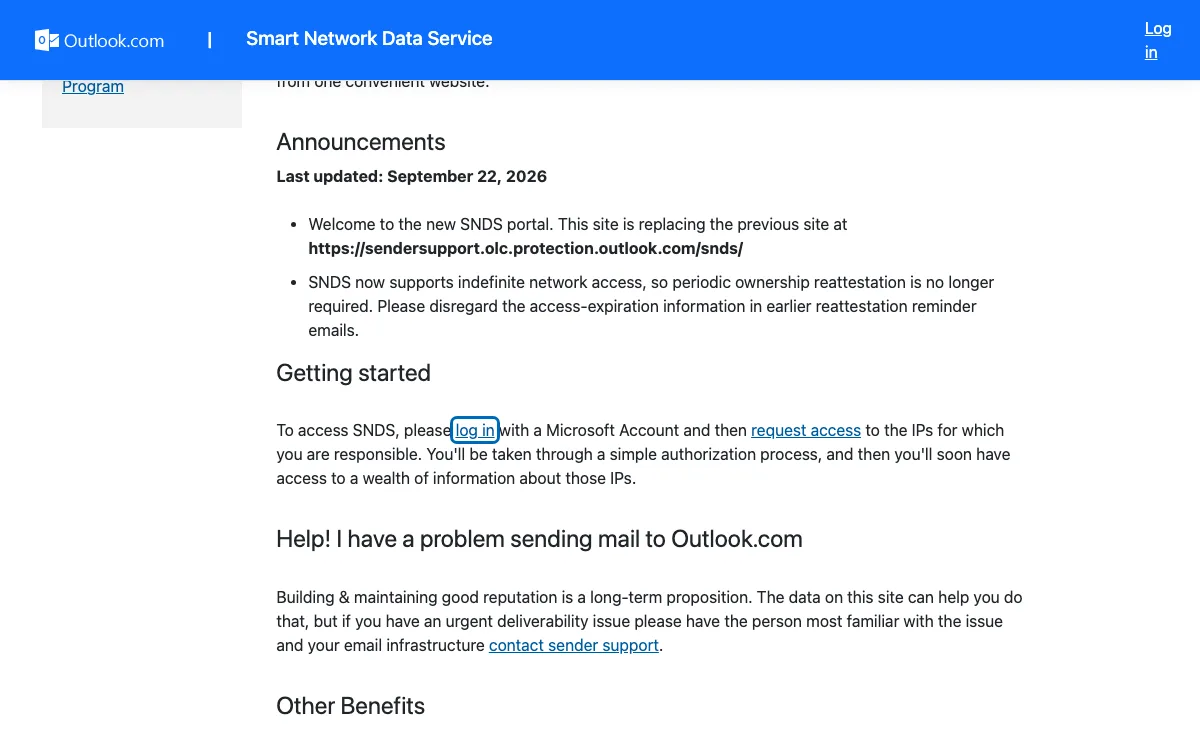
Smart Network Data Services (SNDS) is Microsoft’s free portal for the people who control a sending IP. It replaces the old site at sendersupport.olc.protection.outlook.com, which now redirects there. Per IP and per day, SNDS shows message counts, a filter result and a complaint rate:
- Green: under 10% of the IP’s mail judged spam.
- Yellow: between 10% and 90%.
- Red: over 90%.
Microsoft notes that the color is its spam filter’s verdict, not a count of inbox or Junk deliveries, that IPs sending fewer than 100 messages a day may show no data, and that data is kept for 90 days.
Two limits matter for cold email. You must prove you control the IP (Microsoft emails the contacts found in its reverse DNS, RDAP or ASN records), so SNDS only helps if you have your own server or a dedicated IP. If you send through Google Workspace, Microsoft 365 or a shared IP from a sending platform, you cannot register it. The same portal hosts the free Junk Mail Reporting Program (JMRP), which sends you a copy of the headers of messages Outlook.com users mark as junk; Microsoft says feedback typically starts within 72 hours of enrolling.
If you follow the guidelines and still have problems, the postmaster site links to Outlook.com deliverability support. When you change sending IPs, Microsoft asks you to update your JMRP registration with the new ones.
Microsoft 365: business recipients
Microsoft’s 5,000 a day rule covers its consumer service; Microsoft describes it as applying to outlook.com, hotmail.com and live.com addresses. Business mailboxes are filtered by Exchange Online Protection, which stamps a spam confidence level (SCL) in the X-Forefront-Antispam-Report header. Microsoft’s documentation says an SCL of 5 or higher generally means the message is considered bad. The recipient company’s admins can override verdicts with the Tenant Allow/Block List, but you cannot ask strangers to do that for cold email.
The practical test: send your cold email to a Microsoft 365 mailbox you own (a colleague’s or a test tenant), open the message headers, and read the SCL and the SFV value. A high SCL on a plain message usually points to authentication or reputation, not wording.
Tools by problem at a glance
| Problem | Tool | What it tells you or does | Free option | Paid from |
|---|---|---|---|---|
| Best overall: score and placement | Unspam | Spam score plus placement in 10 test mailboxes | 21 tests a month | $5 monthly minimum (Custom) |
| Largest seed list | GlockApps | Seed test across consumer and business mailboxes, incl. Microsoft EOP | 2 spam test credits | $59/mo billed yearly ($85 monthly) |
| Quick score | mail-tester.com | One-off spam score for a single message | Manual tests, no account | $10/mo for 50 tests |
| Blocklists and DNS | MxToolbox | IP lookup against 100+ blocklists, DNS checks | Lookups; weekly monitoring of 1 domain | $129/mo (Delivery Center) |
| Microsoft reputation | Microsoft SNDS + JMRP | Microsoft’s verdict and complaints for IPs you control | Free | Free |
| Warmup | MailReach | Automated warmup plus spam tests | 3 spam tests per 24 hours | EUR 25 per mailbox a month |
| Bounces | ZeroBounce | List verification, inbox test, blocklist monitor | 100 credits a month | $39 for 2,000 credits |
| Bounces | Kickbox | Pay-as-you-go list verification | 100 verifications | $70 for 10,000 |
Prices are regular prices from each vendor’s pricing page in November 2026, before tax, in USD unless marked.
The tools, by the problem they fix
1. Best overall: Unspam
Unspam is our top pick for cold email senders because it covers the most of this checklist in one tool at the lowest cost. It combines a spam test with inbox placement in one run. The spam score (0 to 100) is calculated from SPF, DKIM, DMARC, sender reputation, blocklists and content, and the placement test sends to 10 test mailboxes at Gmail, Outlook, Yahoo and 4 more providers. It also has standalone checkers for reverse DNS and List-Unsubscribe headers, which cover two of the Microsoft and bulk-sender basics above.
- Pricing: the Free plan includes 21 tests a month (5 spam tests, 3 inbox placements, 3 device previews, 5 screenshots and 5 heatmaps) without a card, and the allowance renews every month. The pay-as-you-go Custom plan has a $5 monthly minimum, and top-up credits do not expire.
- Help beyond the tool: Unspam’s deliverability consultants, run with Email Industries, offer audits, managed IP warmups, list hygiene and blocklist delisting, quoted after a call.
- Limits: no automated inbox warmup, blocklist checks run on demand rather than as continuous monitoring, and its seed list is much smaller than GlockApps’.
Good for: most cold email senders: small teams that want the score, the reasons and placement from one test, without a subscription.
2. Largest seed list: GlockApps
GlockApps is the established seed-testing tool and the better pick if you need the widest placement picture. You send your email to its seed list and it reports, per mailbox, whether the copy landed in the inbox, a tab, spam or nowhere. Its seed list spans about 150 addresses across 40 consumer and business mailbox providers, and its tests also run the message through filters including SpamAssassin, Barracuda and Microsoft EOP, which matters for cold email to Microsoft 365 companies.
- Pricing: Free with 2 spam test credits. Essential is $59 a month billed yearly ($708, 360 credits) or $85 monthly (30 credits); Growth is $99 or $142; Enterprise $129 or $185.
- Limits: unused subscription credits do not roll over, which GlockApps alternatives covers in detail.
Good for: teams sending to Microsoft 365 business recipients who want the widest placement picture.
3. Quick score: mail-tester.com
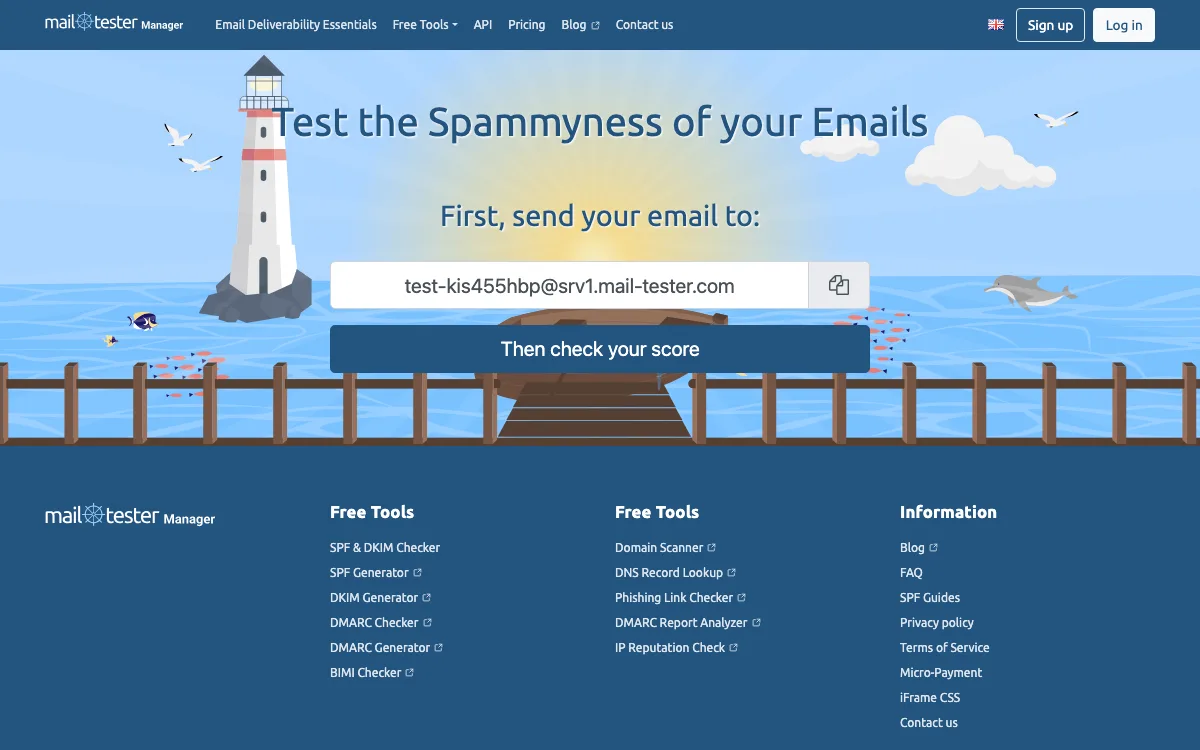
Mail-tester.com scores one message you send to its temporary address and lists where points were lost. Occasional manual tests need no account. Paid plans run from $10 a month for 50 tests to $250 for 7,500, before VAT, and one-time packs start at $5 for 10 tests.
- Limits: it scores the message you sent it; it does not show where the same email lands at Outlook or Gmail.
Good for: a free sanity check of a new domain or template before you test placement.
4. Blocklists and DNS: MxToolbox
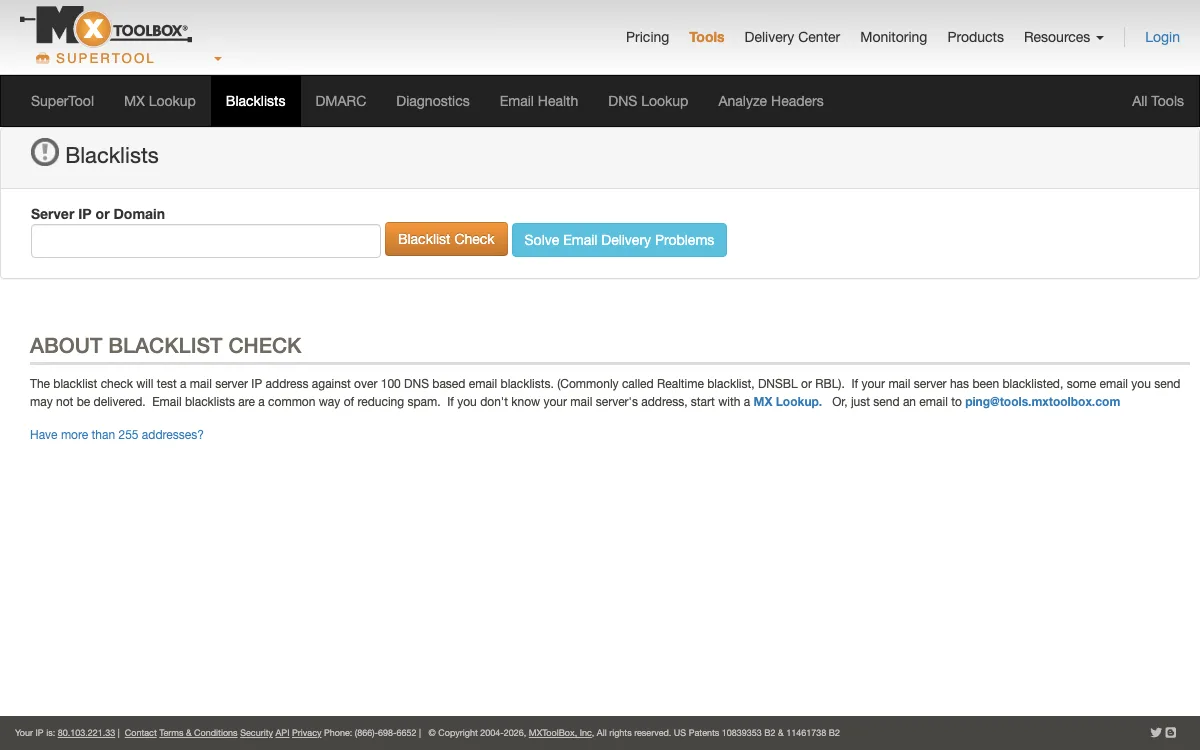
MxToolbox’s free blacklist check tests a mail server IP against more than 100 DNS-based blocklists, and its other free lookups cover SPF, DKIM, DMARC and reverse DNS records. The free plan adds weekly blocklist monitoring for one domain; paid monitoring starts with Delivery Center at $129 a month (5 domains, 30 inbox placement analyses a month).
- Limits: a clean result says you are not listed, not that you will reach the inbox.
Good for: checking your own server’s IP and DNS when you suspect a listing.
5. Warmup: MailReach
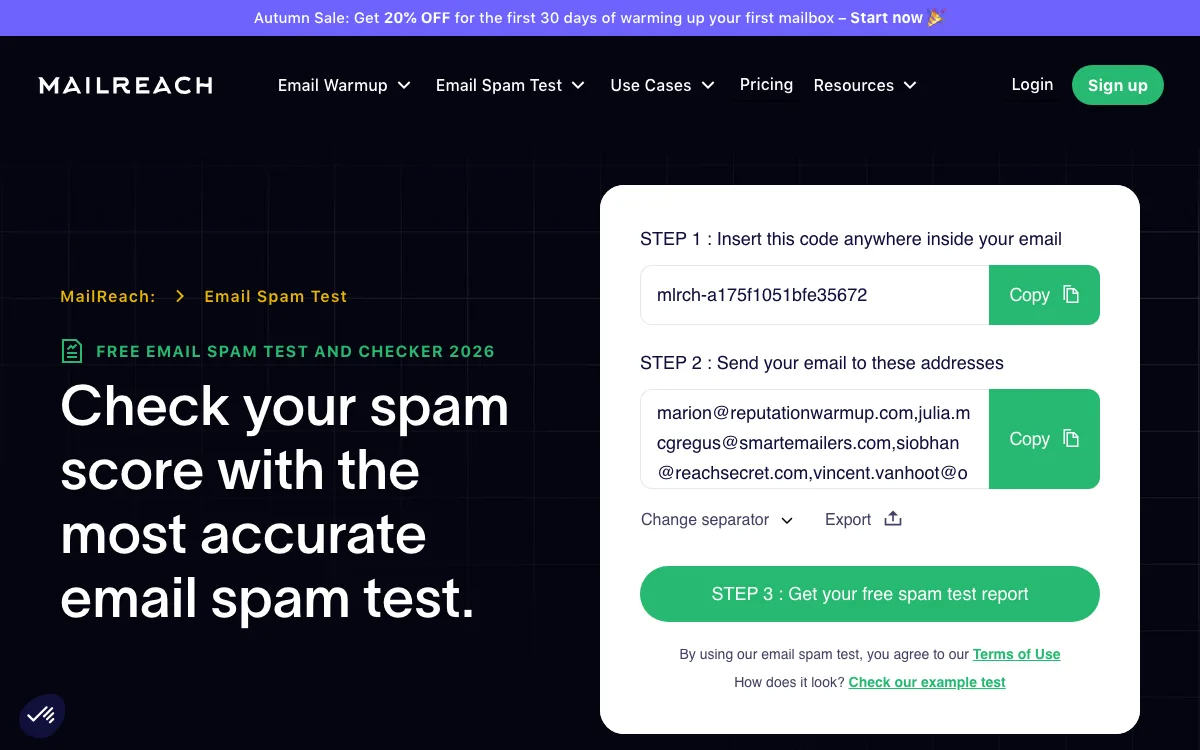
MailReach warms up mailboxes automatically and includes a spam tester. Its All-In-One plan costs EUR 25 per mailbox a month for one mailbox on monthly billing (as shown from an EU network), with lower per-mailbox prices at higher volumes and 20% off yearly. It includes 20 spam test credits, and its spam checker is free for up to 3 tests per 24 hours.
- Limits: warmup builds engagement history; it does not fix authentication, listings or a bad list.
Good for: new cold email domains and mailboxes, once the diagnosis above comes back clean.
6. Bounces: ZeroBounce and Kickbox
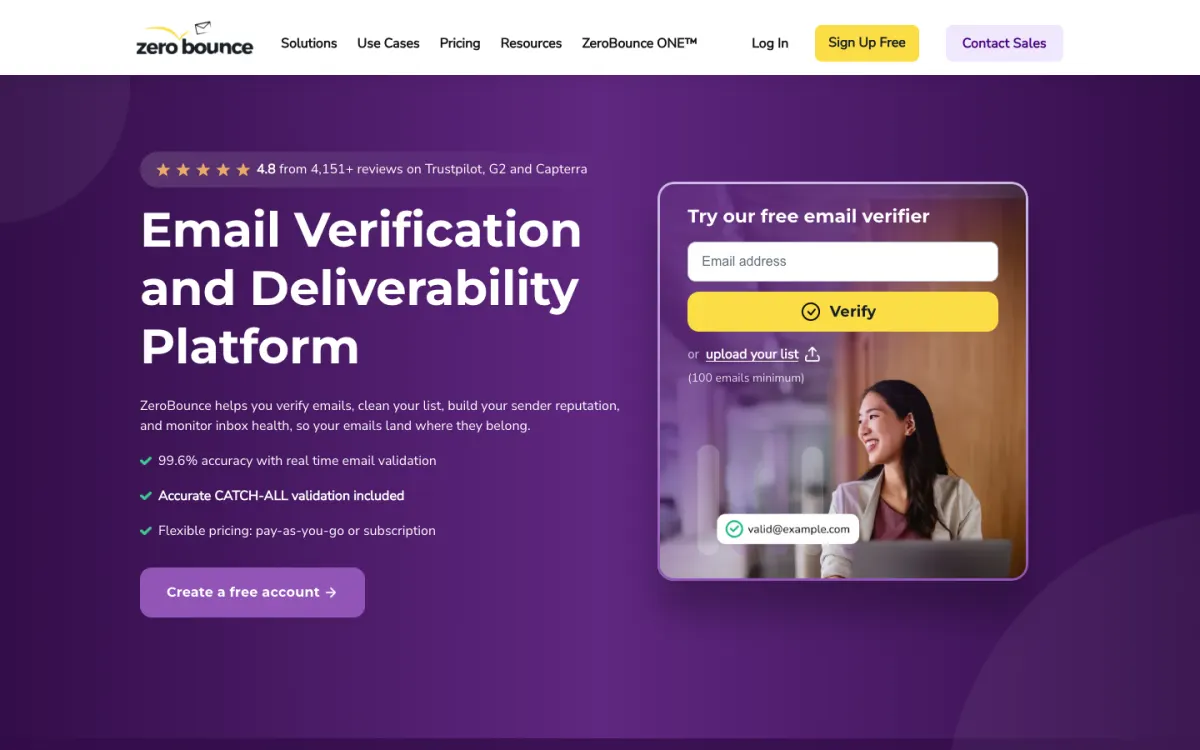
ZeroBounce verifies lists and bundles extra deliverability checks. Its Freemium plan gives 100 validation credits a month plus one inbox test, one email server test and one blocklist monitor; pay-as-you-go starts at $39 for 2,000 credits, and ZeroBounce ONE costs $99 a month. It also sells an email warmup service.
Kickbox is a simpler pay-as-you-go verifier: 100 verifications free, then $5 for 500, $70 for 10,000 and $500 for 100,000. Credits expire one year after purchase.
Good for: cleaning a scraped or purchased-data list before the first send. Our ZeroBounce alternatives compares cost per 10,000 and 100,000 addresses.
Are spam checker and seed tests accurate?
- What they can tell you: whether authentication passes, whether you are listed, whether the content trips common filters, and where a copy landed in each seed mailbox on that day. That catches most setup problems.
- What they cannot tell you: how your real recipients’ mailboxes will treat you. Gmail and Outlook weigh each recipient’s history with you, and seed mailboxes have none. A cold email that reaches the inbox of every seed can still go to spam at a prospect whose company admin filters aggressively.
- Results vary run to run. Treat one test as a sample and compare the same template before and after a change.
- Seed lists differ. A test with few Microsoft 365 seeds says little about business Outlook. Check which providers a tool covers before trusting its Outlook numbers.
For a deeper comparison of testing tools, see best email testing tools and best email deliverability tools.
Which tool do you need?
- Most cold email senders: start with Unspam’s free plan: one test shows the spam score, what cost you points and where the email landed.
- You only want a one-off score: mail-tester.com, plus an MxToolbox blocklist lookup.
- Outlook.com specifically junks you and you run your own IP: register in SNDS and JMRP, and fix reverse DNS first.
- Microsoft 365 business prospects do not reply: test with a seed list that includes Microsoft’s business filter (GlockApps), and read the SCL in a test send to a Microsoft 365 mailbox you own.
- Everything passes but the domain is new: ramp volume slowly and add warmup with MailReach.
- Bounces are high: verify with Kickbox for small, irregular lists, ZeroBounce if you also want its inbox test and blocklist monitor.
- You have tried all of this and are still blocked: a specialist helps; see best email deliverability agencies.
FAQ
Why do my cold emails keep going to spam?
The usual causes are failing or misaligned SPF, DKIM or DMARC, a listed domain or IP, a new domain sending too much too fast, and a list with many invalid addresses. Cold email also draws more complaints than opted-in mail, so content and targeting matter more. Diagnose those before buying warmup.
How do I stop Outlook from marking my emails as junk?
Make sure SPF and DKIM both pass and DMARC is published, that your sending IP has valid reverse DNS, and that your volume ramps gradually. If you control the IP, register it in Microsoft SNDS and join JMRP to see Microsoft’s verdict and the complaints it receives. For Microsoft 365 business recipients, check the SCL in the headers of a test send.
What tool can I use to test if my email will land in spam before sending?
Unspam is the simplest place to start: one test gives a spam score with the reasons and shows where the email landed in seed mailboxes, and its free plan includes 5 spam tests and 3 placement tests a month. GlockApps has the largest seed list. For a quick content and authentication score without placement, use mail-tester.com.
Does email warmup fix spam placement?
Only part of it. Warmup builds positive engagement history for a new domain or mailbox, but it does not fix broken authentication, blocklist listings, bad reverse DNS or a dirty list. Fix those first, then warm up and ramp volume slowly.
Can I use Microsoft SNDS if I send through Google Workspace or a sending platform?
No. SNDS only shows data for IPs you can prove you control, through the contacts in their reverse DNS, RDAP or ASN records. Shared sending IPs belong to the provider, so you rely on placement tests and the provider’s own reputation tools instead.
Build your Bootstrap theme
Design a custom Bootstrap 5 theme visually with a live preview, then export clean Sass or CSS.
Open the Builder