DESIGN.md: How to Give Your AI Coding Agent a Design System
Ask a coding agent for a landing page and you get the same page everyone else gets: a purple gradient hero, emoji in place of icons, cards inside cards, a glow on every button. The agent isn’t careless. It has no design system to follow, so it falls back on the average of everything it has seen. The fix is to give it one, in a file it reads before it writes any UI. That file is DESIGN.md.
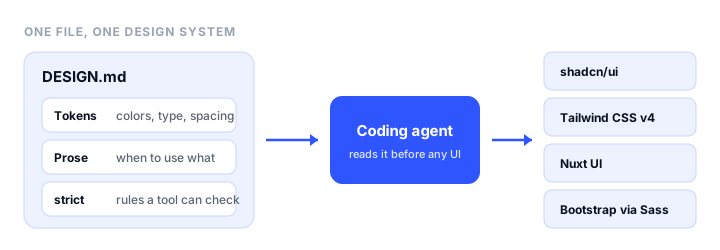
This guide explains what goes in a DESIGN.md, then walks through setting one up with Strict Themes, a free, open-source collection of ready-made DESIGN.md themes with page prompts and exports for shadcn, Tailwind, and Nuxt UI. It ends with how to write your own file and how to use the same tokens in a Bootstrap project.
What is DESIGN.md?
DESIGN.md is a single Markdown file in the root of your project that describes your design system in a form an AI agent can read. It is a format published by Google Labs in 2026 and still marked alpha. It has two parts:
- Front matter with tokens. YAML at the top of the file defines
colors,typography,rounded(corner radii),spacing, andcomponents. Components refer to other tokens, such asbackgroundColor: "{colors.primary}", so the button always follows the brand color. - Prose guidance. Markdown sections below the tokens explain how to use them, in a fixed order: Overview, Colors, Typography, Layout, Elevation & Depth, Shapes, Components, and Do’s and Don’ts.
The tokens say what the values are. The prose says when to use them: that the primary color is only for the main action, that cards never nest, that there are no shadows. Agents need both. Tokens alone give you the right blue in the wrong places.
A trimmed example, from the Strict One theme:
---
name: Strict One
colors:
  primary: "#1F3BFF"
  background: "#FFFFFF"
  surface: "#F5F5F4"
  foreground: "#111111"
  border: "#E2E2E0"
typography:
  h1:
    fontFamily: Archivo
    fontSize: 36px
    fontWeight: 700
  body:
    fontFamily: IBM Plex Sans
    fontSize: 16px
    lineHeight: 1.6
rounded:
  sm: 2px
  md: 4px
spacing:
  sm: 8px
  md: 16px
  lg: 32px
components:
  button-primary:
    backgroundColor: "{colors.primary}"
    rounded: "{rounded.sm}"
---

## Colors

- **Primary** is for the one main action on a screen and for links.
  Never use it for large fills or backgrounds.

## Do's and Don'ts

- Don't use gradients, glows, glassmorphism or drop shadows.
- Don't introduce a color, size or radius that is not a token above.
What Strict Themes adds
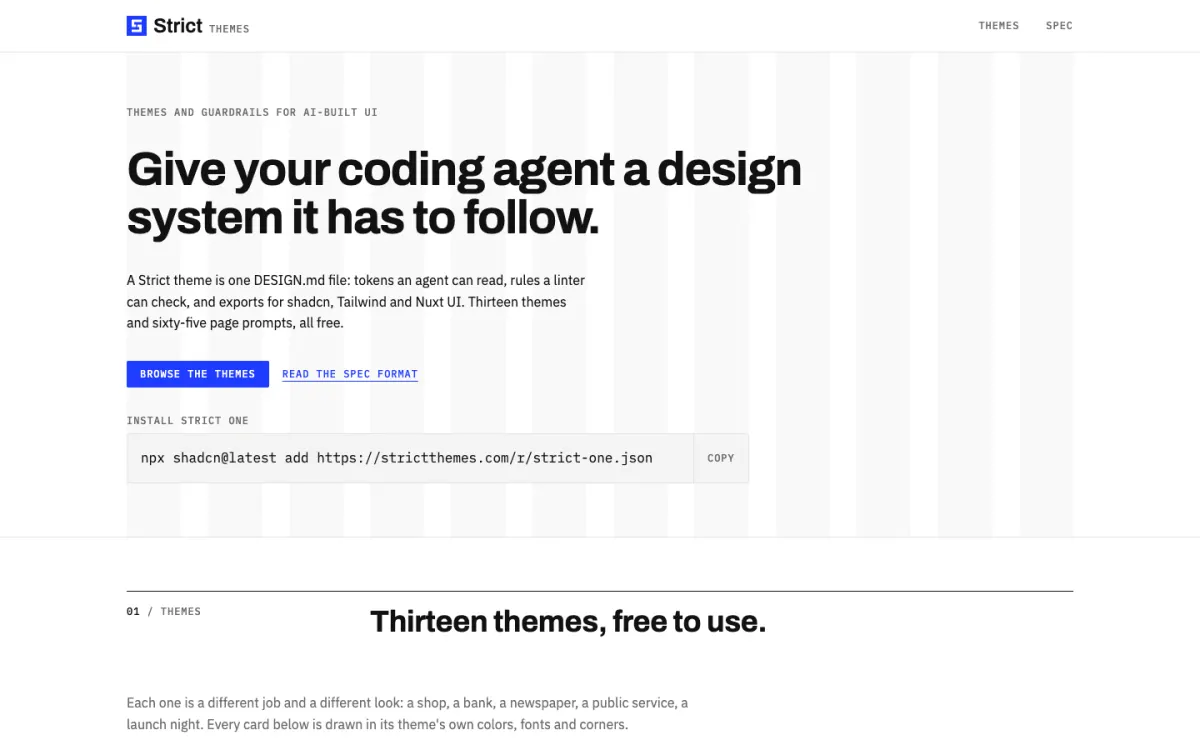
Strict Themes publishes complete DESIGN.md files you can drop into a project, so you don’t start from a blank page. As of November 2026 the site offers:
- 13 themes, each with light and dark modes, its own fonts, and a written rationale. Each is designed for a kind of site, from dashboards to newspapers.
- 65 page prompts, five per theme: full briefs for a landing page, an essay, a dashboard, a shop home, a basket, and so on. The site shows a page a coding agent built from one prompt for each theme.
- Exports for each theme: a shadcn registry item you install with one command, a Tailwind CSS v4 theme, Nuxt UI CSS with an
app.config.ts, plain shadcn CSS variables, and W3C design tokens JSON. (For other places to find shadcn and Tailwind themes, see our roundup of shadcn themes.) - A
strictblock, an extension toDESIGN.mdthat turns the guidance into checkable rules: which colors, spacing values, and radii are allowed, the minimum contrast, and which signs of generic AI UI count as errors. - A linter that validates a theme file, and Strict Check, which checks a project’s code and rendered pages against the spec. Strict Check has a first version as a command, an MCP server, and an agent skill, and is marked “in testing”; a CI check is planned.
Everything is free and open source under the MIT licence. The site also publishes an llms.txt that lists every theme with its install command, exports, and prompts, which is handy to hand to an agent directly.
How to give your coding agent a design system
Step 1: Pick a theme
Choose by the kind of site you are building, not only by look. Each theme’s rules are written for its job:
| Theme | Built for | Fonts |
|---|---|---|
| Strict One | Editorial and product sites, a Swiss grid | Archivo, IBM Plex Sans, IBM Plex Mono |
| Recital | Long reading: essays, journals, newsletters | Fraunces, Source Sans 3, Source Code Pro |
| Avion | Dashboards and tools | Red Hat Display, Red Hat Text, Red Hat Mono |
| Kiln | Shops and studios | Bricolage Grotesque, DM Sans, DM Mono |
| Ledger | Money, invoices, and reports | Instrument Serif, Instrument Sans, Spline Sans Mono |
| Cipher | Developer tools | JetBrains Mono, Geist |
| Sorbet | Consumer apps | Gabarito, Figtree, Sometype Mono |
| Atelier | Portfolios and fashion | Bodoni Moda, Hanken Grotesk, Fragment Mono |
| Civic | Public services and health, WCAG AAA contrast | Public Sans, Atkinson Hyperlegible Next and Mono |
| Dispatch | News and sport | Big Shoulders, Newsreader, Chivo Mono |
| Tisane | Food, wellness, and places to stay | Young Serif, Albert Sans, Reddit Mono |
| Voltage | Launches, events, and music | Unbounded, Familjen Grotesk, Space Mono |
| Nocturne | Film, music, and nightlife | Syne, Onest, Azeret Mono |
Every theme has its own page at strictthemes.com/themes/<name> with live previews of its five page prompts.
Step 2: Install the theme
In a project that uses shadcn/ui, one command installs the theme’s colors, radius, fonts, and type scale into your global CSS:
npx shadcn@latest add https://strictthemes.com/r/strict-one.json
Then save the theme’s DESIGN.md in the project root, so the agent can read the rules as well as the variables:
curl -o DESIGN.md https://strictthemes.com/themes/strict-one/DESIGN.md
Swap strict-one for the theme you picked. Without shadcn, use the other exports instead of the first command:
- Tailwind CSS v4:
https://strictthemes.com/themes/<name>/tailwind.css, an@themeblock with the colors, atext-<token>utility for each type size (such astext-h1), and spacing utilities named likep-space-md. - Nuxt UI:
nuxt-ui.cssandapp.config.tsfrom the same folder. - Any other stack:
tokens.json, in the W3C Design Tokens format.
No export loads the font files themselves. Add the theme’s fonts to your project, for example from Google Fonts or Fontsource; the shadcn install prints which families you need.
Step 3: Fix one shadcn gotcha
Strict’s themes add type utilities such as text-h1 and text-label. shadcn’s cn() helper doesn’t know those names and treats an unknown text-* class as a color, so cn("text-label text-muted-foreground") silently drops one of them. The page prompts tell the agent to fix this, but if you write components yourself, register the type classes as font sizes in lib/utils.ts. In a project that uses tailwind-merge:
import { clsx, type ClassValue } from "clsx"
import { extendTailwindMerge } from "tailwind-merge"

const twMerge = extendTailwindMerge({
  extend: {
    classGroups: {
      "font-size": [{ text: ["display", "h1", "h2", "body", "label"] }],
    },
  },
})

export function cn(...inputs: ClassValue[]) {
  return twMerge(clsx(inputs))
}
Use the size names from your theme’s typography tokens. New shadcn projects, where lib/utils.ts passes cn on from the cn package, do the same with createCn from cn/config, and stock components then need to import cn from your utils file.
Step 4: Tell the agent to follow it
Agents read DESIGN.md reliably only when something tells them to. Add a line to the instructions file your agent loads on every task: CLAUDE.md for Claude Code, AGENTS.md for Codex and others, or your editor’s rules file:
## Design
- Read DESIGN.md before any UI change. It is the source of truth for colors,
  type, spacing, corners and components.
- Use only its tokens. Never add a color, font size, spacing value or radius
  that DESIGN.md doesn't define.
- Use the existing components in components/ui before writing new ones.
Step 5: Build pages from a page prompt
A design system tells the agent how things look. A page prompt tells it what to build. Each Strict theme has five, written as complete briefs: which sections the page has, which token goes where, how the grid works, and what the copy should sound like. Open a prompt in the browser, for example:
https://strictthemes.com/themes/strict-one/prompts/landing.md
Paste it into your agent, add details about your product, and let it build the page. The briefs start by checking that the theme is installed and DESIGN.md is in place, and they tell the agent to write real copy rather than lorem ipsum. They also give layout rules that stop it improvising, such as one primary button per screen and a maximum measure for paragraphs.
The prompts by theme include a pricing page and docs (Strict One), a status page and settings (Avion), product and basket pages (Kiln), an invoice and transactions (Ledger), a changelog and API tokens page (Cipher), and a booking page (Tisane).
Step 6: Check what the agent built
Agents drift, especially over a long session. Review each page against the theme’s Do’s and Don’ts, and look for the usual signs of generic AI UI. Strict’s strict block names four of them, which make a good checklist even without tooling:
- Purple gradients on heroes and buttons.
- Emoji used as icons or bullets.
- Nested cards, a card inside a card.
- Glow shadows on buttons and cards.
Also check for colors that aren’t in the token list (often a slightly different grey), spacing values off the scale, and text that fails contrast in dark mode. Strict Check automates these checks against the strict block; it is still in testing, so treat it as a helper rather than a gate for now.
Writing your own DESIGN.md
If you have a brand already, write the file yourself, or start from a Strict theme and change the values. Keep it short enough that an agent reads all of it:
- Tokens first. Define every color you use, with
on-colors for text on fills (on-primary), five or six type sizes, a spacing scale, and two or three radii. Add acomponentsentry for buttons, cards, and badges, pointing at the tokens. - Prose second. For each color, say what it is for and what it is never for. Say how the layout works (grid, maximum width, alignment), whether there are shadows, and how round the corners are.
- Do’s and Don’ts last. Write the mistakes you have seen agents make as rules: “Never nest a card inside a card”, “No gradients”.
To make the rules checkable, add a strict block. These are the options from the Strict spec:
strict:
  version: 1
  contrast: AA            # AA (4.5:1) or AAA (7:1)
  colors:
    allow: tokens         # only token colors may appear
    tolerance: 0.02       # how far a color may drift from a token
  spacing:
    allow: scale          # only spacing tokens
    extra: ["0", "1px"]   # extra values allowed
  rounded:
    allow: scale
    full: 64px            # largest box that may be fully round (avatars, pills)
  typography:
    allow: scale
    fonts: declared
  tells:                  # signs of generic AI UI: off, warn or error
    purple-gradient: error
    emoji-icons: error
    nested-cards: warn
    glow-shadows: warn
  modes:
    dark:
      colors:
        background: "#0B0B0C"
        foreground: "#F5F5F4"
A file with a strict block is still a valid DESIGN.md. Other tools see strict as an unknown key, which the format treats as a warning, not an error.
Using DESIGN.md tokens with Bootstrap
Strict’s exports target shadcn, Tailwind, and Nuxt UI, not Bootstrap. The tokens map cleanly onto Bootstrap’s Sass variables, though, so you can give a Bootstrap project the same design system. Here is Strict One’s light mode as Bootstrap 5.3 overrides:
$primary: #1F3BFF;
$secondary: #111111;
$danger: #C62828;
$light: #F5F5F4;
$body-color: #111111;
$body-bg: #FFFFFF;
$border-color: #E2E2E0;

$font-family-sans-serif: "IBM Plex Sans", sans-serif;
$font-family-monospace: "IBM Plex Mono", monospace;
$headings-font-family: "Archivo", sans-serif;
$headings-font-weight: 700;
$line-height-base: 1.6;

$border-radius-sm: 2px;
$border-radius: 4px;
$border-radius-lg: 4px;

$spacers: (
  0: 0,
  1: 4px,
  2: 8px,
  3: 16px,
  4: 32px,
  5: 64px,
);

@import "bootstrap/scss/bootstrap";
With this, mt-4 is 32px and p-5 is 64px, matching the theme’s spacing scale, and buttons pick up the 4px radius. Shadows and gradients are off by default in Bootstrap, which suits a theme that bans them. Keep the DESIGN.md in the project root as well, and tell the agent to use Bootstrap’s classes and utilities rather than custom CSS.
If you’d rather adjust colors, fonts, and spacing visually, the bootstrap.build theme builder edits these variables in the browser and exports the compiled CSS. Our guide to AI prompts for Bootstrap themes covers the prompting side for Bootstrap projects.
When a design system file helps most
A DESIGN.md pays off when more than one session, person, or agent touches the UI: each new page starts from the same rules instead of the agent’s defaults. For a one-off page, a few lines in the prompt can be enough. For a site you’ll keep building with an agent, a full file and page prompts save rework on every page after the first.
If you are choosing a builder rather than a coding agent, our comparison of the best AI website builders covers which ones let you take the code with you. Once the site is built, where to host a website built by AI covers putting it online.
FAQ
What is a DESIGN.md file?
A DESIGN.md is a Markdown file in a project’s root that describes its design system for AI coding agents. YAML front matter defines tokens for colors, typography, corner radii, spacing, and components, and Markdown sections below explain how to use them. The format was published by Google Labs in 2026 and is still in alpha.
Where do I put DESIGN.md?
In the root of your project, next to package.json. Then add a line to your agent’s instructions file, such as CLAUDE.md or AGENTS.md, telling it to read DESIGN.md before any UI change.
How do I stop AI-generated UI from looking generic?
Give the agent a design system it must follow: a DESIGN.md with your tokens and rules, installed theme variables, and an instructions file that tells the agent to use only those tokens. Ban the common tells explicitly, such as purple gradients, emoji icons, nested cards, and glow shadows, and review each page against the rules.
Are Strict Themes free?
Yes. All 13 themes and 65 page prompts are free and open source under the MIT licence, including the shadcn, Tailwind CSS v4, Nuxt UI, and W3C design token exports.
How do I install a Strict theme in a shadcn project?
Run npx shadcn@latest add https://strictthemes.com/r/<theme>.json, for example strict-one.json, then save the theme’s DESIGN.md from https://strictthemes.com/themes/<theme>/DESIGN.md in the project root. Add the theme’s fonts yourself, since no export loads font files.
Can I use DESIGN.md with Bootstrap?
Yes. The agent reads DESIGN.md the same way in any stack, and the tokens map onto Bootstrap’s Sass variables: colors to $primary and $body-color, fonts to $font-family-sans-serif and $headings-font-family, radii to $border-radius, and the spacing scale to $spacers. Compile Bootstrap with those overrides and the utilities match the design system.
Build your Bootstrap theme
Design a custom Bootstrap 5 theme visually with a live preview, then export clean Sass or CSS.
Open the Builder