HTTP vs HTTPS: Differences, Port 443 and SEO (2026)
HTTP and HTTPS are the same web protocol, but HTTPS wraps every request and response in TLS encryption, so nobody between the browser and the server can read or change the traffic. HTTP uses port 80 and sends everything in plain text; HTTPS uses port 443, needs a certificate, and is what every browser now expects. This explainer is for site owners, designers, and developers who want to understand the difference and move a site to HTTPS, and every date, limit, and price was checked in November 2026.
TL;DR
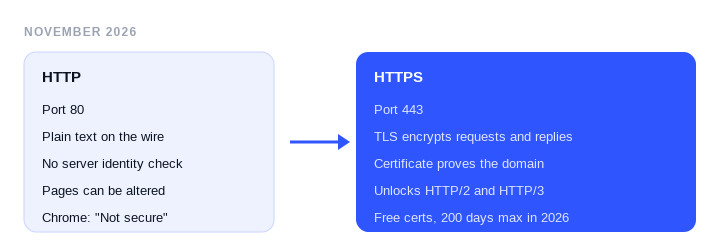
- HTTP: plain text on port 80. Anyone on the network path can read and alter pages, forms, and cookies.
- HTTPS: HTTP over TLS on port 443. It encrypts the traffic, proves the server’s identity with a certificate, and detects tampering.
- HTTPS does not hide everything: the domain name you visit is usually still visible to the network through SNI, and a padlock does not mean a site is honest.
- Browsers push hard for HTTPS: Chrome has labeled every HTTP page “Not secure” since Chrome 68 (2018), and since Chrome 154 (stable September 22, 2026) it asks before loading a public site over HTTP by default.
- SEO effect is small but real: Google calls HTTPS a “very lightweight” ranking signal; the bigger costs of staying on HTTP are browser warnings and lost trust.
- Moving is a short checklist: free certificate, 301 redirects, mixed content fixes, HTTPS canonicals and sitemaps, then HSTS.
What is HTTP?
HTTP (Hypertext Transfer Protocol) is how browsers and servers request and deliver web pages: the browser sends GET /about/, and the server replies with a status code, headers, and the page.
On its own, HTTP has no encryption. The request, the response, cookies, and anything typed into a form travel across the network as readable text. RFC 9110, the current HTTP standard, sets TCP port 80 as the default for http:// URLs, which is why you never need to type :80.
What is HTTPS? (and what HTTPS means)
HTTPS stands for Hypertext Transfer Protocol Secure. MDN defines it as “an encrypted version of the HTTP protocol” that uses TLS (Transport Layer Security) to encrypt all communication between the client and the server.
According to RFC 8446, the TLS 1.3 standard, that layer gives you three guarantees:
- Authentication: the server proves it is the real owner of the domain, using a certificate.
- Confidentiality: data sent after the connection is set up is only visible to the two endpoints.
- Integrity: an attacker cannot change the data in transit without being detected.
The default HTTPS port is 443, defined in RFC 9110 as “the reserved port for HTTP over TLS.” Servers usually keep port 80 open only to redirect visitors to HTTPS.
HTTP vs HTTPS: side-by-side comparison
| Factor | HTTP | HTTPS |
|---|---|---|
| Default port | 80 | 443 |
| Encryption | None; plain text on the wire | TLS encrypts requests, responses, cookies, and form data |
| Server identity | Not verified | Verified by a certificate from a trusted certificate authority (CA) |
| Tampering | Pages can be altered in transit (injected ads, scripts) | Changes are detected and the connection fails |
| Certificate needed | No | Yes; free from Let’s Encrypt or included by most hosts |
| What Chrome shows | “Not secure” in the address bar; a warning before first visit to public HTTP sites since Chrome 154 | The neutral “tune” icon; connection details one click away |
| HTTP/2 and HTTP/3 in browsers | Not available in practice | Available; browsers support HTTP/2 only over HTTPS, and HTTP/3 has TLS built into QUIC |
| Modern browser features | Many APIs, such as service workers, need a secure context and are unavailable | Available |
| Google Search | No HTTPS signal; flagged in the Search Console HTTPS report | Very lightweight ranking signal |
| Cost | Free | Usually free (Let’s Encrypt, host-provided SSL) |
How the TLS handshake works, in plain terms
Before any HTTP traffic flows over HTTPS, the browser and the server run a short TLS handshake. With TLS 1.3, the full handshake takes one round trip:
- Client hello. The browser says which TLS versions and ciphers it supports, sends a key share, and names the site it wants (this is the SNI field, covered below).
- Server hello and certificate. The server picks the settings, sends its own key share, and presents its certificate, signed to prove it holds the matching private key.
- Verification. The browser checks that the certificate covers this exact domain, has not expired, and chains back to a certificate authority the browser or operating system trusts.
- Shared key. Both sides combine their key shares into the same session key without ever sending it over the wire.
- Encrypted HTTP. From here on, every request and response is encrypted with that key.
If step 3 fails, the browser shows a full-page warning; the SSL certificate error guide covers the common causes and fixes.
Certificates and certificate authorities
A TLS certificate (still often called an “SSL certificate”) binds a domain name to a public key. A certificate authority (CA) signs it after checking that whoever requested it controls the domain, usually by asking them to place a file on the site or a DNS record.
Browsers trust a fixed list of root CAs, so a self-signed certificate triggers a warning: the encryption works, but nobody trusted vouched for the identity.
Two facts changed how certificates are managed:
- They are free. Let’s Encrypt describes itself as “a free, automated, and open Certificate Authority” and says it provides certificates to more than 700 million websites.
- They are getting shorter. The CA/Browser Forum, the body that sets rules for publicly trusted certificates, passed ballot SC-081v3 in April 2025. The maximum validity dropped to 200 days on March 15, 2026, falls to 100 days on March 15, 2027, and reaches 47 days on March 15, 2029.
Let’s Encrypt certificates have always been short. Its default is still 90 days, with an opt-in 6-day short-lived profile. Its published schedule shortens the default to 64 days on February 10, 2027 and 45 days on February 16, 2028, ahead of the industry deadline. The practical message: renewal must be automated, and it is worth watching. Let’s Encrypt also stopped sending expiry reminder emails on June 4, 2025, so a failed renewal no longer announces itself.
What HTTPS protects, and what it does not
HTTPS protects the content of the conversation: the full URL path and query string, the page itself, headers, cookies, passwords, and form data.
It does not protect everything:
- The domain is usually still visible. The browser sends the site name in the SNI (Server Name Indication) field of the first handshake message so the server knows which certificate to present. Without Encrypted Client Hello (ECH), Cloudflare’s docs note that intermediate networks “will be able to detect the website being accessed.” The IP address you connect to is visible too. ECH hides the real name, but it depends on both the browser and the host supporting it; Cloudflare, for example, enables it by default on Free zones.
- HTTPS does not mean trustworthy. A certificate proves you are talking to the domain in the address bar, not that the people running it are honest. Google’s Chrome team wrote in 2023 that “nearly all phishing sites use HTTPS,” which is one reason Chrome dropped the padlock.
- It does not protect the server or stored data. A hacked site, a vulnerable plugin, or a leaked database is just as exposed over HTTPS.
What the browser shows
Chrome’s “Not secure” label. Starting with Chrome 68 in July 2018, Chrome marked every HTTP page as “Not secure” in the address bar.
The padlock is gone in Chrome. Chrome 117 (September 2023) replaced the lock icon with a neutral “tune” icon, because research showed users read the lock as a sign of trustworthiness. Secure is now the default state, Chrome keeps warning when a connection is not secure, and the tune icon opens site settings and security details.
HTTPS-First by default. Chrome’s “Always Use Secure Connections” setting tries HTTPS first and asks before loading a site over plain HTTP. Google announced in October 2025 that it would become the default for public sites, and the Chrome 154 release notes list “Ask before HTTP on by default,” with a stable release date of September 22, 2026. In practice, a visitor to an HTTP-only public site now sees a warning interstitial before the page loads, though Chrome does not keep warning about HTTP sites a person visits regularly, and users can turn the setting off. Private and internal addresses are excluded by default, and organizations can control it with the HttpsOnlyMode enterprise policy.
Does HTTPS help SEO?
A little, and it is worth being precise. Google announced HTTPS as a ranking signal in August 2014 and described it as “only a very lightweight signal,” affecting fewer than 1% of global queries at the time and “carrying less weight than other signals such as high-quality content.”
Google’s current page experience documentation lists HTTPS as part of page experience but adds that, beyond Core Web Vitals, “other page experience aspects don’t directly help your website rank higher.” It still recommends HTTPS and offers an HTTPS report in Search Console.
The fair summary: switching to HTTPS will not lift rankings on its own, but staying on HTTP costs you through browser warnings, lost visitors, and modern browser features that only work on secure pages. The guide to the best website builders for SEO covers the factors that move rankings more.
HTTP/2 and HTTP/3 require HTTPS in practice
HTTP/2 and HTTP/3 make sites faster by multiplexing many requests over one connection. On paper, HTTP/2 does not require encryption, but MDN notes that “most browser developers support it only when used with HTTPS.” HTTP/3 runs on QUIC over UDP, and MDN explains that QUIC “integrates the TLS handshake into the initial QUIC handshake,” so there is no unencrypted HTTP/3.
So a site served over plain HTTP is stuck on HTTP/1.1 in browsers; HTTPS is what unlocks the faster protocols.
How to move a site from HTTP to HTTPS
Google treats an HTTP to HTTPS switch as a site move with URL changes, but a simple one: you do not need the Change of Address tool. Work through these steps in order.
1. Get a certificate
- On managed or static hosting, it is often automatic. Static.app issues a free SSL certificate for its subdomains and for custom domains you connect, and sets up the DNS records and SSL when you connect or buy a domain. Plans start at $6/month (Starter: 2 sites, 500 MB, custom domains with SSL, unlimited traffic), with a 7-day free trial that includes SSL on a subdomain. Most static hosts work the same way; the static website hosting comparison lists the options.
- On your own server, use Let’s Encrypt with an ACME client; Let’s Encrypt recommends Certbot for most people. Set renewal to run automatically. Let’s Encrypt recommends clients that support ACME Renewal Information (ARI) and, for clients without it, renewing about two-thirds of the way through a certificate’s lifetime rather than on a fixed 60-day timer, which will not work with 45-day certificates.
- Cover every hostname:
example.com,www.example.com, and any subdomains you serve. If you are unsure how subdomains relate to certificates, see what is a subdomain.
2. Redirect HTTP to HTTPS with 301s
Redirect every HTTP URL to the same path on HTTPS with a permanent server-side redirect. Google recommends 301 or 308 redirects, notes that permanent redirects do not lose PageRank, and advises keeping them for at least one year. MDN’s Nginx example:
server {
  listen 80;
  return 301 https://$host$request_uri;
}
Redirect to the same host first (http://example.com to https://example.com), then to www if needed, so HSTS can be set on each hostname.
3. Fix mixed content
Mixed content is an HTTPS page that loads resources over HTTP. Browsers automatically upgrade images, audio, and video to HTTPS, but block scripts, stylesheets, iframes, fonts, and fetch() calls loaded over HTTP, which can break layouts and features. Change hard-coded http:// URLs in templates, CSS, and the database to https:// or relative paths. As a safety net, the header Content-Security-Policy: upgrade-insecure-requests tells the browser to upgrade every request, including blockable ones.
4. Update canonicals, sitemaps, and internal links
- Point every
rel="canonical"tag at the HTTPS URL (Google recommends a self-referencing canonical on each new URL). - Regenerate the XML sitemap with HTTPS URLs and submit it in Search Console.
- Add the HTTPS property in Search Console, keeping the HTTP one verified.
- Update internal links,
hreflangtags, and Open Graph URLs.
5. Turn on HSTS, carefully
HTTP Strict Transport Security tells browsers to use HTTPS for your domain for a set time, even if someone types http://. Send it over HTTPS only; browsers ignore it over HTTP. MDN recommends at least six months, ideally two years:
Strict-Transport-Security: max-age=63072000; includeSubDomains
Start with a short max-age, confirm nothing breaks, then raise it. includeSubDomains covers every subdomain, so check they all support HTTPS first.
Preload caveats. Adding preload and submitting your domain to hstspreload.org bakes HTTPS-only into Chrome, Firefox, Edge, and other browsers, protecting even the first visit. The requirements are a valid certificate, an HTTP to HTTPS redirect, HTTPS on all subdomains, and a header with max-age of at least one year plus includeSubDomains and preload. The list itself warns that inclusion “cannot easily be undone,” that removal “takes months” to reach Chrome users, and that it covers every subdomain, including internal ones. Preload only when you are sure every hostname will stay on HTTPS.
6. Monitor the certificate
With certificates now lasting 200 days or less, and Let’s Encrypt ones 90 days or less, a silent renewal failure is the most common way an HTTPS site breaks. Pulsetic’s SSL monitoring re-reads each certificate every hour, so a broken chain or wrong certificate after a renewal shows up at the next check, and sends expiry reminders 14 days, 7 days, and 1 day before the expiry date. SSL monitoring is included on every plan, including the free one (10 monitors); paid plans start at $9/month. The SSL certificate monitoring guide compares other options, including free ones.
FAQ
What is the difference between HTTP and HTTPS?
HTTPS is HTTP sent through an encrypted TLS connection. HTTP sends data in plain text on port 80, so it can be read or changed in transit; HTTPS uses port 443, encrypts the traffic, and proves the server’s identity with a certificate.
What port does HTTPS use?
HTTPS uses TCP port 443 by default, and HTTP uses TCP port 80, as set in the HTTP standard (RFC 9110). You only see the port in a URL when a site uses a non-default one, such as :8443. Most HTTPS sites keep port 80 open only to redirect visitors to HTTPS.
Is HTTPS a Google ranking factor?
Yes, but a very small one. Google called it “only a very lightweight signal” when it was introduced in 2014, and its current documentation says page experience aspects beyond Core Web Vitals do not directly help rankings. The bigger reasons to switch are browser warnings and visitor trust.
Does HTTPS mean a website is safe?
No. HTTPS means the connection is encrypted and you are talking to the domain shown in the address bar. It says nothing about who runs the site or their intentions, and Chrome’s team has noted that nearly all phishing sites use HTTPS.
Is an SSL certificate free?
Usually, yes. Let’s Encrypt issues free certificates that most servers renew automatically, and many hosts, including Static.app, include free SSL for custom domains. A free certificate uses the same TLS encryption as a paid one; what matters most is that it renews on time.
Build your Bootstrap theme
Design a custom Bootstrap 5 theme visually with a live preview, then export clean Sass or CSS.
Open the Builder