How to Turn a PDF Into a Link in 2026 (8 Ways)
To turn a PDF into a link, upload it to a service that hosts files and copy the public URL it gives you. In Google Drive that takes under a minute: upload the PDF, click Share, set General access to “Anyone with the link,” and copy the link. This guide is for anyone who needs a URL for a resume, menu, report, or price list. It covers eight ways to do it, from free cloud storage to a link on your own domain, with every limit checked on each vendor’s own pages in November 2026.
TL;DR
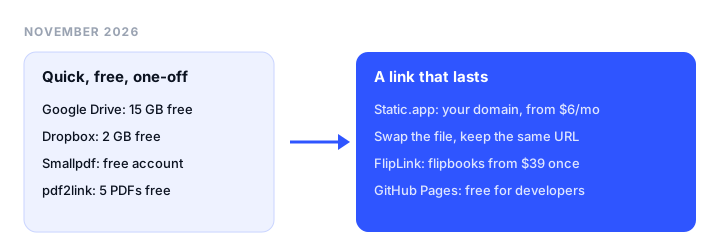
- Best for a quick, free, one-off link: Google Drive. 15 GB free, viewers don’t need to sign in, and you can upload a new version without changing the link.
- Best for a PDF on your own domain: Static.app. A permanent link on a domain you own, files up to 1 GB, and you can swap the file without changing the URL. 7-day free trial, then from $6 a month.
- Best free dedicated PDF link tool: pdf2link. 5 PDFs free with a custom path, view counts and a QR code, and the link stays the same when you replace the file.
- Best for catalogs and lead capture: FlipLink. Flipbook viewer, lead forms, analytics and unlimited custom domains, sold as a one-time lifetime deal from $39.
- Best for developers: GitHub Pages or Cloudflare Pages. Free hosting with a custom domain if your PDF already lives in a Git repository.
What to look for in a PDF link
Most people searching “pdf to link” want one of two things:
- A link right now, for one person or one email. Any cloud drive works. The link points to a preview page, and it is free.
- A link that lasts. It goes on a resume, a business card QR code, a restaurant table, or a website. This link has to keep working for years, ideally look like your brand, and keep the same URL when the document changes.
The second case is where the details matter:
- Same link after an update. If you reprint QR codes every time the menu changes, you picked the wrong tool.
- Custom domain.
docs.yourcompany.com/pricing.pdfgets opened more readily than a long random URL. - Expiry. Some tools let links lapse after a trial or a set time.
- Analytics. Knowing whether a recruiter opened your resume is useful. Most free drives don’t show it.
8 ways to turn a PDF into a link at a glance
| Method | Free? | Sign-up required | Custom domain | View analytics | Password protection | File size limit | Link expires? | Replace file, keep link |
|---|---|---|---|---|---|---|---|---|
| Google Drive | Yes, 15 GB storage | Yes (viewers don’t) | No | No | No | Up to 5 TB per file, within your storage | No, for “Anyone with the link” | Yes, via Manage versions |
| Static.app | 7-day trial, then $6/mo ($60/yr) | Yes, no card for trial | Yes, paid plans | Click counts via short links (paid) | Yes (plan not stated) | 50 MB on trial, 1 GB on paid | Trial link ends after 7 days; paid links stay until you delete | Yes |
| pdf2link | Yes, 5 PDFs | Yes | No (custom path on pdf2link.com) | View counts on all plans | Pro only ($29/mo) | 5 MB free, 25 MB Starter, 100 MB Pro | No, permanent on all plans | Yes |
| Dropbox | Yes, 2 GB storage | Yes (viewers don’t) | No | Viewer history on Standard and up | Professional, Standard and up | Within your storage; 20 GB of link traffic a day on free | Only if you set an expiry (paid) | Not documented |
| FlipLink | Free trial (length not stated) | Email verification | Yes, unlimited | Yes | Yes | 40 MB free, 150 MB paid | Only if you set an expiry | Yes |
| Smallpdf | Yes, with a free account | Yes | No | Not stated | Not on the link (Protect PDF encrypts the file) | Not stated | Stays shareable while saved in your account | No |
| Adobe Acrobat online | Yes, with a free account | Yes | No | Not stated | Pro feature, protects the file | Not stated | Not stated | Not stated |
| GitHub Pages / Cloudflare Pages | Yes | Yes | Yes | No built-in PDF view counts | No | 100 MiB (GitHub), 25 MiB (Cloudflare) per file | No | Yes, commit a file with the same name |
How to turn a PDF into a link: 8 ways, step by step
1. Google Drive: best for a quick free link
What it is. Google’s cloud storage, included with every Google account. For one-off sharing it is genuinely the easiest option, and most people already have it.
Steps.
- Go to drive.google.com and drag your PDF in (or click New, then File upload).
- Select the file and click Share.
- Under “General access,” change Restricted to Anyone with the link, with the role set to Viewer.
- Click Copy link and paste it anywhere.
People who open the link can view the file without signing in to a Google account. To update the PDF later, open File information, then Manage versions, and click Upload new version. The file stays the same, so the link does too.
Limits. Free accounts get 15 GB of storage shared with Gmail and Photos. Google allows files up to 5 TB. The link opens a Drive preview page rather than the bare PDF, and there is no custom domain or view counter. Link expiry dates exist only for named people on work or school accounts, so a public link stays live until you change it.
Good for: sending a PDF to a few people today, at no cost.
2. Static.app: best for a PDF on your own domain
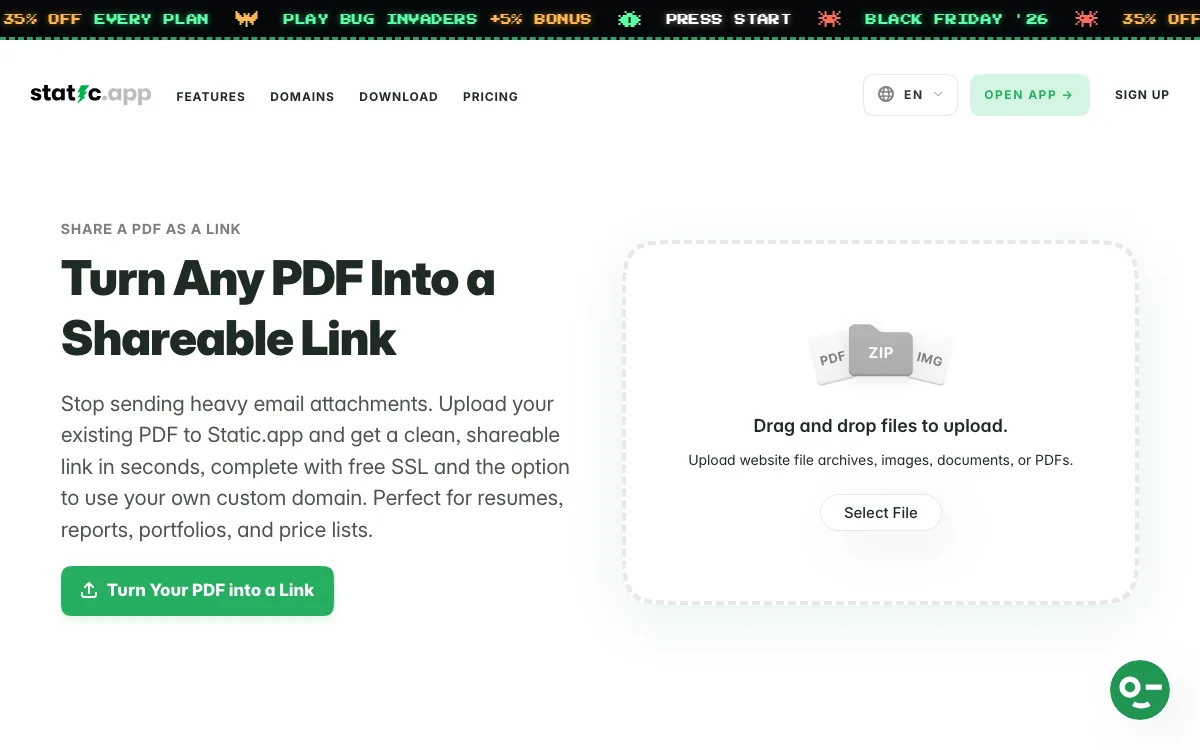
What it is. A static hosting service with a dedicated PDF to link tool. You upload the PDF, and it is served at its own URL over HTTPS, on a free subdomain or a domain you own.
Steps.
- Drag your PDF onto the upload box on the PDF to link page, or choose it from your computer.
- Pick a free subdomain, or connect your own domain on a paid plan.
- Copy the link and share it. You can also turn it into a QR code.
- To update the document, overwrite the PDF in your dashboard. The same link serves the new file, so printed QR codes keep working.
Limits and pricing. There is no permanent free plan. The free trial lasts 7 days, needs no credit card, and covers one website or file up to 50 MB on a subdomain. After 7 days the trial link stops working unless you upgrade. Starter costs $6 a month, or $60 a year, and includes 2 websites, 500 MB of storage, custom domains, and files up to 1 GB each. On paid plans a PDF stays live until you delete it. Paid plans also add short links with click counts and an optional expiry date. Password protection is listed as a feature, but the pricing page doesn’t say which plan includes it.
Good for: resumes, menus, price lists and brochures that need a permanent, branded link you can update in place. If you also want a full site later, see our guide to static website hosting.
3. pdf2link: best free dedicated PDF link tool
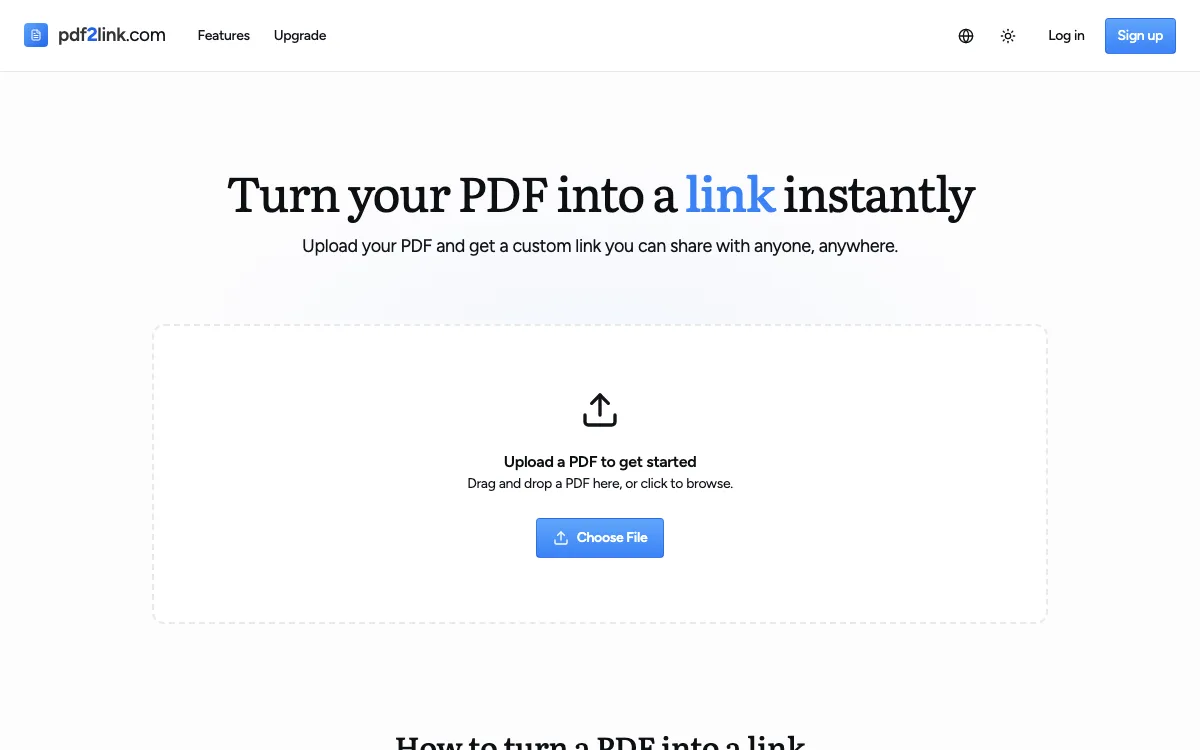
What it is. A single-purpose tool that turns a PDF into a link with a readable path, such as pdf2link.com/my-proposal, plus a QR code.
Steps.
- Drop your PDF into the uploader on pdf2link.com.
- Create a free account.
- Choose a custom URL or keep the generated one.
- Copy the link or download the QR code.
Limits and pricing. The free plan holds 5 PDFs up to 5 MB each, with 1 custom URL per PDF. Starter is $9 a month for 25 PDFs up to 25 MB and up to 10 custom URLs per PDF. Pro is $29 a month for unlimited PDFs up to 100 MB, password protection, custom QR codes and your own branding. All plans include permanent links, view counts and private PDFs. You can replace the file from the dashboard and the link and QR code stay the same. There’s no custom domain, so every link starts with pdf2link.com.
Good for: a small number of PDFs that need a tidy, permanent link and a simple view count, on a budget.
4. Dropbox: best if your files already live there
What it is. Cloud storage with shared links that anyone can open without a Dropbox account.
Steps.
- Upload the PDF at dropbox.com or drop it into your Dropbox folder.
- Hover over the file and click Share.
- Open link settings and set “Who has access” to Anyone with link.
- Copy the link.
Limits and pricing. Dropbox Basic is free with 2 GB of storage. Free accounts can serve up to 20 GB and 100,000 downloads a day through shared links. If you go over, Dropbox pauses sharing. Passwords, expiry dates and disabled downloads need Professional, Essentials, Standard, Advanced or a business plan, not Basic or Plus. Viewer history starts on Standard, which Dropbox showed us at €12 per user per month (prices displayed in EUR). Dropbox keeps version history, but its help pages don’t say whether overwriting a file keeps the shared link, so test it before you print a QR code.
Good for: sharing a PDF you already store in Dropbox with a small audience.
5. FlipLink: best for catalogs, brochures and lead capture
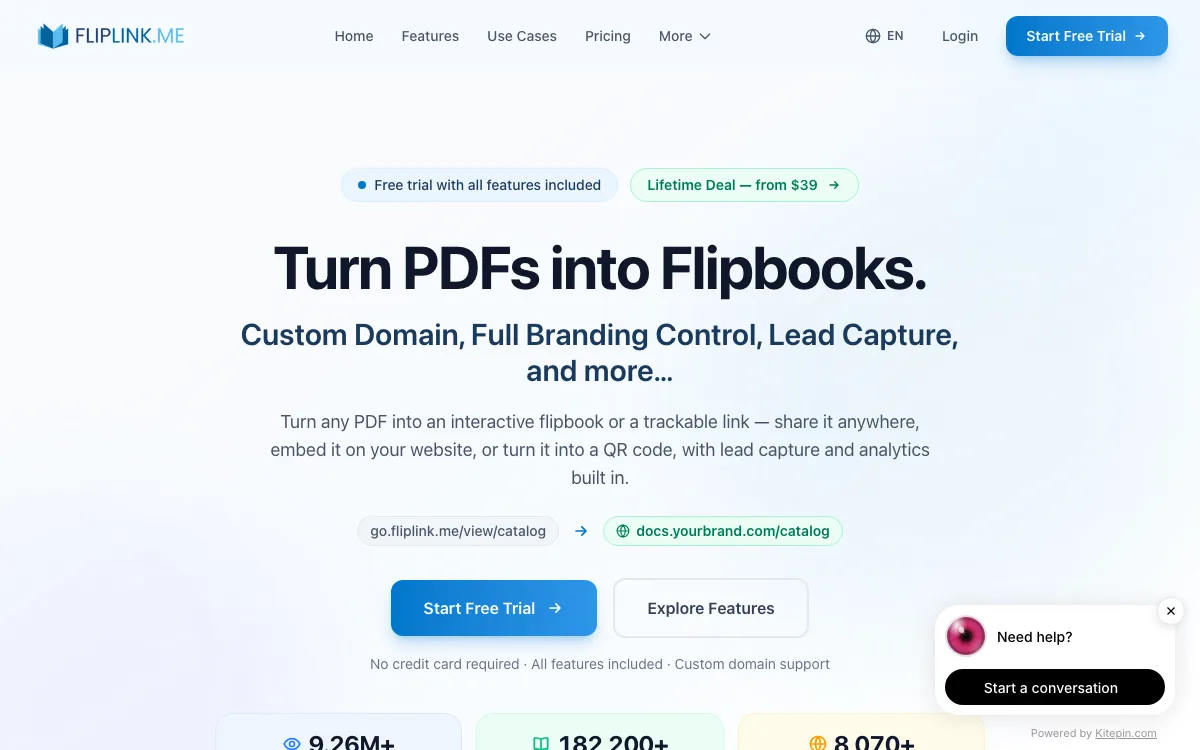
What it is. A PDF publishing tool that turns a PDF into a 3D flipbook or a scrolling document viewer, with lead forms, analytics and custom domains.
Steps.
- Open FlipLink’s free PDF to Link tool, or start a free trial.
- Upload your PDF (up to 40 MB on the free tool).
- Enter your email and the 4-digit code FlipLink sends you. If the email is new, FlipLink creates an account for it.
- Copy the link. In the dashboard you can add branding, a custom domain, a password or an expiry date.
Limits and pricing. FlipLink sells lifetime deals instead of subscriptions: $39 once for 10 flipbooks, $89 for 50, and $129 for 100, each with every feature and 150 MB per PDF. Paid plans include unlimited custom domains through CNAME records, plus analytics such as views, time spent, devices and per-page engagement. Replace PDF swaps the file while keeping the link, settings and analytics. The free trial includes all features, but FlipLink doesn’t state how long it lasts or what happens to links when it ends.
Good for: catalogs, magazines and sales collateral where you want to know who read what.
6. Smallpdf: best if you are already editing the PDF there
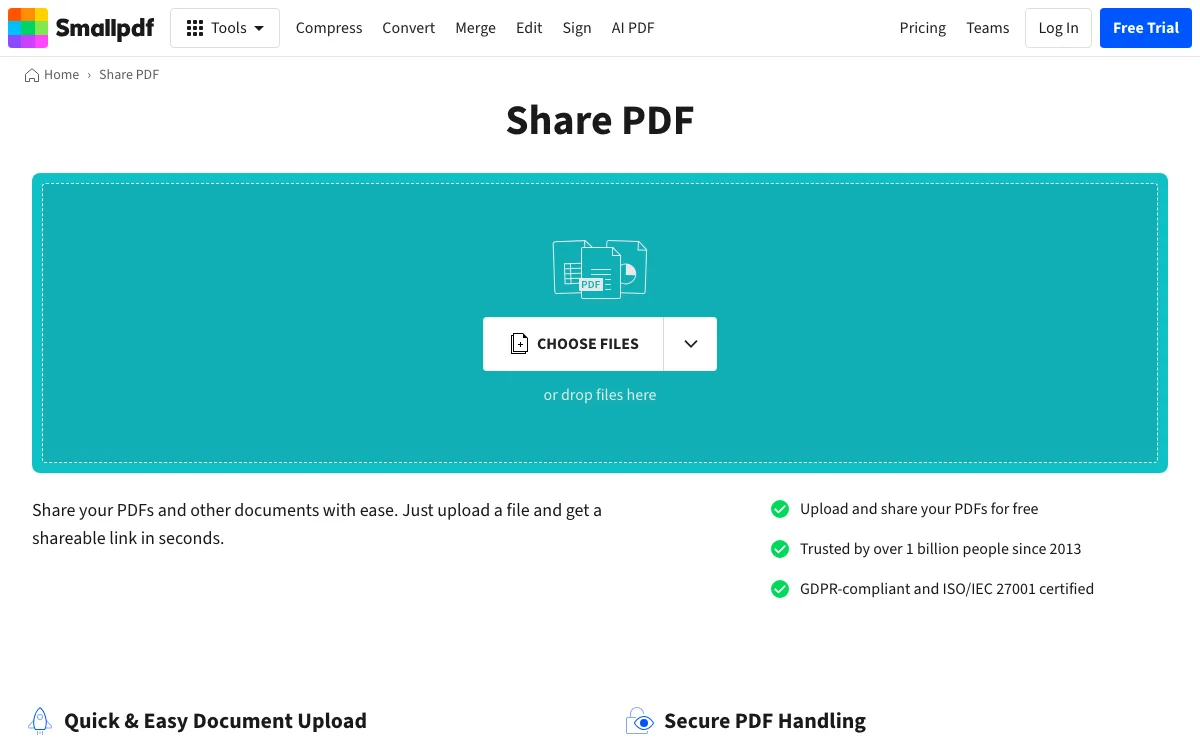
What it is. An online PDF toolkit (compress, convert, sign, edit) with a Share PDF tool.
Steps.
- Go to Smallpdf’s Share PDF tool and upload the file.
- Click Share in the top right corner of the preview.
- Create a free Smallpdf account.
- Copy the link.
Limits and pricing. Sharing is “free with an account.” Smallpdf says files saved to your free account stay shareable for as long as you need. The free plan has daily limits on its other tools, and Pro was shown to us at €7.50 a month billed yearly (prices displayed in EUR). There’s no custom domain or link password. You can encrypt the PDF itself with the Protect PDF tool before sharing. Smallpdf doesn’t document replacing a file under an existing link.
Good for: compressing or editing a PDF and sharing it in the same place.
7. Adobe Acrobat online: best for review and comments
What it is. Adobe’s web version of Acrobat. A free Adobe account lets you store files online and share links, and people can comment on the shared PDF.
Steps.
- Sign in at acrobat.adobe.com with a free Adobe account (or Google).
- Upload your PDF.
- Choose to share it and copy the link. Leave comments on if you want feedback.
Limits and pricing. The free account covers reading, commenting, filling, signing and sharing links. Adding passwords to PDFs is listed as an Acrobat Pro feature, with a 7-day free trial. Adobe’s help and pricing pages blocked our checks, so we could not confirm file size limits, link expiry, view tracking or current Pro pricing. There is no custom domain option.
Good for: collecting comments on a draft from colleagues.
8. GitHub Pages or Cloudflare Pages: best for developers
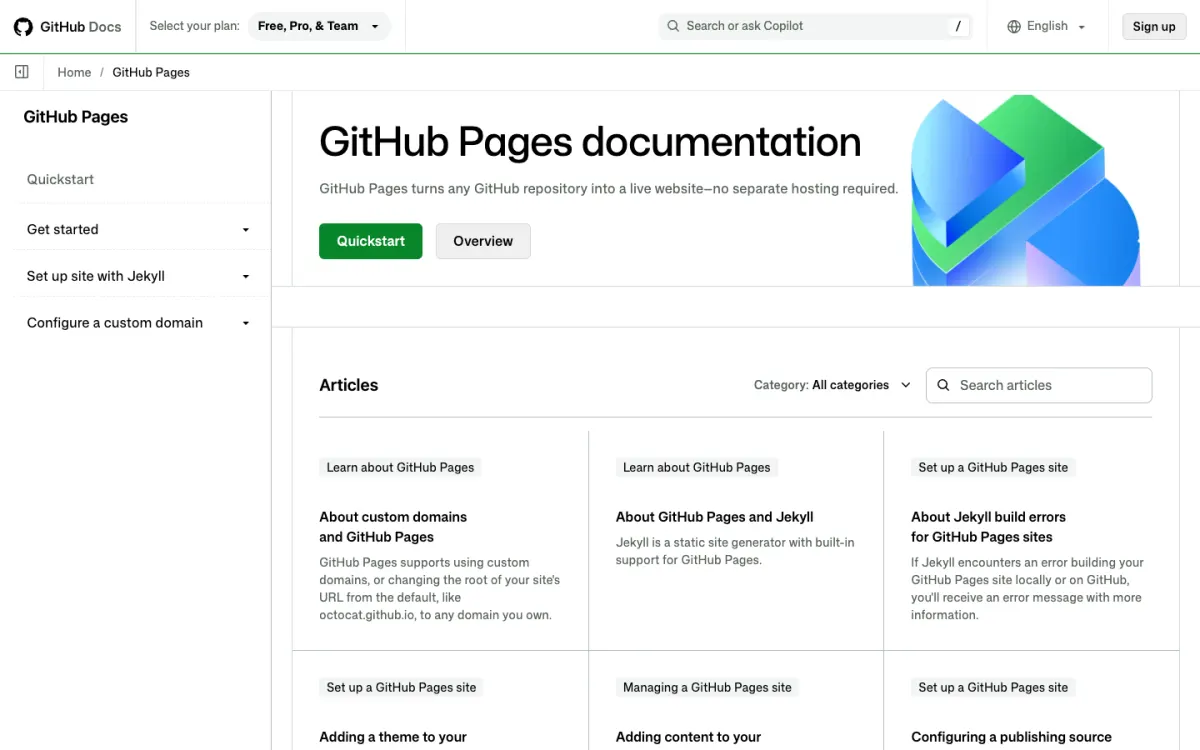
What it is. Free static hosting from a Git repository. Any PDF in the published folder gets its own URL, such as username.github.io/docs/resume.pdf, and you can attach a custom domain.
Steps (GitHub Pages).
- Create a public repository and add your PDF.
- In Settings, then Pages, pick the branch to publish.
- Open
https://username.github.io/repo/file.pdf. - To update the PDF, commit a new file with the same name. The URL doesn’t change.
Limits. GitHub Pages is free for public repositories on GitHub Free. Published sites can be up to 1 GB, with a soft limit of 100 GB of bandwidth a month. GitHub blocks files over 100 MiB, and browser uploads stop at 25 MiB. Cloudflare Pages allows 25 MiB per file, 20,000 files per site, and 100 custom domains per project on the free plan. Neither offers passwords or view counts for PDFs. Our guide to setting up a GitHub Pages custom domain covers the DNS part.
Good for: developers who already use Git and want a free, permanent link on their own domain.
Which way to turn a PDF into a link should you choose?
- You need a link in the next five minutes and won’t change the file: Google Drive. It is free, and viewers don’t need an account.
- The link goes on a resume, business card or printed QR code: Static.app. You get a permanent link on your own domain, and you can replace the file without reprinting anything. Budget $6 a month after the 7-day trial.
- You want something free and dedicated, with view counts: pdf2link, as long as your files are under 5 MB and you have 5 or fewer.
- You publish catalogs or brochures and want leads: FlipLink.
- Your files are already in Dropbox: share from there, and upgrade only if you need passwords or expiry dates.
- You are a developer: GitHub Pages or Cloudflare Pages. See how to host a website for free for setup steps, or Cloudflare Pages alternatives if you outgrow it.
FAQ
How do I turn a PDF into a link for free?
Upload it to Google Drive, click Share, set General access to “Anyone with the link,” and copy the link. Dropbox Basic, Smallpdf and pdf2link’s free plan also work. All of them need a free account.
How do I make a PDF a link that never changes when I update the file?
Use a host that lets you replace the file in place. Google Drive (Manage versions), Static.app, pdf2link, FlipLink and GitHub Pages all keep the same URL when you swap in a new version. This matters most when the link is printed as a QR code.
Can I put a PDF link on my own domain?
Yes, with Static.app (paid plans), FlipLink, GitHub Pages or Cloudflare Pages. Google Drive, Dropbox, Smallpdf, Adobe and pdf2link only give you links on their own domains.
Do PDF links expire?
A Google Drive link set to “Anyone with the link” doesn’t expire unless you change it. Dropbox and FlipLink links expire only if you set an expiry date. Static.app trial links stop working after the 7-day trial, while paid links stay live until you delete the file.
Can I see who opened my PDF link?
Not on free Google Drive. pdf2link shows view counts on every plan. FlipLink shows views, time spent and per-page engagement. Static.app short links count clicks on paid plans, and Dropbox shows viewer history from the Standard plan up.
What is the best PDF link generator?
For one-off sharing, Google Drive. For a permanent link on your own domain that you can update, Static.app. For a free dedicated tool with view counts, pdf2link.
Build your Bootstrap theme
Design a custom Bootstrap 5 theme visually with a live preview, then export clean Sass or CSS.
Open the Builder