Domain or IP Blacklisted? How to Get Delisted in 2026
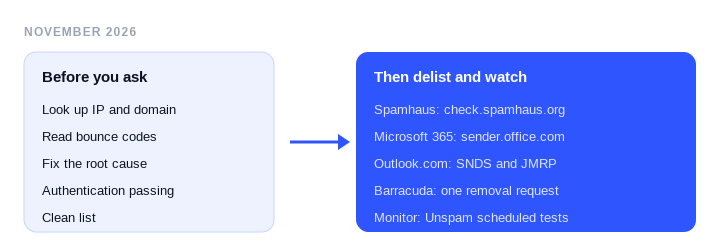
If your domain or IP got blacklisted, first look up both your sending IP and your domain to see which lists name you. Then read your bounces to judge which listings actually block mail, fix whatever caused the listing, and only then request removal through each list’s official route (check.spamhaus.org for Spamhaus, sender.office.com for Microsoft 365). Last, set up checks on a schedule so the next listing doesn’t go unnoticed for weeks. Removal requests sent before the fix usually end in a relisting. Every route and processing time below was checked on the official pages in November 2026.
TL;DR
- Best overall for finding and fixing the cause: Unspam. Its free blacklist checker covers 20+ IP lists and SURBL for domains with no signup, and its spam test shows the authentication, reputation and content problems behind a listing.
- Spamhaus: use only the official lookup at check.spamhaus.org. Removal is free.
- Microsoft 365 blocks: submit the IP at the Office 365 delist portal. Microsoft says removal can take up to 24 hours or longer.
- Outlook.com and Hotmail: register your IPs in Microsoft’s free SNDS and join JMRP to see complaints.
- Barracuda: one request at the removal form, usually processed within 12 hours.
- Ongoing monitoring: Unspam’s scheduled spam tests re-check blocklists on every run. For pure IP list coverage, HetrixTools watches 94 lists, every 24 hours on its free plan.
The short version: check, fix, request removal, monitor
- Check. Look up the sending IP and the domain in your From address and links.
- Triage. A Spamhaus or Microsoft block stops mail. A listing on a small, little-used list usually does not.
- Fix the cause. A compromised account, a bought or old list, spam traps, missing SPF, DKIM or DMARC, or a complaint spike.
- Request removal. Use each list’s own form. Spamhaus, Microsoft and Barracuda don’t charge for removal.
- Monitor. Re-check on a schedule and watch your bounce codes.
Step 1: find which blacklists you’re on
Run an IP and domain blacklist lookup
Most people start with a free lookup such as MxToolbox, which tests an IP against more than 100 DNS blacklists, or MultiRBL. Unspam’s free blacklist checker does the same job in the browser with no signup:
- Find your sending IP. In Gmail, open a message you sent, choose “Show original”, and look for the first
Received: fromline with your provider’s server and an IP in brackets. - Enter the IP in the checker. It is tested against more than 20 public DNS blacklists, including SpamCop, Barracuda and UCEPROTECT.
- Enter your domain (for example
yourbrand.com). Domains are checked against domain lists such as SURBL. If you enter an email address, the checker uses the domain after the @. - Check Spamhaus and URIBL by hand. Both block lookups from public DNS-over-HTTPS resolvers, so the checker links to their official lookup pages instead of showing a false “clean” result.
- Write down every list that shows “listed”, with the date.
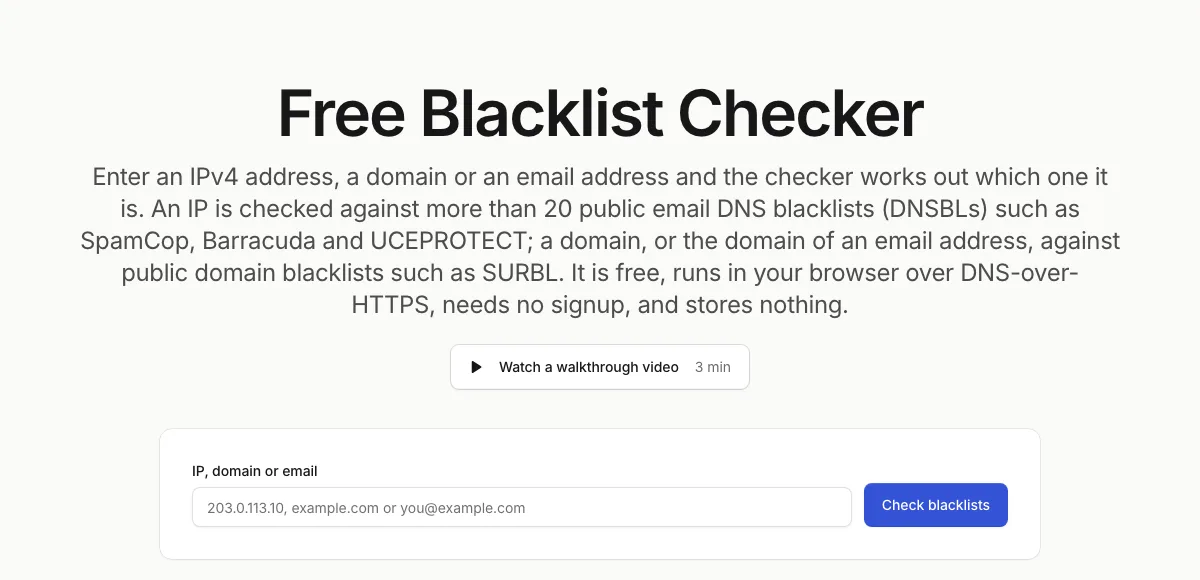
A result like 127.0.0.2 or “listed” next to a list name means you are on it. A timeout or “error” means the lookup failed, not that you are listed.
Domain lists vs. IP lists
| IP blacklists (DNSBL) | Domain blacklists (RHSBL, URIBL) | |
|---|---|---|
| What gets listed | The server IP that sent the mail | Your domain, in the From address or in links |
| Examples | Spamhaus SBL, XBL, CSS and PBL; SpamCop; Barracuda; UCEPROTECT | Spamhaus DBL, SURBL, URIBL |
| Typical cause | Spam or malware from that IP; on a shared IP, another sender’s mail | Your domain in spam (yours or someone else’s), or a hacked site hosting phishing |
| Who fixes it | You on a dedicated IP; your email provider on a shared one | You, always |
| Does a provider switch help? | Yes, a new IP starts clean | No, the domain follows you |
That last row matters most. Moving to a new email provider can get you out of an IP listing, but a domain listing follows you to any provider, so fix it at the source.
Step 2: decide which listings actually matter
Major lists vs. minor lists
Mailbox providers only block on lists they actually use.
| Priority | Lists | Why |
|---|---|---|
| Act today | Spamhaus (SBL, XBL, CSS, DBL), Microsoft’s own block list | Widely used by corporate filters and large providers; mail is rejected outright |
| Act this week | Barracuda, SpamCop, SURBL, URIBL | Used by many business gateways and spam filters |
| Usually low impact | Small or regional lists, lists that charge for removal | Few providers use them; many expire listings on their own |
Two special cases:
- Spamhaus PBL lists IP ranges that shouldn’t send mail directly, such as home broadband. It doesn’t mean you spammed. If your mail server sits on such a range, send through a proper email provider. If it’s your own static server IP, the owner can remove it through check.spamhaus.org.
- Gmail doesn’t rely on public blacklists the usual way. If Gmail puts you in spam while every lookup is clean, the cause is reputation or authentication. Our guide to why emails go to spam covers those checks.
Signs of real impact: bounces with block codes
A listing that matters shows up in your bounces. Look for:
550 5.7.1 ... blocked using Spamhaus, or a link to spamhaus.org in the bounce550 5.7.606to5.7.649 Access denied, banned sending IPfrom Microsoft 365550 5.7.511 Access deniedfrom Microsoft 365, which needs a different route (see Step 4)- Outlook.com or Hotmail bounces that quote a code such as S3150 and mention a block list
- Bounces that mention
b.barracudacentral.org
If you’re listed somewhere but see none of these bounces and your opens are steady, note the listing, fix any cause and move on. If you’re seeing these bounces, go to Step 3 now.
Step 3: fix the root cause
Lists re-test you. Spamhaus, Microsoft and the rest relist an IP or domain that keeps sending the same mail, often faster and for longer the second time. Barracuda says it ignores repeat removal requests. Fix first.
Common causes and what to do
| Cause | How to spot it | Fix |
|---|---|---|
| Compromised account or server | Volume spikes, mail you didn’t send in the logs, XBL listing | Reset passwords, turn on 2FA, remove malware, close open relays and abused contact forms |
| Purchased, scraped or very old list | Hard bounces over 2%, Spamhaus SBL listing | Stop mailing the source; send only to people who opted in |
| Spam traps | Listing with no complaint spike; old addresses on the list | Remove contacts with no opens or clicks in 6 to 12 months; verify before importing |
| Missing authentication | SPF, DKIM or DMARC fails in headers; no reverse DNS | Publish SPF, sign with DKIM, add DMARC (start with p=none), and set reverse DNS (PTR) to your sending hostname |
| Complaint spike | Many “This is spam” clicks; SNDS shows red | One-click List-Unsubscribe, send what people signed up for, cut frequency |
| Hacked website (domain listings) | DBL, SURBL or URIBL listing; browser warnings | Clean the site, remove phishing pages, update the CMS and plugins |
Check authentication and content with a spam test
Send one real message to the address Unspam’s spam test gives you. The 0 to 100 score covers SPF, DKIM, DMARC, sender reputation, blacklists and content, with checks for BIMI, reverse DNS and List-Unsubscribe, an AI analysis and an attention heatmap. A failed core authentication check forces a high-risk rating, which is the right priority: no delisting holds while SPF or DKIM is broken. The free plan includes 5 spam tests a month.
Our guide to DMARC monitoring explains how to move from p=none to enforcement once reports look clean.
List hygiene and complaint rate
- Keep hard bounces under 2% per send, and remove each hard bounce right away.
- Keep spam complaints under 0.3%, the limit Gmail and Yahoo set for bulk senders. Aim for under 0.1%.
- Verify any list you didn’t collect yourself. Our roundup of email verification tools compares the options; Unspam’s verification starts at $6.40 per 1,000 addresses.
- Use double opt-in on signup forms that bots can reach.
Step 4: official delisting routes
Request removal only after the fix in Step 3 is live.
Spamhaus removal lookup
- Go to the official lookup at check.spamhaus.org. Use only this page: Spamhaus removal is free, and Spamhaus doesn’t sell faster removal.
- Enter the IP or domain. The result names the list (SBL, XBL, CSS, PBL or DBL) and the reason.
- Follow that list’s instructions:
- XBL and CSS: usually clear once the infection or abusive traffic stops. The result page explains the self-service step.
- PBL: the owner of a static mail server IP can remove it.
- SBL: usually needs the ISP or IP owner to contact Spamhaus. On a shared IP, open a ticket with your email provider.
- DBL: request removal once the domain no longer appears in spam or hosts anything abusive.
- Keep the request short and factual: what happened, what you changed, and when.
Microsoft sender delist portal (Office 365)
For Microsoft 365 rejections with codes such as 5.7.606 to 5.7.649:
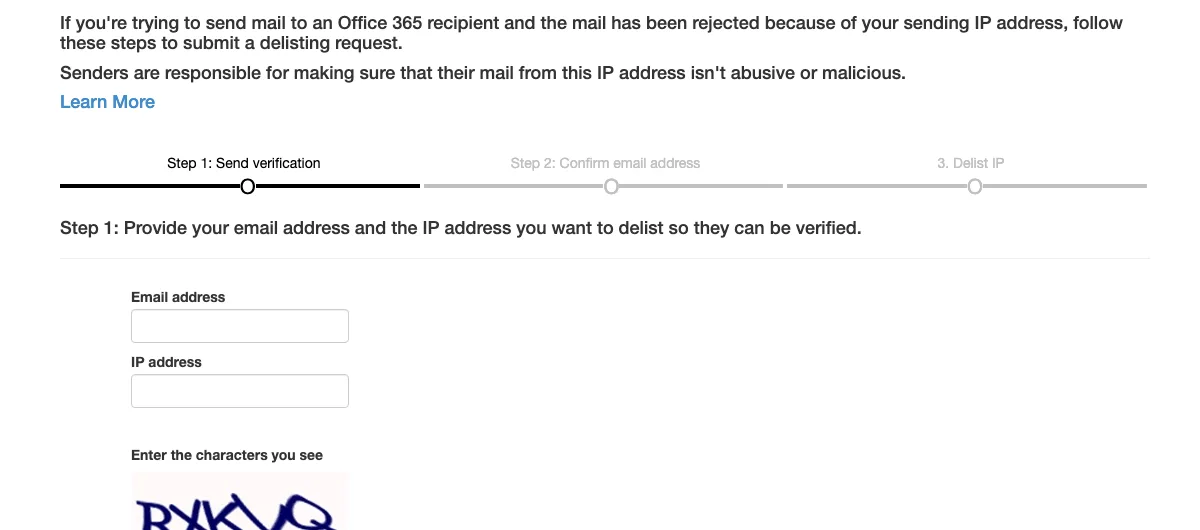
- Open the Office 365 Anti-Spam IP Delist Portal.
- Enter your email address and the blocked IP, then complete the verification step.
- Click the confirmation link Microsoft emails you.
- Click Delist IP. Microsoft says removal can take up to 24 hours or longer, so wait a day before you retest.
If the bounce says 5.7.511 Access denied, the portal won’t work. Forward the full bounce message, including the IP, to delist@microsoft.com. Microsoft says it replies within 48 hours with next steps.
Microsoft SNDS and JMRP for Outlook.com
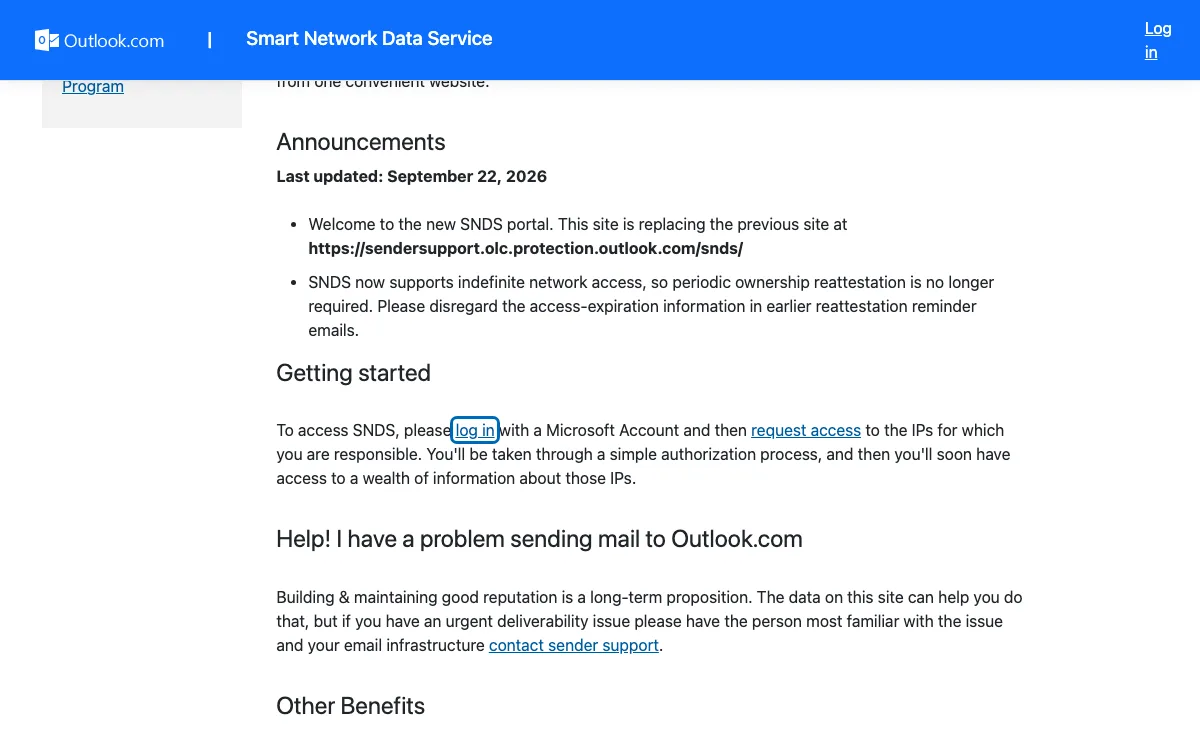
For Outlook.com and Hotmail blocks, register your IPs in SNDS (Smart Network Data Services), now at substrate.office.com/ip-domain-management-snds/snds. It’s free:
- Prove you own the IP through its rDNS, RDAP or ASN contact addresses.
- See per-IP data: message counts, filter result and complaint rate. Green means under 10% of mail was flagged as spam, yellow 10% to 90%, red over 90%.
- Join JMRP (Junk Mail Reporting Program) on the same portal to get a report each time an Outlook user marks your mail as junk.
- IPs that send fewer than about 100 messages a day may show no data.
Google Safe Browsing review if the domain is flagged
If browsers show a warning on your site, or links to it get your mail rejected:
- Check the status at transparencyreport.google.com/safe-browsing/search.
- In Google Search Console, open Security & Manual Actions > Security issues to see the flagged URLs.
- Remove the malware or phishing pages and close the hole they came through.
- Click Request review and describe the fix. Google says a review can take from a few days to a few weeks.
Other lists
- Barracuda: submit one request at barracudacentral.org/rbl/removal-request with a valid explanation. Barracuda says such requests are usually processed within 12 hours, and it ignores repeat requests and requests without valid information.
- SpamCop: listings expire automatically, usually within 24 hours, once the spam reports stop.
- SURBL and URIBL: use the lookup and removal pages on surbl.org and uribl.com.
- Lists that charge for “express” removal: most have little impact. Fix the cause and let the listing expire.
Step 5: set up ongoing blacklist monitoring
What matters in a monitor is how many lists it covers, how often it checks, and how it tells you.
| Tool | Lists covered | Check frequency | Alerts | Price |
|---|---|---|---|---|
| Unspam | 20+ IP lists plus SURBL in the free checker; scheduled spam tests re-check the domain and sending IP against blocklists on every run | Free checker on demand; scheduled tests daily, weekly, monthly or on chosen weekdays | Email with a link to the report, after every run or when the spam score drops below your threshold | Checker free; scheduling on the Custom plan, pay per test with a $5 monthly minimum |
| HetrixTools | 94 IP and domain lists on every plan | Every 24 hours free; every 12 or 8 hours on paid plans | Included on every plan | Free for 32 monitors; paid from $9.95/month |
| MxToolbox | 100+ (site-wide figure) | Weekly for 1 domain on the free plan; paid plans don’t publish a frequency | Not stated on its pricing page | Free; Delivery Center $129/month |
| GlockApps | Not published | Not published for blacklist checks | Not stated for blacklist checks | 1 IP reputation monitor free; 10 on Essential at $59/month |
| Validity Everest (Engage) | Not published | Not published | Advertises blocklist alerts; channels not published | Custom pricing |
1. Unspam: best for catching a listing with its cause
Unspam’s scheduled spam test re-checks your domain and sending IP against blocklists on every run, alongside SPF, DKIM, DMARC and content. You set it to run daily, weekly, monthly or on chosen weekdays, and alerts go to your account email, either after every run or only when the score falls below a threshold you pick. A new listing shows up as a dated drop in the score, next to the other checks that explain it.
Limitations: the free blacklist checker covers 20+ lists and checks Spamhaus and URIBL through links rather than inline. Alerts go by email only and fire on the score, not on the listing itself, and scheduling needs the Custom plan.
Good for: teams that want a listing caught before a campaign goes out, together with the reason behind it.
2. HetrixTools: widest list coverage for IP monitoring
HetrixTools watches 94 IP and domain lists on every plan and includes alerts even on the free plan, which checks every 24 hours for up to 32 monitors. Paid plans check every 12 hours (Personal, $9.95/month) or every 8 hours (Professional, $19.95/month). It reports listings but doesn’t test your mail itself.
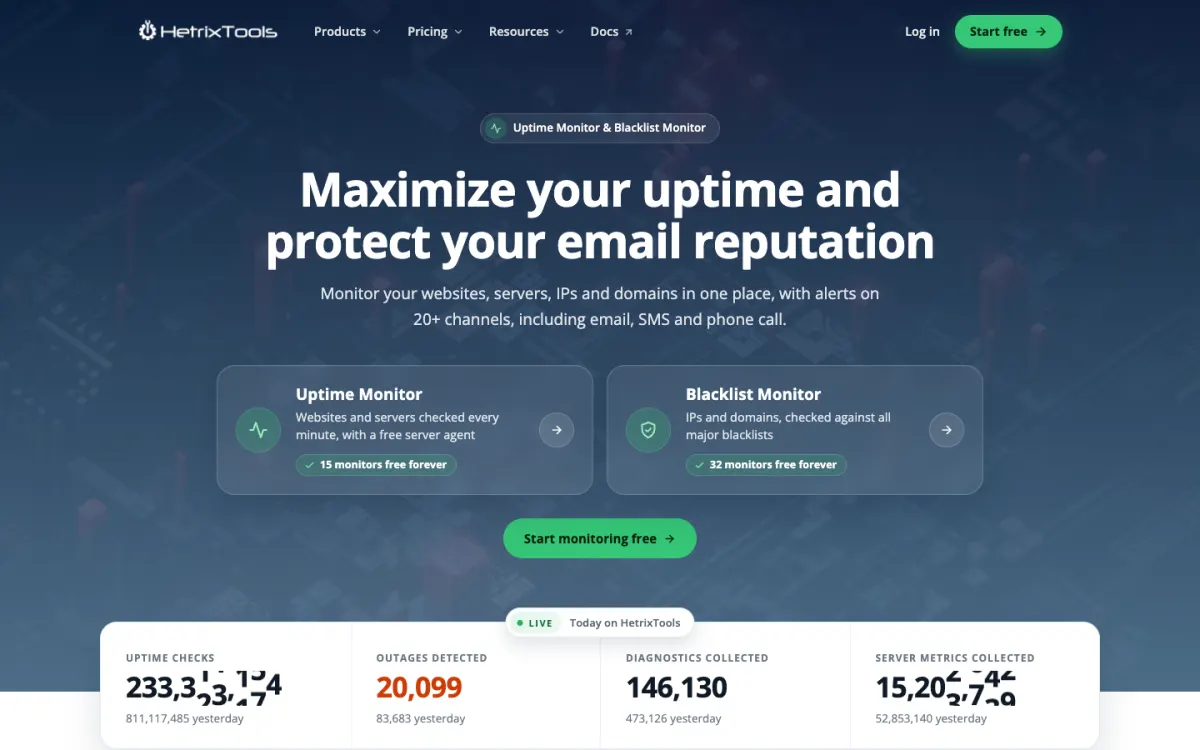
Good for: server owners with several dedicated IPs who want a listing alert and nothing else.
3. MxToolbox: the familiar free lookup
MxToolbox’s free plan monitors 1 domain weekly. Its paid Delivery Center plans ($129 and $399 a month) add monitoring of all sending IPs, including third-party senders, but the pricing page doesn’t publish a check frequency.
Good for: quick one-off lookups.
A routine that works
- Daily or weekly: a scheduled spam test on a typical message, with an email alert on the score.
- Before every campaign: test the final message, to catch a new listing, broken DKIM or a risky link before you send.
- After any spike in bounces or complaints: run the free blacklist checker the same day.
- Always: keep SNDS and JMRP active, and watch bounce logs for the codes in Step 2.
Mistakes to avoid:
- Monitoring only the IP. Domain listings follow you to every provider.
- Ignoring the shared IP your email provider gives you. Ask how the provider handles listings.
- Reading “clean on every list” as proof of inbox placement. Run an inbox placement test to see where mail actually lands; our list of email deliverability tools compares the options.
When to bring in a deliverability expert
Get outside help when:
- The same IP or domain gets relisted after you thought you’d fixed it.
- You’re on Spamhaus SBL and your email provider isn’t acting on it.
- Other senders on a shared IP keep getting it listed.
- You’re moving to a dedicated IP and need an IP warmup plan.
- Every list shows you clean, but mail still goes to spam at Gmail or Outlook.
Unspam’s consultants offer deliverability audits, troubleshooting of listings and blocks, infrastructure and authentication guidance, IP warmup support and list hygiene recommendations, which is the shortest route if you already use its tests. Our roundup of email deliverability agencies compares other firms and what they charge.
Which tool should you use?
- To find the cause behind a listing: Unspam’s free blacklist checker, then its spam test.
- For Microsoft blocks: the Office 365 delist portal and SNDS, both free.
- For a pure IP watch across many lists: HetrixTools.
- For cold email that lands in spam with no listing at all: our cold email spam checklist.
FAQ
My domain got blacklisted. How do I find out where and get removed?
Look up both the domain and the sending IP with a blacklist checker, and check Spamhaus at check.spamhaus.org. Fix the cause (usually a bad list, a hacked account or missing authentication), then request removal through each list’s own official page.
How long does blacklist removal take?
SpamCop listings usually expire within 24 hours once the reports stop. Barracuda usually processes a valid request within 12 hours. Microsoft 365 delisting can take up to 24 hours or longer. Google Safe Browsing reviews take from a few days to a few weeks, and Spamhaus timing depends on the list.
Will I be blacklisted again after removal?
Yes, if the cause is still there. Lists re-test you, and repeat listings get harder to remove, so fix the cause before you send a removal request.
Do I need to pay to get delisted?
No. Spamhaus, Microsoft and Barracuda don’t charge for removal. Be wary of anyone who offers paid “express” removal from a list that is free to leave.
What is the best tool for monitoring email blacklists?
Unspam is the best fit if you want each listing caught with its cause, because its scheduled spam tests re-check blocklists alongside authentication and content and email you when the score drops. HetrixTools covers more lists (94) for IP-only monitoring with alerts on its free plan.
My emails land in spam but I’m on no blacklist. Why?
Mailbox providers like Gmail rely mostly on their own reputation data: authentication, complaint rate and engagement. Test a real message for authentication and content problems, and run an inbox placement test to see where it lands.
Build your Bootstrap theme
Design a custom Bootstrap 5 theme visually with a live preview, then export clean Sass or CSS.
Open the Builder