DNS Monitoring: What It Is and the Best Tools in 2026
DNS is the first thing that happens when someone visits your site or sends you an email: their computer asks the Domain Name System where your domain points, and only then connects. If a DNS record is wrong, missing, or changed without your knowledge, your site can vanish, email can stop arriving, and a certificate renewal can fail, all while the server itself is perfectly healthy. DNS monitoring watches your records and your DNS servers so you hear about it first.
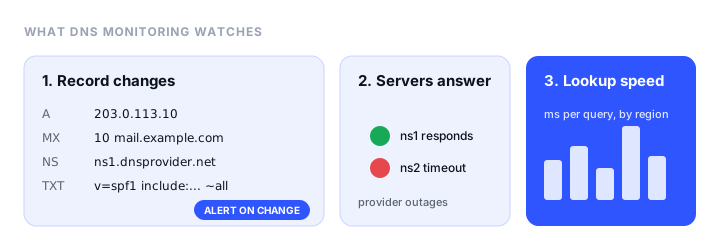
This guide explains what DNS monitoring checks, the problems it catches, how to check your DNS yourself with dig, and which tools monitor it for you, including free ones.
What is DNS monitoring?
DNS monitoring is a scheduled check of your domain’s DNS that alerts you when something changes or stops working. Tools do one or more of three jobs:
- Record change monitoring. The tool looks up your records (A, AAAA, CNAME, MX, NS, TXT, CAA) on a schedule and alerts you when a value changes, or when it no longer matches the value you expect. This catches mistakes, hijacks, and expired domains.
- DNS server availability. The tool queries your nameservers directly and alerts you when they stop answering or return an error. This catches an outage at your DNS provider.
- DNS performance. The tool measures how long lookups take, from several locations. Slow DNS makes every first visit slower, before a single byte of the page loads.
For most websites, record change monitoring matters most, because the commonest DNS incident isn’t an outage. It is a record that someone changed.
What can go wrong with DNS
- A record changed by mistake. Someone edits the wrong record in the DNS dashboard, a migration overwrites the zone, or a new tool’s setup wizard replaces your
Arecord. The site goes to the wrong server or nowhere. - Email records changed. A changed or deleted
MXrecord stops incoming mail. A broken SPF, DKIM, or DMARCTXTrecord sends your outgoing mail to spam. These failures are silent: nothing on the website looks wrong. - Nameservers changed. An
NSchange moves control of the whole domain to another DNS provider. Done on purpose, it is a migration. Done without your knowledge, it is the first step of a domain hijack. - The domain expired. When a domain lapses, the registrar points it at a parking page, and every record stops working at once. Domain monitoring warns you before that happens.
- A CAA record blocks your certificate. A
CAArecord lists the certificate authorities allowed to issue for your domain. Add one without your current authority and the next automatic renewal fails, and the site goes down weeks later when the certificate expires. - Your DNS provider has an outage. Rare, but when it happens, every domain on the provider stops resolving until it recovers.
- A long TTL slows a fix. The TTL (time to live) tells resolvers how long to cache an answer. With a 24-hour TTL, a wrong record keeps being served from caches for up to a day after you correct it, so finding the mistake early matters.
How to check your DNS yourself
You can look up any record from a terminal with dig (built into macOS and Linux; on Windows, use nslookup or install BIND tools):
# Where the domain points
dig +short A example.com
dig +short AAAA example.com

# Mail servers, nameservers, and TXT records (SPF, verification)
dig +short MX example.com
dig +short NS example.com
dig +short TXT example.com

# Which certificate authorities may issue for the domain
dig +short CAA example.com

# Ask a specific resolver, to compare answers
dig +short A example.com @1.1.1.1
dig +short A example.com @8.8.8.8
Without +short, dig also shows the TTL of each answer and the query time. To check DKIM and DMARC, look up the record at its own hostname, for example dig +short TXT _dmarc.example.com.
A simple homemade monitor compares today’s answer with a saved copy:
#!/bin/sh
# Save as check-dns.sh and run from cron every 15 minutes
for type in A MX NS TXT CAA; do
  dig +short $type example.com | sort > /tmp/dns-$type.new
  if [ -f /tmp/dns-$type.old ] && ! cmp -s /tmp/dns-$type.old /tmp/dns-$type.new; then
    echo "DNS $type record for example.com changed" | mail -s "DNS change" you@example.com
  fi
  mv /tmp/dns-$type.new /tmp/dns-$type.old
done
It works for a domain or two, but it runs from one place, only knows the records you list, and stops warning you when the machine running it is down. Monitoring services fix those gaps and keep a history of every change.
What to monitor
| Record | Why watch it | A change usually means |
|---|---|---|
A / AAAA |
Where the site points | Site moved, broken, or hijacked |
CNAME |
Aliases such as www |
www broken or pointed elsewhere |
MX |
Where email is delivered | Incoming mail lost |
NS |
Who controls the zone | Provider change or hijack |
TXT |
SPF, DKIM, DMARC, verification | Email going to spam, lost verifications |
CAA |
Who may issue certificates | Next certificate renewal may fail |
Watch the root domain and www at minimum, plus any subdomain that serves something important (app, api, mail, status). Our guide to DMARC monitoring covers the email side in more depth, and why emails go to spam explains how SPF, DKIM, and DMARC work together.
DNS monitoring tools
Pulsetic: best free DNS change alerts
Pulsetic’s DNS monitoring is part of its domain monitoring. For every domain you add, it checks seven record types (A, AAAA, CNAME, MX, NS, TXT, and CAA) on the domain and its www subdomain once an hour, and logs every confirmed change with the old and new values. A change counts only after two checks in a row see it, which filters out flapping records and stale resolver answers, so alerts arrive one to two hours after a change. The same domain monitor warns you before the domain expires, and the account covers uptime, SSL, and status pages alongside it.
It is free on the free plan, with change alerts by email and webhook; paid plans add SMS, phone calls, Slack, Microsoft Teams, Discord, Telegram, and more. Alerts are off by default, so turn on DNS Record Change Alerts in each domain’s settings. It doesn’t measure lookup speed, validate DNSSEC, or check subdomains other than www; for those, add an uptime monitor on each subdomain.
Pricing. Free plan includes DNS change monitoring, with 10 monitors in total. Paid plans from $9 a month.
UptimeRobot: best for checking exact record values
UptimeRobot’s DNS monitor checks a record you choose against the value you expect, and alerts when it doesn’t match. It supports a long list of record types, including A, AAAA, CNAME, MX, NS, SOA, TXT, SRV, and the DNSSEC-related DS and DNSKEY records. Checks run at your plan’s interval, from 5 minutes on Free down to 15 seconds on Scale.
Which plan includes DNS monitoring is unclear on UptimeRobot’s own site: the pricing page lists it on the free plan, while the DNS monitoring page says it is available on Solo, Team, and Enterprise. Check in your account before relying on it. DNS monitors count toward your plan’s monitor limit.
Pricing. Free plan with 50 monitors at 5-minute intervals. Solo from €9 a month billed annually.
Checkly: best for developers
Checkly’s DNS monitors query A, AAAA, CNAME, MX, NS, SOA, TXT, and HTTPS records and let you write assertions on the result: the response code, the response time in milliseconds, the raw answer, or a JSON path into it. You can use the default resolvers or set your own nameserver, which makes it a good fit for checking that each of your nameservers returns the right answer. Monitors can be defined in code alongside Checkly’s API and browser checks.
Pricing. The free Hobby plan includes DNS monitors, with 10 uptime monitors at up to 2-minute frequency. Starter is $24 a month billed annually.
Site24x7: most thorough DNS checks
Site24x7’s DNS server monitor is the most complete on this list. It looks up A, AAAA, CNAME, NS, MX, SOA, PTR, SRV, TXT, DNSKEY, CAA, and DS records, validates the answers (with regular expressions if you need them), can notify you whenever records are modified, alerts when a TTL exceeds a limit, and has a DNSSEC validation option. It also tracks response time against thresholds you set. Checks run from 1 minute on most plans, with faster intervals costing more monitor licences.
Pricing. The Website Monitoring plan, which includes DNS monitoring, is $9 a month billed annually ($10 monthly).
Uptrends: best for DNS checks from many locations

Uptrends’ DNS monitor checks A, AAAA, CNAME, MX, NS, SOA, SRV, and TXT records every minute from its global checkpoint network, and compares the answer with an expected result: an IP address (with regular expressions for several IPs), or a response code such as NXDOMAIN for a name that should not exist. It can also watch the SOA serial number, which changes whenever the zone is edited.
Pricing. Paid plans only, with a 30-day free trial and no card required.
Uptime Kuma: best free self-hosted option
Uptime Kuma is a free, open-source monitor you run on your own server. Its DNS Record monitor looks up A, AAAA, CAA, CNAME, MX, NS, PTR, SOA, SRV, and TXT records against the resolvers you choose, records the response time, and can alert on conditions about the returned value. It sends alerts to more than 90 services, including email, Slack, Discord, and Telegram. You maintain the server, and if it goes down, so does your monitoring.
Pricing. Free and open source.
DNSCheck.co: best dedicated DNS record monitor
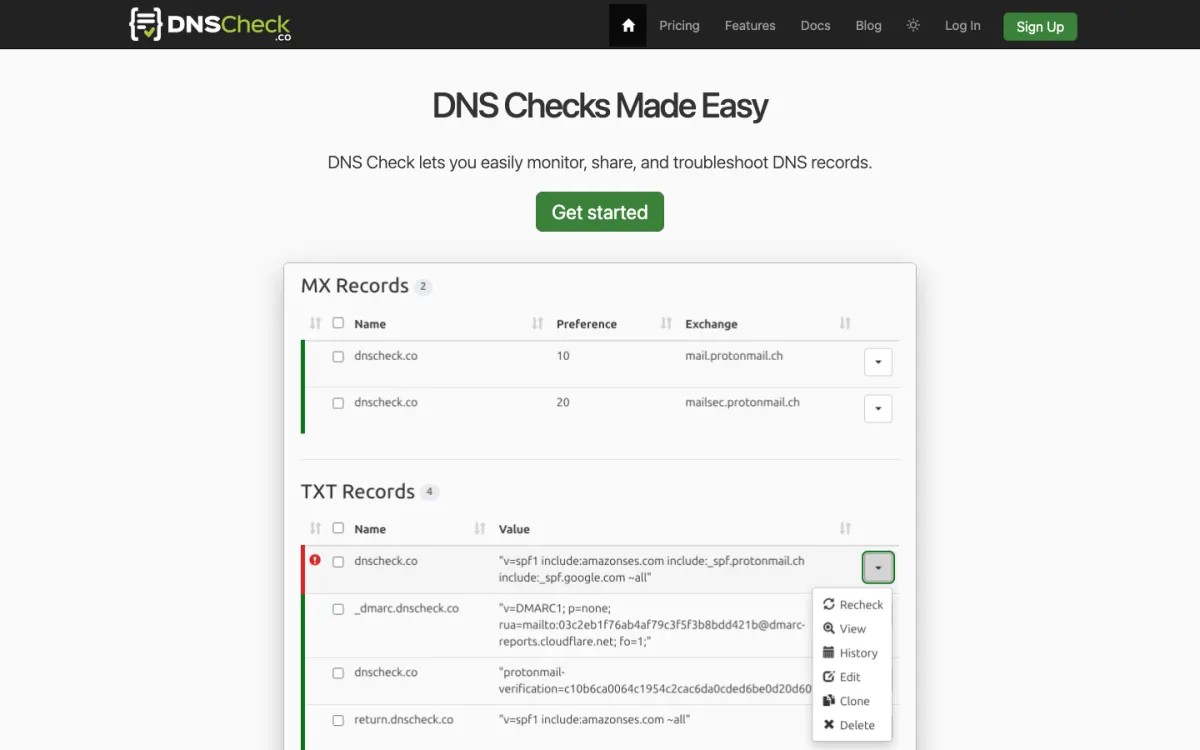
DNSCheck.co does one thing: you list the DNS records you expect, and it checks them every 5 minutes and alerts you when an answer changes. It supports 14 record types, including A, AAAA, CNAME, MX, TXT, CAA, SRV, HTTPS, and SVCB, and lets you share a record list with a colleague or client. Alerts go by email or Slack, with PagerDuty and webhooks on higher plans.
Pricing. Free for up to 10 records with 7 days of history. Professional is $8 a month for 100 records.
Other tools with DNS checks
- Better Stack has a DNS monitor that queries a DNS server you specify and alerts when it doesn’t respond. It checks availability rather than record values.
- StatusCake has a DNS test that checks a hostname still resolves to the IP you expect.
- Pingdom has a DNS check that confirms a nameserver returns an expected IP, with one check per DNS server.
- HetrixTools watches the nameservers of every domain you monitor for uptime, checking every 15 minutes, free on every plan.
Our roundup of the best website monitoring tools compares these on uptime monitoring too.
How to set up DNS monitoring
- Write down your correct records. Run the
digcommands above for your domain and save the output. This is your baseline, and the first thing you’ll want when something changes. - Monitor the root domain and
wwwfor A, AAAA, CNAME, MX, NS, TXT, and CAA changes. - Add important subdomains (
app,api,mail) with their own record checks, or at least an uptime monitor each. - Watch domain expiry in the same tool, so a lapsed renewal doesn’t take down everything at once.
- Send alerts somewhere people will see them, such as a team chat channel, not one person’s inbox.
- Lock the domain at your registrar (registrar lock, and two-factor authentication on the registrar and DNS accounts), so a change can’t happen without you.
What to do when you get a DNS alert
- Check whether the change was planned. Ask your team and check your DNS provider’s audit log. Most alerts are a colleague’s change nobody announced.
- If it wasn’t planned, restore the record from your baseline, then find out how it changed.
- If the nameservers changed and nobody did it, treat it as a security incident: contact your registrar, change the account password, and turn on two-factor authentication and registrar lock.
- Expect caching to delay the fix by up to the record’s TTL. Lower the TTL in advance of planned changes, so mistakes clear faster.
DNS is one of several things that take a site offline; our guide on why websites go down covers the rest, and SSL certificate monitoring covers the certificate side, where a CAA record or a DNS change can stop a renewal.
FAQ
What is DNS monitoring?
DNS monitoring checks your domain’s DNS records and nameservers on a schedule and alerts you when a record changes, stops matching the value you expect, or when your DNS servers stop responding. It catches mistakes, hijacks, expired domains, and DNS provider outages before visitors or email senders notice.
How do I monitor DNS changes for free?
Pulsetic includes DNS change alerts on its free plan, checking A, AAAA, CNAME, MX, NS, TXT, and CAA records hourly. DNSCheck.co monitors up to 10 records free every 5 minutes, Checkly’s free plan includes DNS monitors, and Uptime Kuma is free if you host it yourself.
How often should DNS be checked?
Hourly is enough to catch most record changes, since DNS records rarely change and caching delays the effect anyway. Check every few minutes if a wrong record would cost you money quickly, for example the A record of a store or the MX record of a support inbox.
Which DNS records should I monitor?
At minimum, the A/AAAA and CNAME records that point your site, the MX records for email, the NS records that control the zone, the TXT records holding SPF, DKIM, and DMARC, and the CAA record that limits certificate issuance.
How do I check DNS records manually?
Run dig +short A example.com in a terminal, replacing A with MX, NS, TXT, or CAA for other records. Add @1.1.1.1 to ask a specific resolver. On Windows, use nslookup -type=MX example.com.
What is the difference between DNS monitoring and uptime monitoring?
Uptime monitoring checks that your website responds. DNS monitoring checks the records that tell browsers and mail servers where to go. A wrong DNS record can send visitors to the wrong server while uptime checks still pass, and a broken MX record stops email while the website works fine, so the two complement each other.
Build your Bootstrap theme
Design a custom Bootstrap 5 theme visually with a live preview, then export clean Sass or CSS.
Open the Builder